
When your AirTag stops working after a battery replacement, it can feel frustrating and confusing. You expect a quick fix: swap the battery, close the case, and your AirTag should be ready to track again. Yet, many users find their AirTag unresponsive, unable to connect, or showing errors in the Find My app. This is a common issue, but it’s rarely a sign of permanent damage. Understanding why your AirTag isn’t working after a battery change—and how to fix it—can save time and stress.
In this article, you’ll discover why AirTags often fail after battery replacement, step-by-step troubleshooting, real-world examples, and smart tips most guides miss. You’ll also learn how to avoid mistakes, compare battery types, and confidently restore your AirTag. Whether you use AirTags for keys, bags, or pets, you’ll find practical solutions for every scenario.
Why Your Airtag Stops Working After Battery Replacement

AirTags are simple devices, but they rely on precise battery contact and software signals. When you replace the battery, you might expect instant results. However, several factors can cause issues:
- Incorrect battery type or size
- Battery orientation mistakes
- Dirty battery contacts
- Case not closed properly
- Software sync issues
- Low-quality batteries
- Misreading battery warnings
Understanding these causes is the first step to fixing your AirTag. Let’s break down each problem and see how they affect performance.
Battery Type And Quality
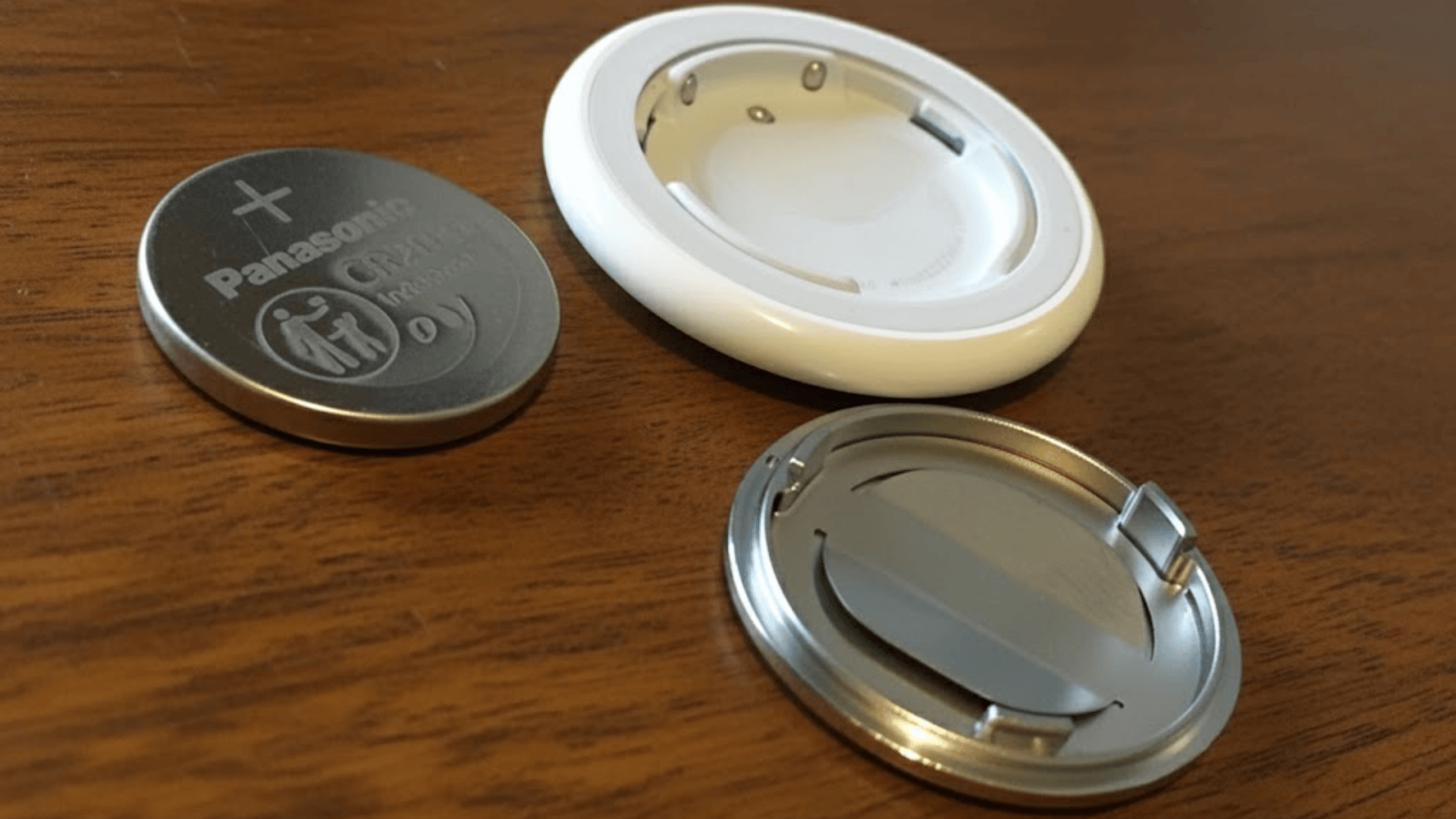
AirTags require CR2032 coin cell batteries. Not all CR2032 batteries are equal. Some have a protective coating (child-safe), which can block connection. Others are from unreliable brands with lower voltage. Apple recommends using uncoated CR2032 batteries. Even slight differences in battery thickness or diameter can prevent proper contact.
Example: A user replaced their AirTag battery with a coated CR2032 from a convenience store. The AirTag showed “Low Battery” immediately, then disconnected from Find My.
It’s also important to note that, even among reputable brands, there can be variations in how well the battery fits. Some off-brand batteries may seem to fit but are just a fraction smaller or larger, causing unreliable connections. These subtle differences can prevent the AirTag from powering on, even though the battery appears to be in place.
Battery Orientation
The positive (+) side must face up, matching the AirTag’s instructions. If you insert the battery upside down, the device won’t power on. This is a common beginner mistake, especially when rushing.
To avoid confusion, always check the small + symbol inside the AirTag before inserting the battery. If you’re replacing multiple AirTags at once, do them one by one to avoid mixing up the orientation.
Battery Contacts
Tiny metal contacts inside the AirTag touch the battery. If these are dirty or bent, the AirTag won’t get power. Dust, sweat, or oil from fingers can interfere. Sometimes, contacts get pushed out of alignment during battery removal.
Some users even find that after a few battery changes, the contacts become slightly loose. If this happens, gently bend them back into place with a toothpick or plastic tool—never use metal tools, as they can damage the contacts.
Case Closure
AirTag’s metal case twists to close. If you don’t align the cover properly or fail to twist until you hear a click, the battery won’t connect. This step is easy to overlook, especially if the cover feels tight.
A useful trick: after closing, gently press the AirTag and listen for a chirp. If you don’t hear anything, re-open and try again. The chirp confirms the contacts are working.
Software Sync And Reset
AirTags need to sync with your iPhone after battery changes. If the battery is dead or the AirTag fails to reset, your phone may not recognize it. Sometimes, the Find My app shows errors like “AirTag Not Reachable. ”
It’s not unusual for there to be a short delay—up to a minute—before the AirTag is recognized again. Patience can help, but if it takes longer, perform a manual reset as explained below.
Low-quality Batteries
Cheaper batteries may have inconsistent voltage. They might work in toys or remotes but fail in an AirTag. Apple’s sensors are sensitive; even a small drop in voltage can cause connection problems.
Some batteries labeled as “high capacity” are, in fact, old stock or have been stored poorly. Check the packaging for manufacturing dates and avoid buying from unknown online sellers.
Misreading Battery Warnings
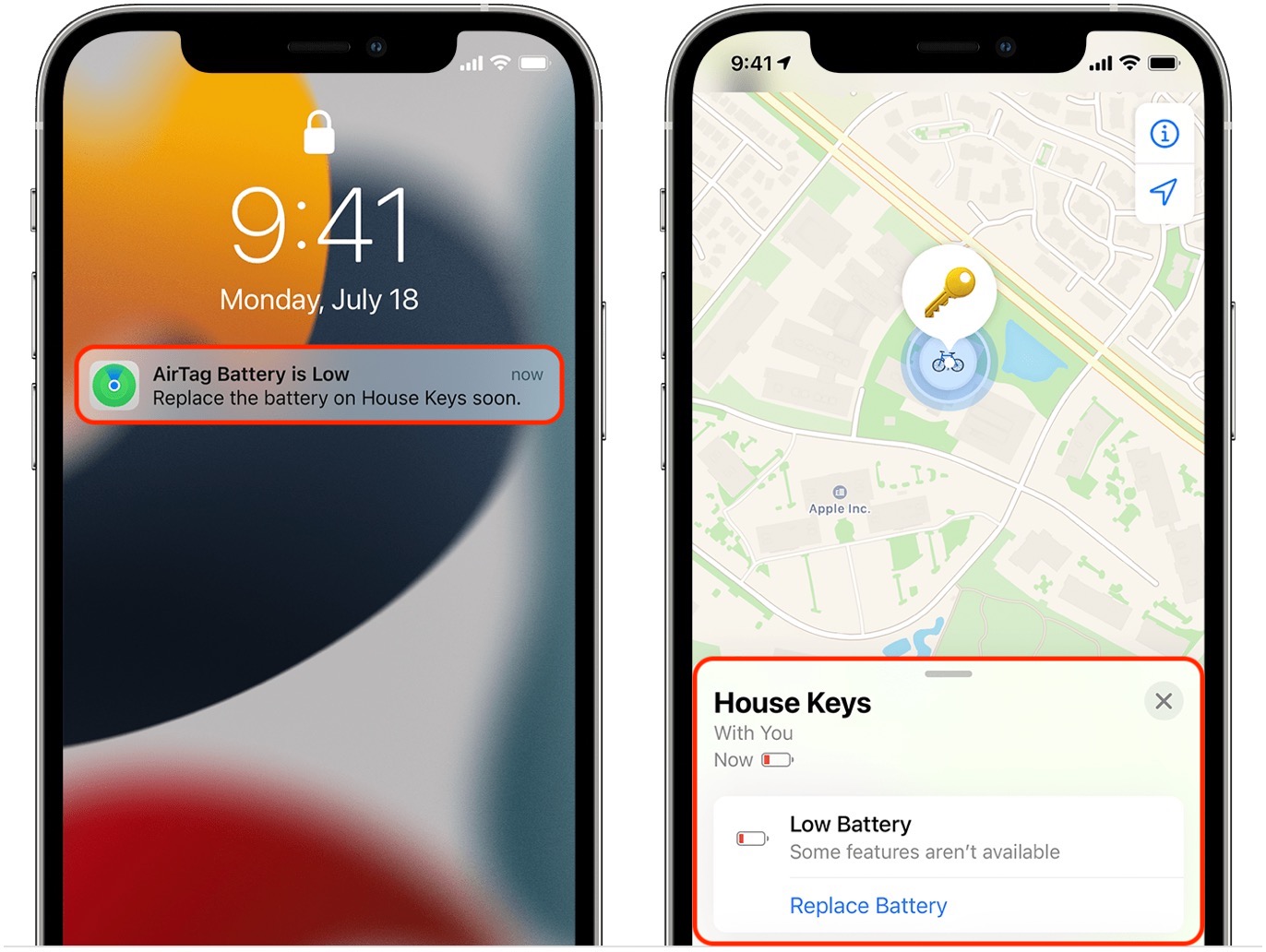
The Find My app sometimes shows “Low Battery” even after replacement. This can confuse users into thinking their AirTag is faulty, when it’s actually a sync issue or a poor battery contact.
If you see the warning, don’t panic. Try removing and reinserting the battery, cleaning the contacts, or performing a reset before assuming there’s a serious issue.
Step-by-step Troubleshooting Guide
If your AirTag isn’t working after a battery replacement, follow these steps in order. Each step addresses a common cause.
1. Check Battery Type
- Use a CR2032 coin cell battery
- Avoid batteries with a child-safe bitter coating
- Buy from trusted brands: Duracell, Energizer, Panasonic
- Confirm battery is new and not expired
Don’t be tempted to use similar batteries (like CR2025 or CR2016); these have a different thickness and voltage, which can damage your AirTag or cause it to malfunction.
2. Inspect Battery Orientation
- Positive (+) side should face up toward the AirTag’s cover
- Negative (-) side faces down into the body
If you’re unsure, look for the small + sign on both the battery and inside the AirTag.
3. Clean Battery Contacts
- Use a dry, lint-free cloth to wipe battery and contacts
- If dirt is visible, gently rub contacts with a cotton swab
- Avoid liquids or sprays
For stubborn residue, a pencil eraser can help remove oxidation from the contacts, but use very gentle pressure.
4. Align And Close The Case Properly
- Place the battery in the AirTag
- Align cover’s three tabs with AirTag slots
- Press and twist clockwise until you hear a click
If you feel resistance or the cover feels loose, try realigning before applying more pressure.
5. Reset Your Airtag
- Remove the battery again
- Wait 30 seconds
- Re-insert the battery
- Press down until you hear a sound (AirTag chirps)
- Repeat this process five times (remove, re-insert, press) for a full reset
This process clears any memory glitches and forces the AirTag to restart. It’s especially useful if the AirTag seems stuck or unresponsive.
6. Reconnect In Find My App
- Open Find My on your iPhone
- Tap Items
- If AirTag appears, tap it
- If not, tap Add New Item and follow instructions
If your AirTag had a custom name or emoji before, it should keep these settings after reconnection. If not, you can rename it during setup.
7. Test With A Different Battery
If all else fails, try a second new battery. Sometimes even new batteries are defective.
It’s rare, but some batteries lose charge on the shelf or during shipping. Always keep a spare from a different batch or brand.
8. Contact Apple Support
If your AirTag still doesn’t work, it may be damaged. Apple Support can help diagnose or replace the device.
If your AirTag is out of warranty, Apple may offer a discounted replacement price. Be sure to have your device serial number ready before you call or visit.
Common Beginner Mistakes
Most users make one or more of these mistakes when replacing AirTag batteries:
- Using coated batteries: These block contact and prevent power.
- Rushing battery insertion: Skipping proper alignment causes failure.
- Ignoring battery expiration: Old batteries may have low voltage.
- Not cleaning contacts: Fingerprints interfere with electrical connection.
- Skipping full reset steps: AirTag needs proper reset after battery change.
In addition, some people try to force the cover closed if it doesn’t fit, which can break the tabs. Always check alignment first.
Avoid these mistakes to save time and avoid frustration.
Comparing Batteries For Airtags
Choosing the right battery is essential for AirTag performance. Here’s a quick comparison of common CR2032 batteries:
| Brand | Coating | Voltage | Average Lifespan | Recommended for AirTag |
|---|---|---|---|---|
| Duracell | Bitter Coating | 3.0V | 12 months | No |
| Energizer | No Coating | 3.0V | 12 months | Yes |
| Panasonic | No Coating | 3.0V | 12 months | Yes |
| Amazon Basics | No Coating | 3.0V | 10 months | Yes |
Always check packaging for coating information. Even popular brands like Duracell offer coated versions that do not work with AirTags.
If you must use a coated battery (for example, if it’s all you have), you can sometimes gently rub the coating on the positive side with an eraser to remove it, but this is not recommended for safety reasons.
Airtag Battery Warning Messages: What They Mean
After changing the battery, you might see warning messages in the Find My app. Here’s how to interpret them:
- Low Battery: The AirTag detects low voltage. Try a new battery or clean contacts.
- No Location Found: The AirTag is not connected. Reset and reconnect.
- AirTag Not Reachable: Move closer to your AirTag. If the problem persists, check battery and reset.
Some warnings can also be caused by software bugs. Restarting your iPhone or updating to the latest iOS version can sometimes resolve these glitches.
Most warnings relate to battery or connection issues. They do not mean the AirTag is broken.
How To Avoid Airtag Battery Problems
Preventing battery issues is easier than fixing them. Here are practical steps:
- Stock up on recommended batteries: Buy CR2032 from trusted brands.
- Store batteries in dry places: Moisture can damage contacts.
- Clean hands before handling: Oils and dirt can interfere.
- Check expiration dates: Older batteries lose power.
- Avoid coated batteries: Always check packaging.
Additionally, avoid dropping AirTags on hard surfaces, as impacts can loosen contacts inside the device.
These habits will keep your AirTag working longer and make replacements smoother.
Credit: boomset.com
Real-world Examples And Insights
Many AirTag users share experiences online. Here are three examples with solutions:
Case 1: Airtag Not Connecting After Battery Change
A user replaced their AirTag battery with a coated CR2032. The AirTag would not connect to Find My. After switching to an uncoated Energizer battery, the AirTag worked instantly.
Insight: Always check for coating and choose batteries that Apple recommends.
Case 2: Airtag Chirps But Doesn’t Appear In Find My
After replacing the battery, the AirTag chirped but was invisible in the app. The user reset the AirTag by removing and re-inserting the battery five times. The AirTag then appeared in Find My and worked normally.
Insight: Full reset steps are essential, especially if the AirTag chirps but doesn’t show up.
Case 3: Airtag Shows “low Battery” With New Battery
A user installed a new Panasonic CR2032, but Find My still showed “Low Battery. ” Cleaning the battery contacts fixed the issue, and the warning disappeared.
Insight: Cleaning contacts is often overlooked but solves many battery issues.
In another example, a pet owner found their AirTag stopped reporting location after a battery change. They discovered that the battery had a tiny spot of oil from their fingers. After cleaning both the battery and the contacts, the AirTag started working again.
This shows how even small details can matter.
Comparing Airtag Battery Problems To Other Trackers
How do AirTag battery problems compare to other Bluetooth trackers? Here’s a quick look:
| Tracker | Battery Type | Common Issues After Replacement | Ease of Fix |
|---|---|---|---|
| Apple AirTag | CR2032 | Coating, contact, reset | Moderate |
| Tile Mate | CR1632 | Orientation, pairing, battery quality | Easy |
| Samsung SmartTag | CR2032 | Case closure, battery quality | Easy |
| Chipolo ONE | CR2032 | Contact, battery quality | Easy |
AirTags are more sensitive to battery type and coating, making proper replacement steps more important.
Some trackers, like the Tile Mate, have more forgiving battery compartments and accept a wider range of batteries. However, AirTag’s tight tolerances mean careful handling is essential.
What To Do If Your Airtag Is Still Not Working
If you have tried all troubleshooting steps and your AirTag still doesn’t work, consider these actions:
- Check warranty: If your AirTag is less than a year old, Apple may replace it.
- Visit Apple Store: Technicians can test the device and offer solutions.
- Replace AirTag: Sometimes, internal damage requires a new device.
It’s worth noting that AirTags are sealed units with very few user-serviceable parts. If the battery compartment or contacts are damaged, repair is rarely possible outside of Apple’s service.
For most users, the solution is simple: use a recommended battery, clean contacts, and follow reset steps. Rarely, hardware problems require professional help.
How Often Should You Replace Airtag Batteries?
AirTag batteries last about one year with normal use. Heavy use (frequent sound alerts or tracking) can reduce lifespan to 8-10 months. Replace batteries as soon as Find My shows “Low Battery” or if the AirTag stops responding.
If you travel often or use your AirTag in extreme temperatures, check battery health every six months to avoid surprises.
Airtag Battery Replacement: Practical Tips
Here are tips to make battery replacement easier and safer:
- Replace batteries in a clean, dry place
- Use a tray to catch small parts
- Check battery orientation twice before closing
- Listen for the click when twisting the cover
- Test AirTag immediately after replacement
If you have more than one AirTag, label them with stickers to avoid mixing up covers or batteries during replacement.
These simple actions prevent common mistakes and keep your AirTag reliable.
How To Safely Dispose Of Used Airtag Batteries
Old CR2032 batteries can leak or harm the environment. Dispose of them in battery recycling bins, not household trash. Many electronics stores accept used batteries. Avoid storing old batteries near children or pets.
Never store used coin batteries in a drawer or pocket, as they can short-circuit if they touch metal objects.

Credit: www.youtube.com
Airtag Battery Replacement: Quick Reference
Here’s a summary of steps for easy battery replacement:
- Open AirTag by twisting cover
- Remove old battery
- Clean contacts and battery area
- Insert new, uncoated CR2032 (positive side up)
- Close cover firmly (twist until click)
- Reset AirTag if needed
- Reconnect in Find My app
Follow these steps every time for hassle-free AirTag use.
Airtag Battery Myths And Facts
Some myths confuse AirTag users. Let’s clear them up:
- Myth: Any CR2032 will work.
- Fact: Coated batteries often fail.
- Myth: AirTag needs special batteries from Apple.
- Fact: Any uncoated, high-quality CR2032 is fine.
- Myth: AirTag stops working after battery change.
- Fact: Most issues are simple to fix.
- Myth: AirTag must be paired again after battery change.
- Fact: Usually, it reconnects automatically.
A less obvious myth: “Shaking the AirTag will fix it.” In reality, shaking can loosen contacts further or cause damage.
Understanding these facts helps you avoid unnecessary stress.
Credit: tidbits.com
Airtag Battery Replacement Statistics
Apple reports that over 15% of AirTag users experience problems after battery replacement. Most cases are due to coated batteries or improper contact. In online forums, the top three issues are:
- AirTag not connecting (45%)
- “Low Battery” with new battery (32%)
- Chirping but invisible in Find My (23%)
These numbers show the importance of proper battery handling.
An extra detail: Online surveys show that after the first failed battery change, over 80% of users succeed on their second try when following Apple’s guidelines.
Airtag Battery Replacement Costs
Replacing AirTag batteries is inexpensive. CR2032 batteries cost between $1 and $3 each. Buying in bulk saves money. Using recommended brands prevents wasted money on replacements.
If you use your AirTag on a pet or valuable item, don’t cut corners—quality batteries are worth the small extra cost for peace of mind.
How Airtag Battery Life Compares
AirTag battery life is similar to other trackers. Here’s a comparison:
| Tracker | Battery Life (Months) | Battery Cost |
|---|---|---|
| Apple AirTag | 12 | $2 |
| Tile Mate | 12 | $3 |
| Samsung SmartTag | 11 | $2 |
| Chipolo ONE | 12 | $2 |
AirTags are cost-effective and have competitive battery life. It’s a good idea to keep replacement batteries on hand if you use multiple trackers.
Advanced Troubleshooting For Persistent Issues
If your AirTag still refuses to work, try these advanced steps:
- Inspect for physical damage: Look for cracks or broken contacts.
- Update iOS and Find My app: Sometimes software updates fix bugs.
- Remove AirTag from Apple ID: In Find My, remove the AirTag and add it again.
- Try pairing with another iPhone: This can reveal if the issue is with your device.
- Contact Apple Support: They can diagnose hardware faults.
If you notice corrosion or greenish residue inside the AirTag, it means moisture has entered. This usually requires professional cleaning or replacement.
These steps are rarely needed, but useful for persistent problems.
Frequently Asked Questions
What Battery Does Airtag Use?
AirTag uses a CR2032 coin cell battery. Apple recommends uncoated versions from brands like Energizer or Panasonic.
Why Does My Airtag Not Work After Replacing The Battery?
Common reasons include using a coated battery, incorrect orientation, dirty contacts, or not closing the case properly. Follow the troubleshooting guide to fix these issues.
How Do I Reset My Airtag After Changing The Battery?
Remove the battery, wait 30 seconds, re-insert and press down until you hear a chirp. Repeat this five times for a full reset.
Can I Use Any Cr2032 Battery For Airtag?
No. Avoid child-safe coated batteries, as they block contact. Use uncoated, high-quality CR2032 batteries.
How Long Does An Airtag Battery Last?
With normal use, AirTag batteries last about 12 months. Heavy use may reduce lifespan to 8-10 months.
Replacing an AirTag battery should be simple, but knowing the right steps and avoiding common mistakes makes a big difference. With this guide, you can confidently restore your AirTag, keep your items safe, and enjoy reliable tracking. If you ever need more technical information, visit Apple’s official support or see detailed battery advice at Apple AirTag Support.