
When you sit down to enjoy your favorite show and find your Apple TV won’t turn on, it’s frustrating. Many people face this issue, whether their Apple TV is new or has been used for years. The problem can be simple, like a loose cable, or more complex, like a hardware fault. In this article, you’ll learn why your Apple TV might not power up, how to troubleshoot step by step, and when to consider professional help. With clear advice and practical examples, you’ll be able to fix most issues without needing advanced technical skills.
Common Reasons Why Apple Tv Won’t Turn On
When Apple TV does not turn on, the cause is usually one of a few things. Knowing the most frequent reasons helps you diagnose the problem quickly.
- Power Supply Problems: Sometimes, the power cord is not connected well, or the power outlet is faulty.
- Remote Control Issues: The remote may have dead batteries, or it’s not paired properly.
- Cable and Connection Faults: HDMI or other cables might be loose or broken.
- Software Glitches: Sometimes, the Apple TV operating system can crash or freeze.
- Hardware Failures: Internal parts like the logic board or power unit can fail, especially in older devices.
It’s important to check each of these areas carefully. Many people focus only on the remote or just the power cable, but problems can come from more than one place.
Quick Checks Before Troubleshooting
Before you start troubleshooting, do some quick checks. These steps often solve the problem within minutes.
- Make sure the power cable is firmly plugged into both the Apple TV and the wall outlet.
- Try a different power outlet to rule out socket issues.
- Confirm that the HDMI cable is secure and connected to both the Apple TV and your TV.
- Test with another HDMI cable if possible.
- Check if the TV input/source is set to the correct HDMI port.
Sometimes, the Apple TV light is on, but there’s no image on your TV. In that case, the device may be working, but the video signal is not reaching your screen.
How To Tell If Apple Tv Is Getting Power
Understanding whether your Apple TV is receiving power is an important first step. You can look for:
- Status light: Most Apple TV models have a small LED light on the front. If the light is on or blinking, the device has power.
- No light: If there’s no light, it’s likely a power issue.
- Blinking light: Repeated blinking can mean a software problem or a failed update.
Check your model because the light location and behavior can be different. For example, the Apple TV HD and Apple TV 4K have a white LED, while older models may have a different indicator.
Here’s a quick comparison of status lights:
| Model | Status Light Location | Light Behavior |
|---|---|---|
| Apple TV HD (4th Gen) | Front, center | White: On, Blinking: Error |
| Apple TV 4K | Front, center | White: On, Blinking: Error |
| Apple TV (3rd Gen and earlier) | Front, right | White or Amber: On, Blinking: Error |
If you see no light, focus on power supply issues first.
Step-by-step Troubleshooting Guide
If your quick checks didn’t work, follow these steps to find and solve the problem.
Check Power Supply And Cables
Unplug the Apple TV power cord from both the device and the wall. Wait 10 seconds, then plug it back in. Try another wall outlet if nothing happens. If you have an Apple TV 4K or HD, use the original Apple power cord, as third-party cables may not fit well or deliver enough power.
Inspect The Hdmi Connection
A faulty HDMI connection can make it seem like the Apple TV is off. Remove and re-insert the HDMI cable at both ends. Try a different HDMI port on your TV. If available, swap to a new HDMI cable.
Some TVs need you to select the input source manually. Use your TV remote’s “Input” or “Source” button to select the correct HDMI port.
Test The Remote
Many users think their Apple TV is off, but the remote simply isn’t working. Charge your Siri Remote for at least 30 minutes using a Lightning or USB-C cable (depending on your model). If you use an older Apple Remote, replace the battery.
To check if the remote is paired, hold the remote close to the Apple TV and press the “Menu” or “Back” button and the “Volume Up” button together for five seconds. If you see a message on the screen, pairing was successful.
Restart Or Reset Apple Tv
If the status light is blinking, the software may have crashed. Unplug the Apple TV for 30 seconds, then plug it back in. If the device starts, but you see errors, you may need to reset it.
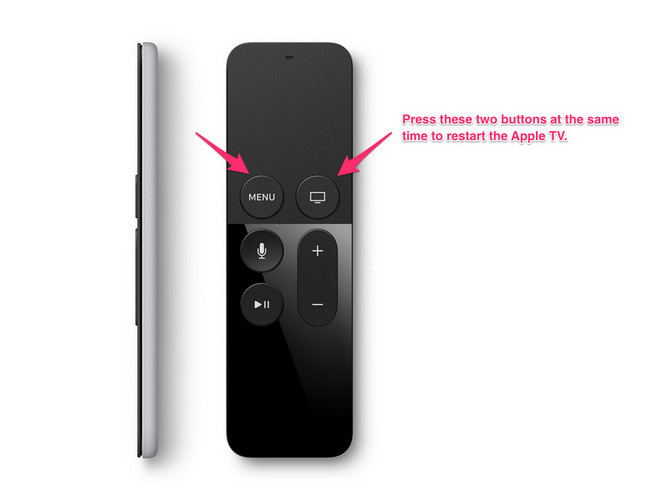
For a forced restart:
- Hold the “Menu” and “TV” buttons (or “Back” and “TV” on newer remotes) together until the light blinks rapidly.
If Apple TV still won’t turn on, you can try restoring it using a computer.
Restore Using A Computer (for Apple Tv Hd And Earlier)
If your Apple TV has a USB-C or Micro-USB port (4th Gen and earlier), connect it to your computer. Use iTunes or the Finder (on macOS Catalina or later) to restore the device to factory settings.
- Connect the Apple TV to your computer.
- Open iTunes or Finder.
- Select the Apple TV and click “Restore Apple TV.”
The Apple TV 4K doesn’t have this port. If it fails, you’ll need to contact Apple Support.
Software And Firmware Issues
Sometimes, the software on your Apple TV can get stuck. Updates may fail, or a crash can freeze the system. In these cases, the device may show a blinking light, or the screen stays black.
If you see a “Connect to iTunes” or “Computer” icon on your TV, it means the software is damaged. Follow the restore steps mentioned above.
For Apple TV 4K, you cannot restore using a cable. Instead, unplug it, wait, and plug it back in several times. If that fails, you must contact Apple for service.
When To Suspect Hardware Failure
If you have tried all the above and your Apple TV still won’t turn on (no light, no sound, no image), it may be a hardware failure. Common signs include:
- No status light after trying several outlets and cables.
- No response from the remote after charging or battery replacement.
- Visible damage, like a burnt smell or cracks.
Older Apple TV models can develop power board issues, while newer ones might face overheating. If your Apple TV is under warranty, contact Apple Support. For out-of-warranty devices, you can get a repair estimate from Apple or a trusted repair shop.
Here’s a brief comparison of service options:
| Service Option | Cost Estimate | Warranty Coverage |
|---|---|---|
| Apple Store Service | $80–$150 | Yes, if under warranty |
| Authorized Repair Center | $60–$130 | Maybe, check first |
| Self-Repair (parts only) | $30–$70 | No |
Smart Tips Most People Miss
Many users overlook small details that can make a big difference. Here are two non-obvious tips:
- Try a different TV: Sometimes, the problem is with your television, not the Apple TV. Test your device on a friend’s TV before assuming it’s broken.
- Check for power surges: Power strips with surge protection can fail over time. Plug the Apple TV directly into the wall to rule out a bad power strip.
Another insight: Some Apple TVs will not power up if the HDMI cable does not support HDCP (High-bandwidth Digital Content Protection). Using an old, non-HDCP-compliant HDMI cable can cause a black screen.
Preventing Future Power Issues
After you solve the problem, you want to avoid it in the future. Here’s how:
- Use original cables: Apple’s cables are made for their devices. Third-party cables often cause problems.
- Keep software updated: Regular updates fix bugs and security issues. Go to Settings > System > Software Updates and turn on automatic updates.
- Avoid overheating: Place your Apple TV in a cool, open area. Overheating can damage internal parts.
- Handle with care: Dropping the device can loosen connections inside.

When To Contact Apple Support
If you have tried all the above and your Apple TV still won’t turn on, it’s time to contact Apple Support. Be ready with this information:
- Apple TV model and generation
- Serial number (on the bottom of the device or in the box)
- Description of what you tried
- Status light behavior
You can reach Apple Support through their website or visit an Apple Store. They may offer a replacement if your device is under warranty.
For further reading and official support, visit the Apple TV Support page.

Frequently Asked Questions
Why Does My Apple Tv Show A Black Screen But The Light Is On?
A black screen with a light on usually means the Apple TV is working, but there’s a problem with the HDMI connection or the TV’s input selection. Check your HDMI cable and make sure your TV is set to the right source. Try another HDMI port or cable if needed.
Can A Bad Remote Cause Apple Tv Not To Turn On?
Yes, if your remote is not working, it can seem like the Apple TV won’t turn on. Try charging the remote or replacing the battery. You can also use the Apple TV Remote app on your iPhone as a backup.
How Do I Know If My Apple Tv Needs Repair?
If you’ve tried all troubleshooting steps and your Apple TV still does not turn on, has no status light, or shows visible damage, it likely needs repair. Hardware failures are more common in older devices or those exposed to power surges.
Is There A Reset Button On Apple Tv?
There’s no physical reset button on most Apple TV models. You can force a restart with the remote (holding Menu and TV/Back buttons) or, for older models, restore using a computer.
Does Apple Tv Have A Warranty For Power Issues?
Yes, new Apple TVs come with a one-year limited warranty. If your device won’t turn on and it’s under warranty, Apple may repair or replace it for free. Check your warranty status on the Apple website.
If your Apple TV won’t turn on, don’t panic. Most problems can be fixed at home with careful troubleshooting. By understanding the common causes, following each step, and knowing when to seek help, you can get back to streaming quickly.
Remember to use quality cables, keep your software up to date, and protect your device from power surges. With the right approach, your Apple TV can provide years of reliable entertainment.