
When you see a blinking light on your Roku, it can feel worrying. Is your Roku broken? Is it a simple problem, or do you need a new device? Many Roku users see blinking lights at some point, and the cause is not always serious. This guide will help you understand what the blinking light means, how to fix the issue, and when to get extra help. Let’s explore why your Roku is blinking, what you can do, and how to get your streaming back to normal.
Understanding Roku’s Blinking Light
Roku devices use lights to show status or problems. A blinking light is one of the most common signals. But not all blinking lights mean the same thing. Some blinks are normal, while others warn of a problem.
- White blinking light: Usually means a problem with the internet or Wi-Fi connection.
- Red blinking light: Often means the Roku is not getting enough power.
- Yellow or blue blinking light: Rare but can signal remote pairing or other connection issues.
The light may blink quickly or slowly. How it blinks gives a clue about the problem. For example, a fast blink can mean a lost connection, while a slow blink may mean a pairing issue. It’s important to notice the color, speed, and location of the blinking light.
Main Reasons For A Blinking Light On Roku
Understanding the cause is key to fixing your Roku. Here are the most common reasons you might see a blinking light:
- Wi-Fi or Internet Problems: If your Roku can’t connect to the internet, it often blinks white.
- Power Supply Issues: A red blinking light means the device isn’t getting enough power, often due to a weak power adapter or USB port.
- Remote Pairing Trouble: Some Roku models blink to show the remote is trying to pair, or is unable to connect.
- HDMI Problems: If your Roku is plugged into a TV’s HDMI port that doesn’t provide enough power or has issues, it may blink.
- Device Overheating: Some Roku devices blink to warn when they are getting too hot.
- Firmware or Software Errors: Rarely, a software update or bug can cause blinking lights.

What Does Each Blinking Light Mean?
Not all blinks are equal. Here’s a quick breakdown:
| Light Color | Blinking Pattern | Common Meaning |
|---|---|---|
| White | Fast Blink | Wi-Fi/Internet issue |
| Red | Slow Blink | Low Power |
| Yellow/Blue | Intermittent Blink | Remote Pairing |
| White (solid or slow blink) | Steady or slow | Normal boot or update |
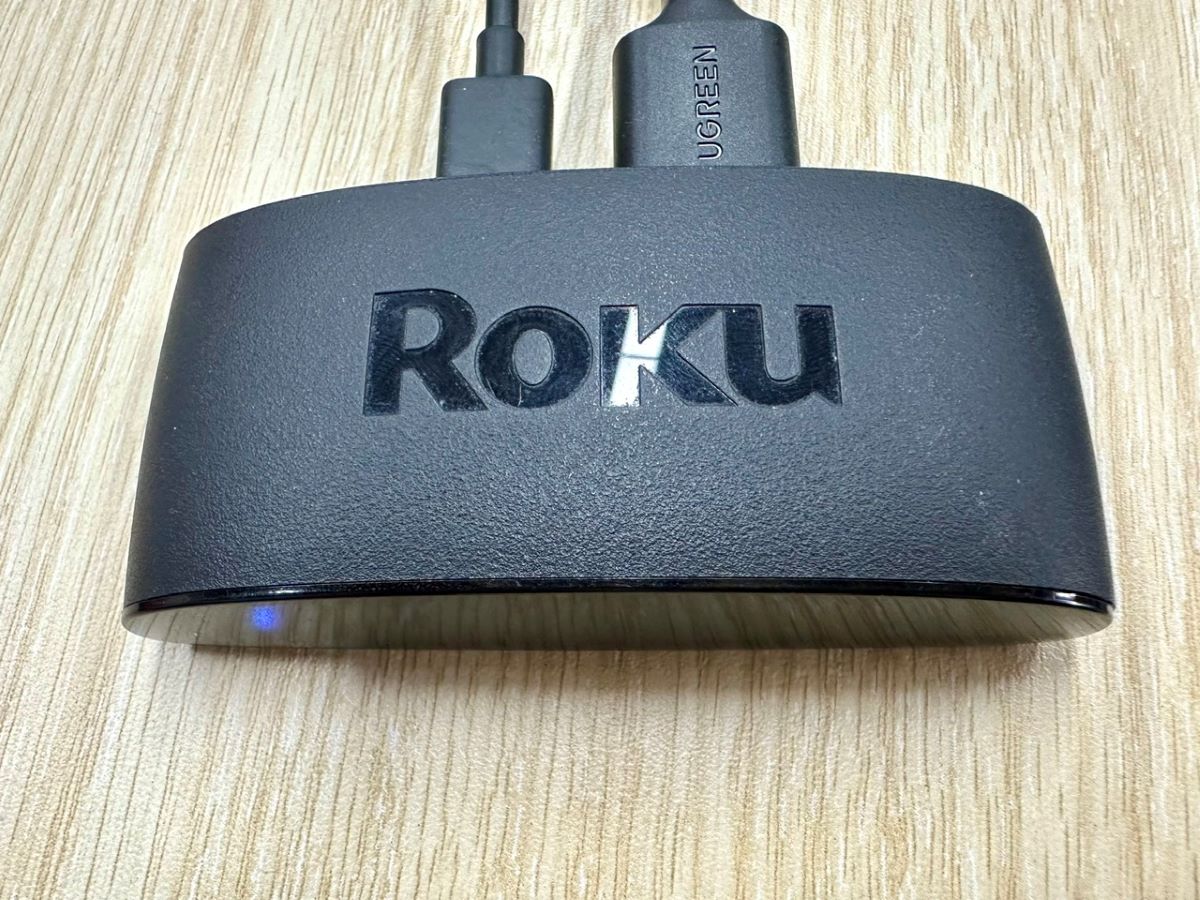
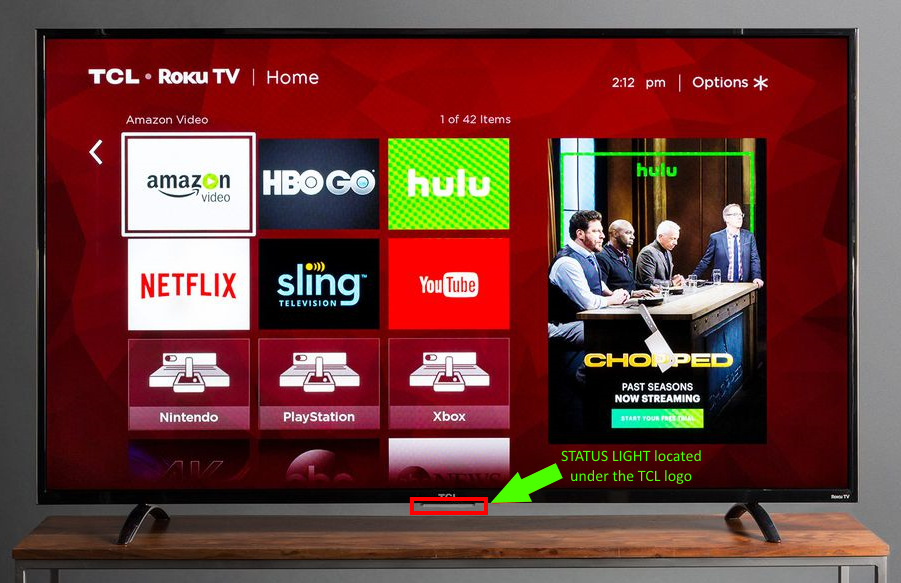
Sometimes, Roku models have the light in different places. On streaming sticks, it’s near the HDMI connector. On larger players, it’s on the front or top.
How To Troubleshoot A Blinking Light On Roku
Now, let’s look at clear steps to fix the blinking light problem, no matter the cause.
Check The Power Source
A red blinking light usually means power problems. Here’s what you can do:
- Use the original Roku power adapter. Don’t use a random phone charger.
- If you’re powering Roku from your TV’s USB, try plugging it into a wall outlet instead.
- Check the power cable for any damage or loose connections.
A common mistake is using the TV’s USB port, which often doesn’t provide enough power for Roku.
Fix Internet Or Wi-fi Connection
A white blinking light points to Wi-Fi trouble. Try these steps:
- Restart your Wi-Fi router and Roku device.
- Move the Roku closer to your router if possible.
- Check if other devices (like your phone or laptop) have Wi-Fi.
- Forget and reconnect to your Wi-Fi on the Roku settings menu.
If your Roku connects via Ethernet, check the cable and try another port on your router. Also, make sure you’re using the correct Wi-Fi password.
Resolve Remote Pairing Issues
If you see a yellow or blue blinking light, it’s likely a remote pairing issue.
- Remove the batteries from your remote and put them back.
- Press the pairing button (usually inside the battery compartment) for 5 seconds.
- Wait for the pairing light to blink, then watch your TV for a pairing notification.
Don’t forget, some Roku remotes pair only with certain Roku models. Check compatibility if you replaced your remote recently.
Inspect Hdmi And Tv Connections
Sometimes, the Roku blinks due to HDMI issues.
- Try plugging your Roku into a different HDMI port.
- Use a different HDMI cable if you have one.
- Make sure the HDMI port is clean and not damaged.
A less obvious tip: Some TVs have “low power” HDMI ports. Use a port labeled “HDMI ARC” or a main input for best results.
Let The Device Cool Down
If your Roku feels hot and blinks, overheating might be the reason.
- Unplug the device and let it cool for 10–15 minutes.
- Place it in a spot with better airflow.
- Avoid stacking other electronics on top of your Roku.
Remember, streaming in 4K or keeping the Roku on for days can make it hotter.
Update Or Reset Your Roku
Sometimes, software bugs or a failed update cause blinking lights.
- Go to Settings > System > System update and check for updates.
- If your Roku is frozen, unplug it for 30 seconds, then plug it back in.
- As a last resort, do a factory reset. This erases all settings, so use it only if nothing else works.
To factory reset: Press and hold the reset button (on the device) for about 10 seconds. Follow the on-screen steps.
When To Contact Support
If you’ve tried these steps and the blinking continues, it may be a hardware fault. Contact Roku support or visit the official Roku support site for help. Sometimes, a warranty replacement is needed.
Comparison: Common Roku Blinking Light Situations
Here’s a quick comparison of what different blinking lights usually mean:
| Situation | Light Color | User Action | Chance of Needing Repair |
|---|---|---|---|
| Wi-Fi Lost | White | Check router, reconnect | Low |
| Not Enough Power | Red | Switch power adapter | Medium |
| Remote Not Pairing | Yellow/Blue | Pair remote again | Low |
| Device Overheating | White (sometimes red) | Cool down device | Medium |
| Firmware Error | Any | Restart/Reset device | Low-High (depends on model) |
Tips To Prevent Blinking Light Problems
You can avoid many blinking light issues with simple habits:
- Always use the original power supply.
- Keep your Roku in a cool, open space.
- Update your Roku software regularly.
- Don’t unplug your Roku during updates.
- Use strong, stable Wi-Fi.
An insight many users miss: Power problems are more common than you think. Even slight changes in your home’s power supply or using a cheap charger can trigger blinking lights.
Real-world Example: Solving A Blinking White Light
Let’s look at a real example. A user noticed their Roku was blinking white and not loading channels. They tried restarting the device, but the problem continued. After moving the Roku closer to the router and reconnecting to Wi-Fi, the light stopped blinking. The cause? Their router had been moved behind a thick wall, which blocked the signal. This shows that signal strength can change over time, even if your setup seems fine.
Extra Troubleshooting: Hidden Issues And Solutions
Some blinking light problems are less obvious. Here are two that many beginners miss:
- USB Power from Soundbars or Game Consoles: If you plug Roku into a USB port on another device (like a soundbar or Xbox), it might not get steady power. Always use a direct wall outlet.
- Interference from Other Devices: Microwaves, cordless phones, and even some LED lights can interfere with Wi-Fi. If your Roku blinks only at certain times, check for these devices in use nearby.
A practical tip: If you live in an apartment, neighbors’ Wi-Fi can crowd your channel. Try changing your router’s Wi-Fi channel in the settings for a stronger connection.
When Is It Time For A New Roku?
Most blinking light issues can be fixed. But if your Roku is over 5 years old, or you’ve tried all troubleshooting steps, it may be time for a new device. Newer models have better Wi-Fi, more stable power, and improved cooling. If you see repeated red blinking after every fix, this is a sign the hardware is failing.
Frequently Asked Questions
Why Is My Roku Blinking But Working Fine?
A blinking light can sometimes mean a minor connection issue or a background update. If your Roku works normally, it’s usually not a big problem. Still, check for updates and make sure your Wi-Fi is strong.
My Roku Blinks Red Even When Plugged Into The Wall. What Should I Do?
A red blinking light means low power. Try a different wall outlet and make sure you’re using the original power adapter. If the problem continues, the internal power supply may be failing.
How Do I Know If My Roku Needs Repair Or Replacement?
If your Roku keeps blinking after all fixes, or won’t turn on at all, it may need professional repair or replacement. Devices older than 5 years are more likely to fail. Contact Roku support if you’re not sure.
Does A Blinking Light Always Mean A Problem?
Not always. Some Roku devices blink during updates or pairing. But if the blinking continues after a restart or affects performance, it’s a sign you should check for issues.
Can I Use Any Charger Or Cable With My Roku?
You should always use the original charger and cable that came with your Roku. Cheap or wrong chargers often cause power problems and can damage your device.
If you follow the steps and tips above, you’ll have a clear path to fix any blinking light on your Roku. Most issues are simple to solve and don’t require special tools or deep tech skills. With a little patience, you can get your streaming back on track and enjoy your favorite shows again.