
Your Garmin watch not recording sleep usually happens because your sleep window is set incorrectly or your device isn’t set as your primary wearable. To fix this, confirm your scheduled sleep times in the Garmin Connect app and ensure the “Preferred Activity Tracker” toggle is turned on for your specific watch. If the watch can’t find your pulse or movement patterns during the night, it won’t log a sleep session. This error often occurs when the band is too loose, preventing the optical sensor from reading your heart rate accurately.
Why your Garmin watch not recording sleep

The main reason your watch fails to track sleep is a misalignment between your actual sleep patterns and the “Sleep Window” settings in your app. Garmin devices rely on a preset time range to monitor for inactivity and heart rate variability. If you go to bed significantly earlier or later than the window you defined, the software may ignore the data or fail to trigger the sleep mode entirely.
Another common cause is the “Preferred Activity Tracker” setting. If you own multiple Garmin devices, the system must know which one to prioritize for wellness metrics. If this is disabled or set to a different device you aren’t wearing, your current watch won’t send sleep data to the cloud.
Finally, physical fit matters. For the Garmin sleep tracking accuracy to work, the optical heart rate sensor must maintain constant contact with your skin. If the watch band is too loose, the sensor creates gaps that allow ambient light to interfere with the pulse detection. When the device can’t detect a consistent heart rate, it assumes you have taken the watch off and stops tracking. This varies by model — check the label on your watch back to ensure the sensor is clean and free of debris, as sweat buildup or dust can also block the sensor’s light path during the night.
Update your sleep window
You should adjust your sleep schedule if your lifestyle changes. This fix is for users who have a consistent, yet different, sleep pattern than what is currently saved in the Garmin Connect app.
To update this, open the Garmin Connect app on your smartphone and select the “More” or “Menu” icon. Navigate to “Garmin Devices,” choose your specific model, and then look for “User Settings” or “Sleep Settings.” Here, you’ll find the start and end times for your typical night. If you work night shifts or have a flexible schedule, set these times to cover the period when you’re most likely to be in bed.
After saving these changes, sync your watch manually by pulling down on the main dashboard in the app. You’ll know this worked if the “Sleep” widget on your watch or app begins to populate data after your next full night of rest. If you’re a shift worker, keep in mind that some older Garmin models only track sleep within a single 24-hour cycle. If you have a newer model, it handles naps and irregular patterns better, but it still requires the primary sleep window to be reasonably accurate to start the recording process. If you find the data is still missing, check if your watch is in “Battery Saver” mode, as this often disables the heart rate sensor to save power.
Verify your primary wearable
If you use more than one Garmin device, the server might be confused about which one should record your sleep. This fix is for anyone who recently switched watches or uses an older device for daily tracking while using a different one for sports.
Open the Garmin Connect app and tap the device icon at the top of the screen. Look for the “Preferred Activity Tracker” option. If you see multiple devices listed, ensure the one you wear to bed is selected as the primary tracker. This ensures that the sync process prioritizes data from the correct sensor array. Without this setting enabled, the app may ignore the sleep data coming from your watch in favor of a different device that’s sitting on your nightstand.
Once you select the correct watch, sync the device again. You can verify the change by checking if your daily steps and heart rate are appearing correctly on the main dashboard for that specific watch. If you have a device that isn’t syncing at all, restart your Bluetooth connection by toggling it off and on in your phone settings. Note that if your watch has a low battery, it may prioritize basic timekeeping over sensor-heavy tasks like sleep tracking. If you’re below twenty percent battery, charge the device fully before bed to ensure the sensor stays active throughout the entire night.
Enable heart rate monitoring
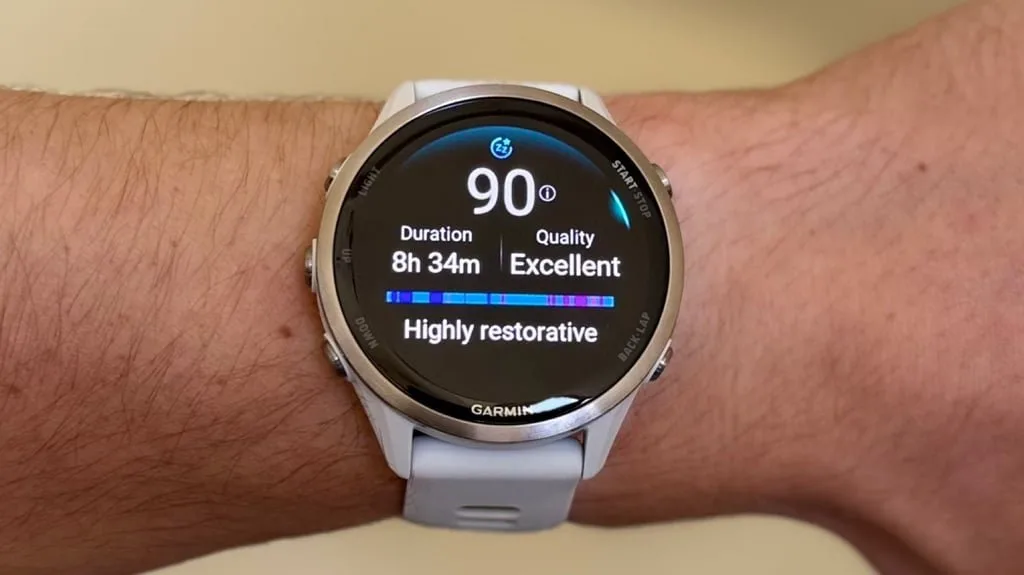
This fix is for users who have disabled continuous heart rate monitoring to save battery. Without a steady stream of pulse data, the watch can’t detect the physiological markers of sleep.
Go into the settings menu directly on your watch, not the app. Look for “Sensors & Accessories” or “Wrist Heart Rate” and ensure the status is set to “Auto” or “On.” If this is set to “Off,” the watch will only track your heart rate during manual activities like running or cycling, leaving your sleep data completely blank.
This is a trade-off: keeping the heart rate sensor on 24/7 will reduce your total battery life by a few days, but it’s necessary for advanced health features. If you find that the battery drain is too high, check if your device has a “Smart” recording mode, which balances accuracy and power usage. Who this is NOT for: if you have a medical condition that requires high-precision clinical sleep monitoring, a consumer-grade smartwatch isn’t a substitute for a professional sleep study. If you suspect you have a sleep disorder like apnea, talk to your doctor rather than relying on the data from your wrist. If you have tried these settings and the watch still doesn’t record your sleep, you may need to perform a hard reset, but be aware that this will erase your local activity history.
What not to do
- Don’t wear the watch too high on your wrist. The sensor needs to sit on the fleshy part of your arm above the wrist bone to maintain a steady signal.
- Don’t rely on third-party sleep apps if the native Garmin tracking is failing. These often conflict with the native software and cause the sync to fail entirely.
- Don’t disable the “Activity Tracking” toggle in the app. This is the master switch for all daily metrics, and turning it off stops the watch from logging movement, steps, and sleep.
- Don’t assume your watch is broken if it misses one night. A temporary sync error can happen if your phone loses internet during the upload process, so wait for a second night before troubleshooting.
How to stop it happening again
To keep your sleep data consistent, follow a regular routine for syncing your device and checking your sensor status.
| If you’re doing this | Do this instead | Why |
|---|---|---|
| Wearing the band loosely | Tighten by one notch | Better sensor skin contact |
| Syncing once a week | Sync every morning | Prevents data buffer overflow |
| Ignoring software updates | Update via Garmin Express | Fixes known sensor bugs |
| Keeping watch in battery saver | Disable during sleep | Allows heart rate tracking |
Most users fail because they underestimate the impact of sensor gaps. If your heart rate data shows a flat line for more than ten minutes, the algorithm discards the entire sleep cycle. You can verify your sensor health by checking the “HRV Status” graph in your app. If you see frequent gaps, move the watch one inch higher up your wrist, away from the prominent wrist bone. This shift ensures the optical sensor maintains constant capillary contact. If you wake up and the data is still missing, restart the watch immediately. This clears the cache and prevents the same error from compounding over the next night.
Frequently asked questions
Can I track naps on my Garmin watch?
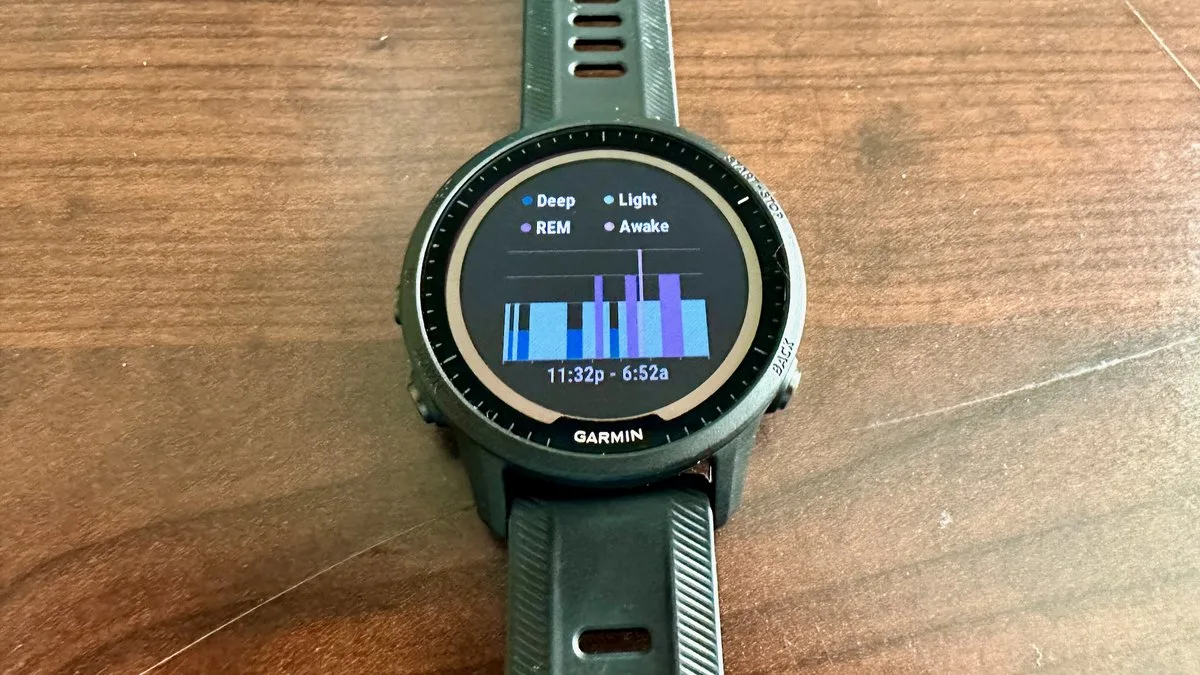
Yes, most newer Garmin models track naps automatically if they last longer than twenty minutes. The watch uses heart rate variability and movement to identify your sleep state. If it fails to record, check the “Naps” section within the “Sleep” tab in your app.
Why does my watch show sleep when I was awake?
Your watch may mistake inactivity for sleep if you’re sitting still for long periods. It detects a lack of movement and a lowered heart rate to log these sessions. You can manually edit your sleep and wake times by selecting the sleep card in the Garmin Connect app.
Is it safe to wear the watch all night?
Yes, it’s safe to wear your watch while you sleep if the band isn’t too tight. Garmin devices use low-energy optical sensors that don’t pose a health risk. If you notice skin irritation, clean the watch back and your wrist with mild soap and water.
How long should the battery last with sleep tracking on?
Expect a battery reduction of ten to fifteen percent per night when using sleep tracking. Most watches are designed to handle 24/7 monitoring without significant drain. If your battery drops by more than twenty percent, check for background apps or pending updates that may be causing issues.
What happens if I forget to wear the watch to bed?
If you don’t wear the watch, it will record no data and your sleep metrics will remain empty. You can’t manually add a sleep session from scratch because the data must come from the sensors. You may be able to sync data from other devices through third-party integrations.
Why is my sleep score missing?
Your sleep score is missing if the watch failed to capture enough high-quality data to calculate sleep stages. This typically happens due to sensor blockage or excessive movement during the night. Ensure your “Sleep Window” is set correctly in the app to help the watch confirm your sleep.
Final Thoughts
If the issue persists after these adjustments, try wearing the strap one notch tighter tonight to help the sensor stay in place. You shouldn’t have to struggle with your data for long. If it still doesn’t work, don’t hesitate to reach out to Garmin’s support team for more personalized technical help.
Related guides
- Vizio Watch Free Plus: Unlock Endless Streaming for Free
- Crosley Record Player Problems: Quick Fixes and Expert Tips