
Most users resolve Hisense Tv Volume Problems by checking their external device settings or performing a simple power cycle on the television. These issues usually stem from a mismatch between the source device and the TV audio output, rather than a permanent hardware failure. If your volume is stuck or silent, start by unplugging the TV from the wall for sixty seconds to reset the internal software.
| Cause | How common | How to confirm it | Fix it yourself? |
|---|---|---|---|
| Muted external device | Very common | Check remote volume | Yes |
| Wrong audio output | Common | Check settings menu | Yes |
| Software glitch | Common | Unplug for 60s | Yes |
| Loose HDMI cable | Occasional | Inspect physical connection | Yes |
| Corrupt firmware | Rare | Check update status | Yes |
| Internal speaker failure | Very rare | Test via headphones | No |
Fixing Hisense volume connection and setting problems
Most audio issues start because a connected device, such as a cable box or gaming console, has its own volume control set to zero. Even if your Hisense remote works, the TV can’t amplify a signal that arrives as silence. You should check the volume on the source device first. If you use an external soundbar, ensure the TV audio output is set to “ARC” or “Optical” in the Sound menu.
If you’re using an HDMI connection, the TV must handshake with the external device to pass audio correctly. When the handshake fails, the TV might show a signal but play no sound. To fix this, turn off both the TV and the external device. Unplug the HDMI cable from both ends and wait for two minutes. Plug the cable back in firmly, then power on the TV first, followed by the external device. This allows the devices to re-establish their digital connection.
A common mistake is assuming all HDMI ports support the same audio standards. If you’re using a high-end soundbar, verify that you’re plugged into the port labeled “ARC” or “eARC.” Connecting to a standard input port will often result in a silent output or a compressed stereo signal. If the sound returns, keep the original cable. If it does not, try a different HDMI port on the back of the set. This varies by model; check the label on the side or back for port-specific audio limitations. If the issue persists on all ports, the source device’s output format is likely set to an incompatible codec like bitstream instead of PCM.
Software errors and system resets
A temporary software error is the most frequent cause when the volume bar appears on the screen but doesn’t change the loudness. This happens when the TV’s processor stops responding to audio commands. You can clear this by performing a hard power reset. Simply turn the TV off, unplug it from the wall outlet, and wait for at least one full minute to allow the system to fully power down.
If the volume bar doesn’t appear at all when you press the remote, the issue is likely a hardware pairing failure rather than a software glitch. In this case, replace the remote batteries before attempting a system reset. If the bar appears but stays stuck at zero, check your external source device, such as a cable box or gaming console. If the volume works on the TV’s internal apps but not through an HDMI input, the error lies within the source device’s handshake protocol.
If the sound remains missing after a power cycle, verify if your model requires a firmware update. Manufacturers release these updates to fix known bugs in the audio processing software. You can usually find the update section under the “System” or “Support” tab in your TV’s settings menu. Don’t turn the TV off during this process, as it can corrupt the installation. This fix is for software bugs only; it won’t repair damaged speakers or faulty internal circuits.
Audio output configuration limits
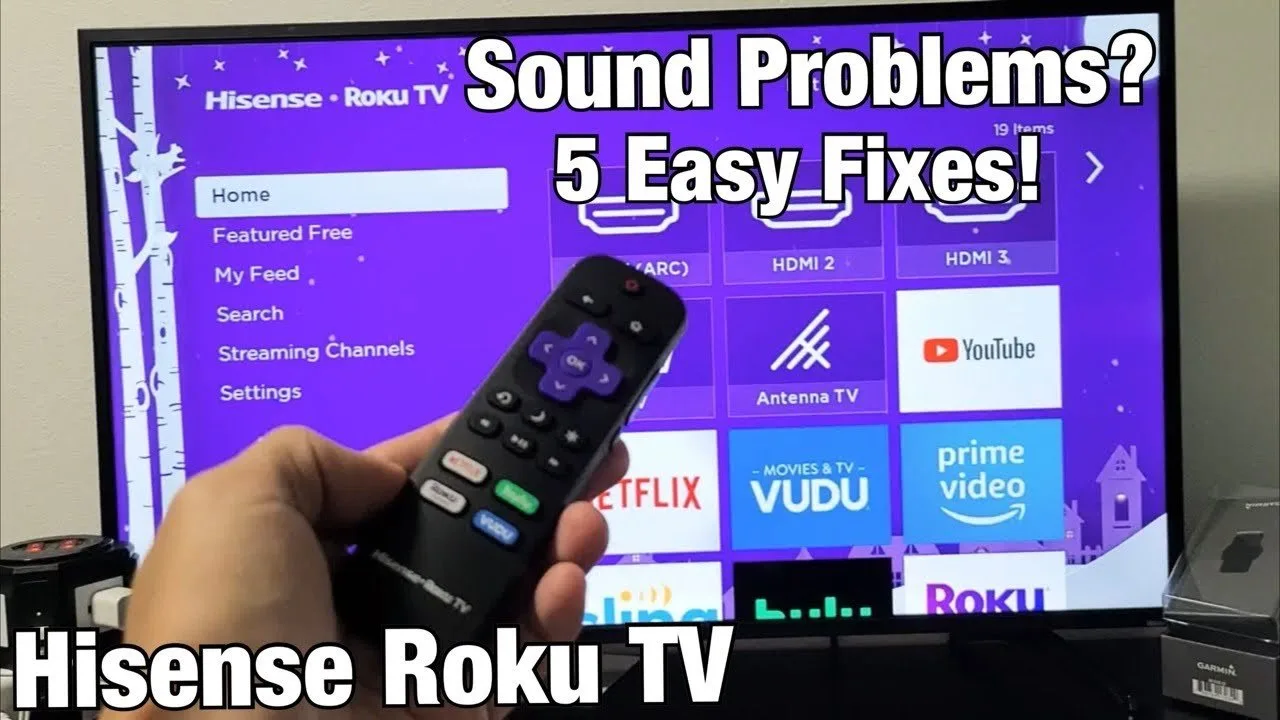
The audio output setting dictates where the TV sends its signal, and selecting the wrong one will lead to total silence. Many modern TVs allow you to toggle between internal speakers, HDMI ARC, or Bluetooth headphones. If you accidentally switch this to an inactive output, the internal speakers will cut out. You can verify this by opening the Sound menu and confirming that “Internal TV Speakers” is selected as the primary output.
This is a common trade-off: using a soundbar provides better quality, but it introduces a third point of failure in your setup. If you have a soundbar, switch the setting back to “Internal Speakers” to test if the TV itself is still producing sound. If the TV speakers work, the problem is likely your soundbar or the cable connecting it. If the TV speakers also fail to produce sound, you’re likely dealing with a software or internal hardware fault.
Most users make the mistake of assuming the HDMI cable is the culprit when the sound drops. Before replacing cables, check if your TV is outputting “Bitstream” or “PCM.” If you select “Bitstream” but your soundbar doesn’t support the specific codec, you’ll hear nothing. Switch to “PCM” to force a universal stereo signal; if sound returns, your hardware is fine, but your audio format settings are incompatible.
This isn’t for users who are uncomfortable navigating deep system menus. If you can’t find these settings, your model might have a dedicated “Audio” button on the remote that cycles through output modes. Always confirm your specific menu path in the user manual, as the layout changes based on the version of the operating system installed on your device.
The less likely causes
Damaged HDMI cables often cause intermittent audio drops, so swap your current cord with a known working one to rule out a physical break. If the signal remains silent, inspect the pins for oxidation or bent metal.
Enabled “Mute” settings on a universal remote may override the TV’s internal volume control without showing a mute icon. If the volume bar moves but no sound emerges, check your audio output settings or external device connections.
Internal hardware failure in the audio amplifier is rare, but it requires professional repair if no sound plays from any source. A simple test is to plug headphones into the jack; if you hear audio there but not through the speakers, the internal amp is likely healthy, and the issue lies in the speaker wiring or the drivers themselves.
Hardware damage to the TV speakers occurs when they’re pushed to maximum volume for extended periods, leading to coil failure. If you hear persistent crackling or distortion before the sound cuts out entirely, the speaker may be physically damaged and require replacement.
What a fix usually involves
Fixing these issues usually involves time rather than expensive parts. A simple power cycle costs nothing but a few minutes of your time. Checking settings requires only the remote and a bit of patience to navigate the menus. If the problem is a faulty HDMI cable, a replacement is a small part that costs only a fraction of the price of a new television.
When the fix requires a hardware component, such as a mainboard or a set of speakers, the cost can become a significant portion of the price of a new unit. In these cases, it’s rarely worth the investment for older models. A reliable rule of thumb is that if the repair quote exceeds 50% of the current market value for a comparable used model, you should buy a new device instead.
Before you pay for a professional repair, check the official documentation for the warranty status of your specific unit. Many owners mistakenly assume their warranty expired after one year, but some manufacturers offer extended coverage for specific panel defects. If you need a real quote, contact an authorized service center and provide your TV’s serial number. They can tell you if the part is still available and give you an estimate for the labor cost. Always ask if the labor fee is a flat rate or hourly, as diagnostic fees can sometimes double your total bill.
Frequently asked questions
Can a factory reset fix my volume?
Yes, a factory reset can clear deep software conflicts that a simple power cycle might miss. It returns all audio settings to their original state, which helps if you accidentally changed a setting that disabled the sound. Note that this will erase your apps and account logins, so save your settings information before you proceed with a full system wipe.
Is it safe to open the TV case to check the speakers?
No, it’s never safe to open the television case yourself. High-voltage capacitors inside the unit hold an electrical charge long after the power is disconnected, which can cause a serious injury. Always leave internal hardware repairs to qualified technicians who have the proper training and tools to handle sensitive electrical components safely.
How long should I wait for a firmware update to finish?
About fifteen to thirty minutes is standard for most firmware updates. The exact time depends on your internet speed and the size of the update file. You must never unplug the TV or turn off the power while the update is in progress, as this can permanently damage the motherboard and render the device completely unusable.
Does it matter which HDMI port I use for a soundbar?
Yes, you must use the port labeled “ARC” or “eARC” to get audio from the TV to your soundbar. Standard HDMI ports are designed to receive video signals, not send audio out to external speakers. Check the labels on the back of your TV to ensure you have the cable plugged into the correct, dedicated audio port.
Why does the volume change by itself?
It’s usually due to the “Auto Volume” or “Night Mode” setting being active in the sound menu. These features automatically adjust the audio levels to keep advertisements or loud scenes from being too jarring. You can turn these features off in the sound settings if you prefer the volume to stay exactly where you set it.
Final Thoughts
If these quick fixes don’t restore your sound, don’t worry. You shouldn’t hesitate to reach out to the manufacturer’s support team for further guidance. They’ll help you determine if there’s a deeper technical issue at play, so you can get back to enjoying your favorite shows without any more interruptions.
Related guides