
Resetting your Arlo Pro 2 camera is sometimes necessary. Maybe your camera is not connecting, you want to change Wi-Fi networks, or you plan to sell or give away the device. Understanding how to reset your Arlo Pro 2 camera helps you solve many common problems quickly. This guide will walk you through the process, explain each step, and give practical advice to avoid mistakes. You’ll also learn what happens after a reset, how to troubleshoot if things go wrong, and why a reset can solve problems that other fixes cannot. Whether you’re new to Arlo or have some experience, this article will give you clear, simple instructions you can trust.
When Should You Reset An Arlo Pro 2 Camera?
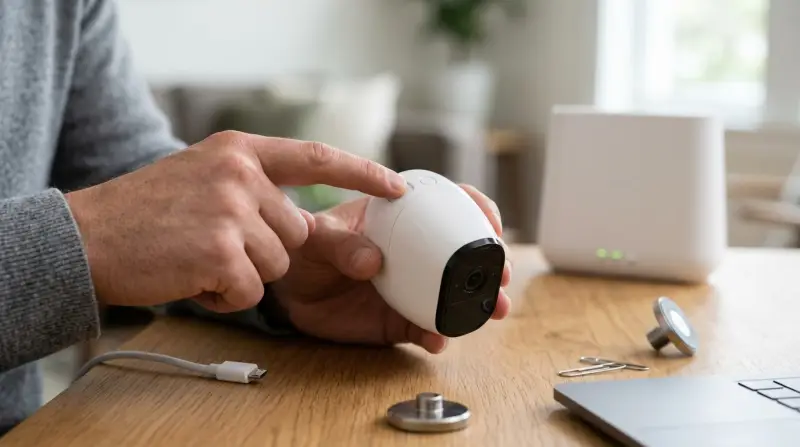
Knowing the right time to reset your camera makes life easier. Here are some situations where a reset can help:
- Camera won’t connect to Wi-Fi or the base station.
- You forgot the password or want to change security settings.
- You’re moving to a new home and need a fresh setup.
- The camera shows errors or does not record properly.
- You want to give away or sell your Arlo Pro 2.
Resetting is not always the first solution. Try basic fixes like power cycling or updating firmware first. But if these don’t work, a reset is usually the best option.
Types Of Reset: Soft Vs Hard Reset
There are two main types of reset for the Arlo Pro 2 camera. Each has a different purpose.
| Reset Type | What It Does | When to Use |
|---|---|---|
| Soft Reset | Reboots camera, keeps settings | Minor issues, connection problems |
| Hard (Factory) Reset | Removes all settings, restores defaults | Major issues, new setup, selling device |
Most users need the hard reset (factory reset) when they want to start over or fix serious issues.
What Happens After A Factory Reset?
A factory reset deletes all your custom settings. This means:
- The camera is removed from your Arlo account.
- Wi-Fi and base station settings are erased.
- Motion detection zones, alerts, and schedules are deleted.
- You must set up the camera again like it’s brand new.
If you have important data, make sure to download recordings from the Arlo cloud before resetting.
Step-by-step Guide: How To Reset Arlo Pro 2 Camera
Follow these steps carefully to reset your camera:
1. Prepare For The Reset
Before starting:
- Make sure the camera is charged or connected to power.
- Ensure you have access to your Arlo account.
- If you use a base station, check that it is powered on and connected.
2. Remove The Camera From Your Account
You need to remove the camera from your Arlo account before a full reset.
- Open the Arlo app or log in to the Arlo website.
- Go to Settings.
- Tap My Devices.
- Select the camera you want to reset.
- Click Remove Device.
This step is important. If you skip it, you may have trouble re-adding the camera later.
3. Perform The Factory Reset
The Arlo Pro 2 does not have a dedicated reset button. Instead, you use the sync button.
- Locate the sync button on the camera. It’s usually on the top or side.
- Press and hold the sync button for about 10-15 seconds.
- Wait for the LED indicator to blink amber. This shows the camera is resetting.
- Release the button. The camera will reboot and return to default settings.
If your camera is connected to a base station, you can also reset from the base:
- Press and hold the reset button on the base station for 10 seconds.
- All cameras connected to the base station will reset.
4. Reconnect And Set Up The Camera
After the reset:
- Open the Arlo app.
- Tap Add Device.
- Choose Arlo Pro 2.
- Follow the on-screen instructions to connect the camera to your Wi-Fi or base station.
- Customize settings such as motion detection, alerts, and recording schedules.
5. Confirm The Reset Was Successful
Check that:
- The camera appears as new in your Arlo app.
- All old settings are gone.
- The camera connects properly and streams video.
If any step fails, try repeating the process or check for firmware updates.
Common Issues During Reset And How To Fix Them
Resetting is usually simple, but sometimes things go wrong. Here are some problems and solutions:
Camera Doesn’t Respond To The Sync Button
- Make sure the camera has enough battery.
- Try holding the button longer (up to 20 seconds).
- Remove and reinsert the battery, then try again.
Camera Not Showing Up In Arlo App After Reset
- Check Wi-Fi or base station connection.
- Restart your mobile device.
- Make sure you removed the camera from your account before resetting.
Led Indicator Not Blinking
- Confirm the camera is powered.
- If the LED stays off, the camera may need charging or there could be hardware issues.
Base Station Not Resetting
- Use a paperclip to press the reset button fully.
- Check that the base station is connected to the network.
Re-adding The Camera Fails
- Close and reopen the Arlo app.
- Try setup on another device (phone or tablet).
- Update the app to the latest version.
Extra Tips For A Smooth Reset
Some tricks can help make the reset process easier:
- Backup important clips before resetting. Download any videos you want to keep.
- Write down your Wi-Fi network name and password. You’ll need them during setup.
- If you have multiple cameras, label them to avoid confusion.
- After resetting, set up motion zones again for better alerts.
- Make sure your phone or device is on the same Wi-Fi as the camera during setup.
New users often forget to remove the camera from their Arlo account before resetting. This is a common mistake and can block you from adding the camera again. Another tip: If you use a base station, resetting it will affect all cameras connected to it, not just one.

Data Protection And Privacy After Reset
Resetting your Arlo Pro 2 camera protects your privacy, especially if you’re selling or giving away the device. All personal settings, saved Wi-Fi passwords, and cloud account links are erased. However, recordings stored in the Arlo cloud remain unless you delete them manually.
Always check your account and remove old clips if privacy is a concern.
Arlo Pro 2 Vs Other Arlo Cameras: Reset Process Comparison
How does the Arlo Pro 2 reset compare to other Arlo models? Here’s a quick overview.
| Arlo Model | Reset Method | Special Notes |
|---|---|---|
| Arlo Pro 2 | Sync button (10-15 sec) | No dedicated reset button |
| Arlo Pro | Sync button (10 sec) | Similar process |
| Arlo Ultra | Reset via app or base station | More advanced app options |
| Arlo Essential | Button or app reset | Some models have reset button |
The Arlo Pro 2 uses the sync button for resets, while newer models may offer app-only resets or dedicated buttons.

What To Do If Reset Does Not Fix The Problem
Sometimes, resetting does not solve the issue. Here’s what you can do next:
- Check for firmware updates in the Arlo app.
- Contact Arlo support for help with hardware problems.
- Test the camera in a different location or Wi-Fi network.
- Try setup on another device.
- If the camera is out of warranty and still doesn’t work, consider replacement.
Most users find that a reset fixes connection and setup problems. If your camera still fails after several attempts, hardware damage may be the cause.
How Resetting Impacts Smart Home Integration
If you use your Arlo Pro 2 with smart home systems like Amazon Alexa or Google Home, resetting the camera will unlink it from these platforms. After the reset, you need to:
- Re-add the camera to your smart home app.
- Set up automation rules again.
- Check permissions and device sharing.
This step is easy to overlook. Always check smart home connections after a reset.
Firmware Updates After Reset
After a factory reset, it’s important to update your camera’s firmware. Firmware updates fix bugs and improve performance. To update:
- Open the Arlo app.
- Select your camera.
- Check for firmware updates.
- Follow prompts to install.
Updated firmware makes your camera work better with new devices and features. For more details, you can visit the official Arlo Support.
Frequently Asked Questions
How Long Does The Arlo Pro 2 Reset Process Take?
Usually, the reset takes about one minute. Holding the sync button triggers the reset, and the camera will reboot and return to default settings. Setup can take another 5–10 minutes.
Will I Lose My Video Recordings After A Factory Reset?
Recordings stored on the Arlo cloud will stay unless you delete them. However, settings and schedules are erased. Download important clips before resetting.
Can I Reset Multiple Arlo Pro 2 Cameras At Once?
If they are connected to a base station, resetting the base will reset all cameras. Otherwise, each camera must be reset separately using the sync button.
Is It Safe To Reset My Camera If I Use It For Home Security?
Yes, but remember the camera will be offline during the reset and setup. Plan the reset when you don’t need active monitoring.
What Should I Do If The Camera Still Won’t Connect After Resetting?
Check Wi-Fi and base station connections, update the Arlo app, restart your device, and try setup again. If problems continue, contact Arlo support for help.
Resetting your Arlo Pro 2 camera is a reliable solution for many common issues. By following the steps above, you can restore your camera to factory settings and start fresh. It’s a simple process that improves security, fixes errors, and helps you manage your smart devices with confidence. Use the tips and troubleshooting advice to make sure everything goes smoothly. Remember, you can always reach out to Arlo support for extra help if needed.
1 thought on “How to Reset Arlo Pro 2 Camera: Quick and Easy Guide”