
A loose USB connection or a disabled privacy setting is the most common reason for a Nexigo camera not working in your computer software. Most of the time, the issue is a simple software toggle or a physical port conflict that you can fix in minutes. If the device is plugged in but the indicator light doesn’t glow, the camera is likely not receiving enough power or the cable is damaged. You should check the device manager on your operating system to see if the hardware is recognized before trying a different port.
| Cause | How common | How to confirm it | Fix it yourself? |
|---|---|---|---|
| Disabled Privacy Switch | Very common | Check physical slider | Yes |
| Loose USB Cable | Common | Unplug and reconnect | Yes |
| Software Permission Block | Common | Check OS settings | Yes |
| Wrong Input Selected | Frequent | Check app menu | Yes |
| Driver Conflict | Occasional | View Device Manager | Yes |
| Faulty USB Port | Rare | Test another port | Yes |
| Hardware Failure | Very rare | Test on another PC | No |
Fixing a Nexigo Camera Not Working: Connection and Privacy
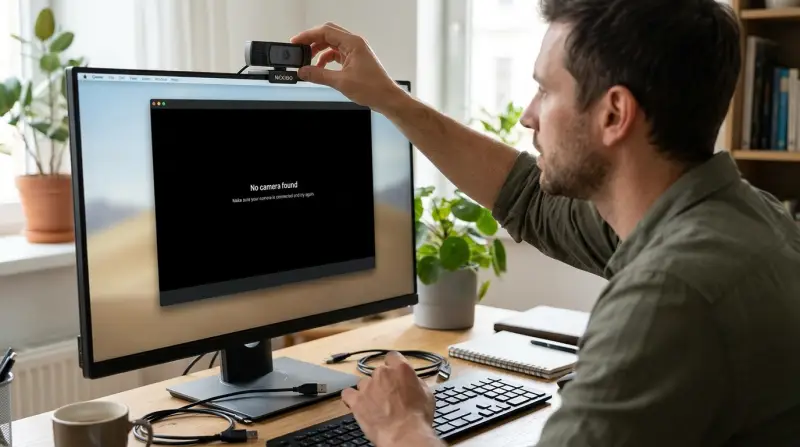
The privacy shutter or physical switch is the first thing to check because it blocks the lens entirely. Many models include a sliding cover that must be moved to the open position for the sensor to capture light. If the shutter is closed, the camera will show a black screen even if the software detects the device. You should slide the cover fully to the side and ensure nothing is blocking the glass.
Connection issues often stem from the USB cable not being seated firmly in the port. If the camera light remains off, the computer isn’t sending power to the unit. You should unplug the USB cable from the back of the computer and plug it back in firmly. If you’re using a USB hub, remove it and plug the camera directly into the motherboard port on the back of your desktop. This avoids power delivery issues common with unpowered hubs.
Testing the camera on a different port takes about two minutes and eliminates the port itself as the culprit. If the device works in a port that you know functions, the original port may be dead or disabled. If the device still shows no power, try a different USB cable if your model has a detachable one. If the cable is hard-wired and you have confirmed the port is working with another device like a mouse, the camera hardware may be damaged. You can consult the Nexigo support center for specific troubleshooting steps related to your model’s indicator lights.
Software permissions and input selection
Software permissions are the most frequent reason the camera is detected but displays no video. Windows and macOS treat webcams as privacy-sensitive devices, meaning apps need explicit permission to access them. If you recently updated your operating system or privacy software, those permissions may have reset to default. You should open your system settings and look for a privacy or camera section to ensure your video app has “Allow” status.
If you see a “Camera Access Denied” icon within the app itself, the OS is blocking the feed at the kernel level. Simply restarting the application is rarely enough; you must toggle the permission switch off and back on to force the OS to re-register the app’s request.
Input selection is another common mistake that leaves users thinking the hardware is broken. Many video conferencing apps default to the integrated laptop webcam rather than the external Nexigo unit. You should open the video settings menu inside your specific app, such as Zoom or Microsoft Teams, and look for a dropdown menu labeled “Camera” or “Video Source.” Select your Nexigo camera from that list to force the application to switch inputs.
If the preview window remains black after selecting the correct device, the application is likely struggling with a resolution handshake. Try toggling the camera off and back on within the app settings. This forces the software to re-negotiate the stream with the hardware.
If the input selection doesn’t fix the black screen, check the device manager to see if the system sees the hardware at all. In Windows, right-click the Start button and select “Device Manager,” then look under “Cameras” or “Imaging Devices.” If you see a yellow exclamation mark next to the name, the driver is corrupted or missing. Right-click the camera entry and select “Update driver” to let the system search for a fix. This process usually takes less than five minutes. If the computer doesn’t show the device under any category, the connection is definitely physical.
Driver conflicts and system updates
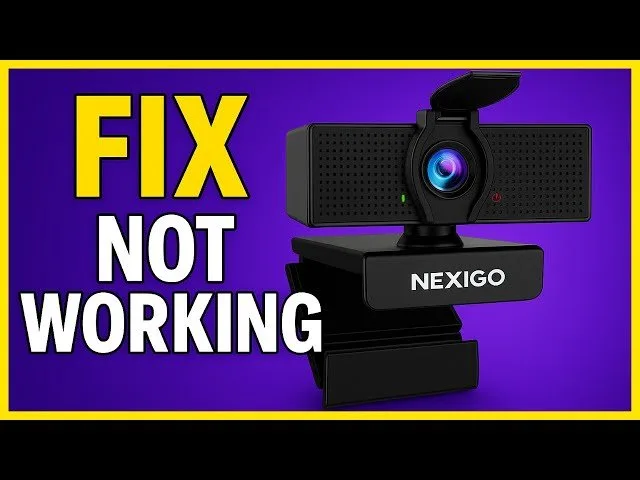
Driver conflicts occur when the operating system struggles to communicate with the hardware after a recent update. This happens most often on older hardware that hasn’t received firmware updates in years. You can tell this is the cause if the camera worked perfectly yesterday but stopped immediately after a Windows or macOS update finished overnight. The fix involves removing the device from the system list and letting it reinstall itself upon reconnection.
Navigate to the device settings and choose “Uninstall device” for your camera. Don’t worry, as this won’t delete your files. Once you have uninstalled it, physically disconnect the USB cable from your computer. Wait about ten seconds, then plug the cable back into a different USB port. The computer will chime and begin the process of automatically finding and installing the necessary drivers. This usually takes about one minute to complete.
If this doesn’t work, the issue might be a conflict with other background programs that are trying to “grab” the camera feed. Some apps, like security software or video editors, keep the camera active in the background. You should close all other programs that use the camera and restart your primary application.
If you have multiple users on the same computer, ensure that no other user is logged in with an app running that’s currently holding the connection. A common mistake is leaving a browser tab open with a video conferencing tool active. If you see a small light illuminated next to the camera lens, the hardware is still being “held” by another process. If the light remains on after closing your apps, perform a full system restart to force the hardware port to reset.
The less likely causes
The USB cable is physically damaged or frayed. Check the wire for external cuts or exposed metal. If the shielding is breached, the data signal degrades, causing intermittent connection drops. Replace the cable immediately to prevent shorting the port.
The motherboard USB controller is overloaded. Test this by unplugging all other non-essential devices. If the camera functions once the mouse or external drive is removed, your controller lacks the necessary power delivery. Use a powered USB hub to stabilize the connection.
The internal camera ribbon cable has come loose. This hardware failure requires professional repair. If the camera works when you apply firm pressure to the screen bezel, the connection is likely failing.
The operating system is in a “hang” state. A full restart clears this error instantly. If the issue returns after an hour, check your power management settings.
The camera firmware is corrupted. Only use official manufacturer software if guided by support. Running unauthorized patches often bricks the device permanently.
What a fix usually involves
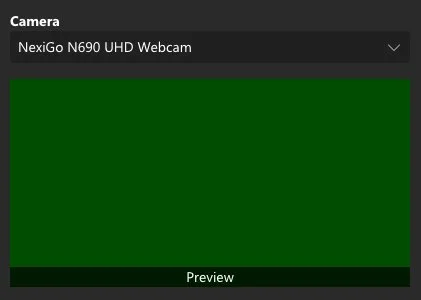
Most fixes for a camera that won’t turn on involve simple software resets or changing a cable. If the issue is a loose connection, the cost is effectively zero because you only need to reseat the cable. If the cable is damaged, replacing it with a high-quality USB cable is a small part of the total cost of the device. You should check the official Nexigo manual that came with your unit to see if your specific model uses a standard USB-C or Micro-USB cable, as using the wrong type can cause performance issues.
If the camera hardware itself has failed, the cost of a repair is often the largest portion of the price of a new one. In these cases, it’s often more logical to replace the unit rather than paying for professional diagnostics. You can get a real quote for a repair by contacting the manufacturer directly through their website, but be prepared for them to suggest a replacement if the unit is out of warranty.
Why is my Nexigo camera light flashing?
A flashing light usually means the camera is trying to initialize or is receiving insufficient power from the USB port. Try moving the connection to a port directly on your computer’s motherboard rather than using an external hub. If the flashing persists after a restart, check the manufacturer’s manual to see if the blinking pattern indicates a specific error code.
Can I use a USB extension cable?
Yes, but you should keep the extension as short as possible to avoid signal loss. Long or low-quality cables often cause the camera to drop frames or disconnect entirely. If you must use an extension, ensure it’s a high-speed rated cable and avoid daisy-chaining multiple extensions together, as this often leads to total power failure for the device.
Is it safe to update the camera drivers?
Yes, it’s perfectly safe to update your drivers using the official device manager tool on your computer. Always avoid downloading “driver updater” software from third-party websites, as these are often unnecessary and can contain unwanted programs. Only use the drivers provided by the official operating system update utility or those found directly on the manufacturer’s website.
What happens if I plug it into a USB 2.0 port?
The camera will likely still work, but you may experience lower video quality or a slower frame rate. USB 3.0 ports are designed to carry more data and power, which is ideal for high-definition video feeds. If your camera is struggling to maintain a stable image, always move it to a blue-colored USB 3.0 port if your computer has one available.
How long should the camera last?
There’s no fixed lifespan for a webcam, as it depends on how often you use it and the environment where it stays. Most modern cameras can operate for several years without any issues if kept away from moisture and extreme heat. If the device starts overheating or the image becomes distorted, it’s usually a sign that the internal sensor is reaching the end of its functional life.
Does it matter which USB port I use?
Yes, the port type can significantly impact the performance and stability of your video feed. High-definition cameras require a consistent flow of power and data that older ports sometimes can’t provide. If your computer has multiple ports, always test the ones on the back of the machine first, as these are connected directly to the main board and provide the most reliable power.
Final Thoughts
If these basic checks don’t bring your picture back, it’s time to reach out to the manufacturer’s support team. They’ll help you determine if your unit is faulty and needs a replacement. Don’t worry, as you’ll likely get back to your video calls and meetings once you’ve spoken with them.
Related guides
- How to Reset Arlo Pro 2 Camera: Quick and Easy Guide
- Blink Camera Not Detecting Motion: Top Fixes and Solutions
- How to Reset Zmodo Camera: Quick and Easy Step-by-Step Guide