
Many Sony TV owners eventually face a common problem: the TV starts acting strangely, becomes slow, or stops responding to the remote. Sometimes, the picture freezes, apps won’t load, or sound stops working. When this happens, resetting your Sony TV can solve most problems quickly, without calling support or waiting for repairs. Knowing how to reset your Sony TV can save you time, money, and frustration.
This guide explains the different ways to reset a Sony TV, when to use each method, and what happens during the process. Whether you have a new Google TV, an Android TV, or a basic model, you’ll find step-by-step instructions and practical tips.
You’ll also learn common mistakes, what to do if the TV won’t respond, and how to avoid losing important settings. By the end, you’ll feel confident to reset your Sony TV safely and fix most issues yourself.
Why Resetting A Sony Tv Matters
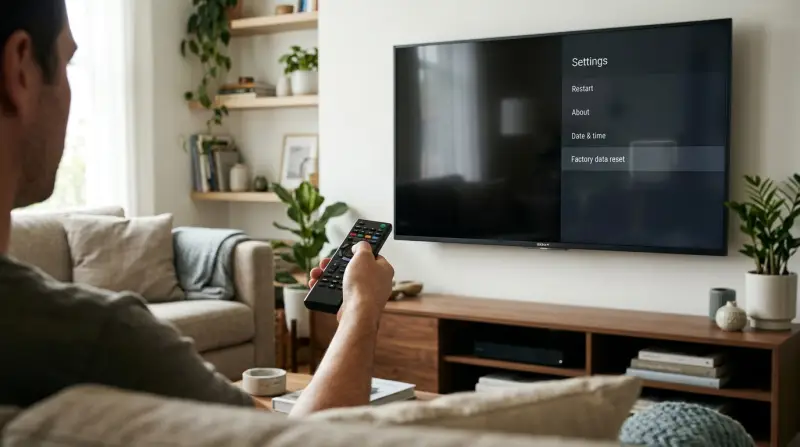
Sometimes, TVs start to lag or apps crash. You might see error messages, or the TV won’t connect to Wi-Fi. These problems often come from software bugs, memory overload, or temporary glitches. Resetting clears temporary files, restarts apps, and returns the TV to normal.
There are two main types of resets:
- Soft reset: Like restarting your computer. Fixes simple problems and does not remove your settings or apps.
- Factory reset: Erases everything and returns the TV to original settings. Use this when you plan to sell your TV or if nothing else works.
A soft reset is usually enough for small issues, while a factory reset is for serious problems.
Types Of Sony Tvs And Reset Methods
Sony TVs use different systems. The most common are:
- Google TV (2021 and newer)
- Android TV (2015–2021)
- Non-smart TVs (Basic LED/LCD models)
Each type has its own reset process. Some menu options look different, but the main idea is the same.
Quick Comparison: Reset Methods By Sony Tv Type
To help you choose the right process, here’s a quick comparison:
| TV System | Soft Reset Option | Factory Reset Option |
|---|---|---|
| Google TV | Yes (via menu or remote) | Yes (via menu) |
| Android TV | Yes (via menu or remote) | Yes (via menu) |
| Non-smart TV | Yes (power cycle only) | Yes (physical buttons/reset pinhole) |
How To Perform A Soft Reset
A soft reset is safe and easy. It won’t delete your apps, Wi-Fi settings, or personal information. Use it if your Sony TV is slow, apps crash, or the screen freezes.
Method 1: Power Cycle (all Sony Tv Models)
- Turn off the TV using the remote or the power button.
- Unplug the TV from the wall outlet.
- Wait for 60 seconds. This clears the TV’s memory.
- Plug the TV back in.
- Turn it on.
This simple step fixes about 70% of minor TV issues.
Method 2: Soft Reset Via Tv Menu (google Tv And Android Tv)
If your TV is responding to the remote:
- Press the Home button.
- Go to Settings.
- Select System (may be under “Device Preferences” for some models).
- Choose Restart or Restart TV.
Some remotes also have a Power button. Holding it for 5 seconds often restarts the TV.
Non-obvious tip: On many Sony remotes, pressing and holding the Power button until the TV restarts (not just turns off) does a full soft reboot, which is deeper than a quick off/on.
How To Perform A Factory Reset
A factory reset erases all data, including:
- Apps you installed
- Wi-Fi passwords
- Custom settings (picture, sound, etc.)
- Google account or other sign-in info
Only use this if you plan to sell your TV, forgot your PIN, or a soft reset did not solve the problem.
Factory Reset On Google Tv
- Press the Home button.
- Go to Settings.
- Choose System.
- Select About.
- Scroll to Reset.
- Choose Factory reset.
- Confirm and follow the prompts.
After the reset, the TV will restart and show the setup screen.
Factory Reset On Android Tv
- Press the Home button.
- Open Settings.
- Select Device Preferences.
- Scroll to Reset.
- Choose Factory data reset.
- Confirm your choice.
Your TV will erase all information and restart.
Factory Reset On Non-smart Sony Tvs
Older or basic Sony TVs do not have complex menus. Here’s what to do:
- Turn the TV off.
- Press and hold the power button on the TV (not remote).
- While holding, plug the power cord back in.
- Keep holding for 10 seconds, then release.
- The TV should reset.
Some models have a reset pinhole (look for “RESET” near the ports). Use a paperclip to press it for 10 seconds.
Expert insight: If your TV has no reset option, check the manual or Sony’s support page for your specific model.
What Happens After A Reset
After a soft reset, your Sony TV starts up as usual. All your settings remain. You may notice the TV runs smoother and apps work better.
After a factory reset, you must set up your TV again:
- Choose language and region
- Connect to Wi-Fi
- Sign in with your Google or Sony account
- Reinstall apps
You cannot recover deleted apps, accounts, or settings. Take note of your favorite apps and Wi-Fi password before starting.
Common Problems Fixed By Resetting
Many issues disappear after a reset. Here are some examples:
| Problem | Reset Type | Success Rate |
|---|---|---|
| App crashes (YouTube, Netflix, etc.) | Soft Reset | High |
| Wi-Fi won’t connect | Soft/Factory Reset | Medium |
| Remote not responding | Soft Reset | High |
| TV stuck on logo/boot loop | Factory Reset | Medium |
| PIN forgotten | Factory Reset | High |
Sometimes, hardware problems (screen cracks, no power) need repair, not a reset.
Practical Tips Before Resetting
Resetting is safe, but it’s best to prepare:
- Backup settings: Take a photo of your favorite settings (picture, sound) so you can restore them later.
- Write down app logins: Many people forget their Netflix or Hulu passwords.
- Update software first: Sometimes, just updating the TV’s firmware can fix problems without a reset.
- Try unplugging accessories: Remove USB drives or HDMI devices before resetting.
- Check internet connection: Some reset processes need internet to finish setup.
Beginner mistake: Resetting too often. If you reset your TV every time there’s a small glitch, you’ll spend lots of time setting up. Try a soft reset first.
When A Reset Does Not Fix The Problem
A reset won’t fix:
- Cracked or black screens
- No power (TV won’t turn on at all)
- Physical damage (buttons broken, ports not working)
- Problems with external devices (cable box, game console)
If you still have problems after a factory reset, contact Sony support or a trusted repair service.
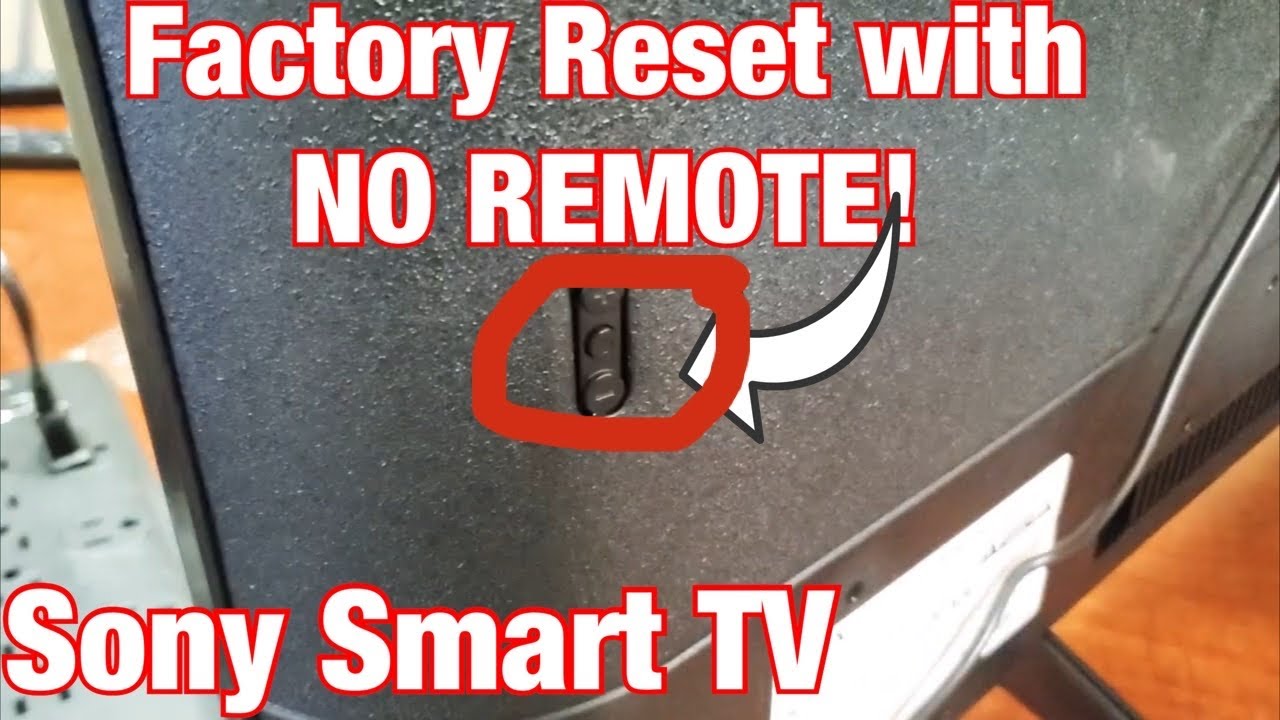
How To Reset Sony Tv Without A Remote
Lost your remote? You can still reset most Sony TVs:
- Use the buttons on the TV (usually on the side or bottom).
- For soft reset: Unplug and plug back in.
- For factory reset: Hold both the volume down and power buttons on the TV while plugging it in (on many models, both buttons must be pressed for at least 10 seconds).
If you have a universal remote or a smartphone with IR blaster, you can use that as a replacement.
Hidden insight: Not all Sony TVs have physical buttons for reset. Very slim models may need a service call if the remote is lost or broken.
Resetting Sony Tv: Myths Vs. Facts
You may hear some myths about resetting TVs. Here are the facts:
- Myth: Resetting hurts the TV.
Fact: A reset is safe and recommended for software issues.
- Myth: You’ll lose your warranty by resetting.
Fact: Resetting does not affect your warranty.
- Myth: Factory reset removes software updates.
Fact: Updates stay. Only your settings and apps are erased.
Extra Step: Updating After A Reset
After a factory reset, it’s smart to update your TV’s software. This ensures you have the latest features and bug fixes.
- Go to Settings.
- Select Device Preferences or System.
- Choose About.
- Click System Update.
Connect your TV to the internet before updating.
How To Avoid Needing Frequent Resets
Resets are useful, but you shouldn’t need to use them often. Here’s how to keep your Sony TV running smoothly:
- Install updates regularly to fix bugs and improve security.
- Clear cache in apps you use often (Settings > Apps > Select App > Clear Cache).
- Don’t install too many apps—unused apps slow down your TV.
- Restart your TV weekly to keep it fresh.
- Use a surge protector to prevent power issues.
Most users can enjoy smooth TV operation for years with these habits.
Real-world Example: Resetting Solved A Stubborn Problem
Emily’s Sony Android TV started freezing every time she opened YouTube. She tried turning the TV off and on, but it didn’t help. Finally, she did a soft reset by unplugging the TV for one minute. YouTube worked again instantly. Two months later, the TV refused to start and showed only the Sony logo. This time, she performed a factory reset using the side buttons. The TV returned to normal, and she learned to keep her settings and passwords written down for easy setup next time.
Most problems can be fixed with a soft reset, but always be prepared for a full factory reset if things get worse.
Where To Get More Help
If you still have trouble, visit the official Sony support website. You’ll find model-specific guides, software downloads, and contact information for expert help.
Frequently Asked Questions
How Often Should I Reset My Sony Tv?
You should only reset your Sony TV when you have real problems—like apps crashing, TV freezing, or network issues. A soft reset once every few months can help, but frequent factory resets are not needed.
Will A Factory Reset Remove My Sony Tv’s Software Updates?
No, a factory reset does not remove updates. Your TV keeps the latest software. Only personal data, apps, and settings are erased.
What If My Sony Tv Is Stuck On The Logo And Won’t Start?
Try a factory reset using the buttons on the TV (power + volume down). If the TV still won’t start, it may need professional repair.
Can I Reset My Sony Tv If I Lost The Remote?
Yes. You can use the physical buttons on the TV or a universal remote. For some models, pressing and holding certain buttons while plugging in the TV will trigger a reset.
Does Resetting My Sony Tv Delete Netflix, Youtube, Or Other Apps?
A soft reset does not delete any apps. A factory reset will remove all apps you installed, but pre-installed apps like YouTube and Netflix will return after setup.
Resetting your Sony TV is a powerful tool to fix many problems. With the right steps and a little preparation, you can restore your TV to its best in just a few minutes.