
The HP LaserJet P2015 is a trusted printer, known for its durability and good print quality. But, like all printers, it can sometimes show error symbols that confuse users. Understanding what these symbols mean and knowing how to fix them can save a lot of time and stress. Many people face trouble because these error lights look simple, but have different meanings depending on how they flash or appear together.
If you rely on the HP P2015 for school, work, or personal needs, it helps to learn about these error signs. This guide explains the main error symbols, what each one means, and how you can solve the most common problems.
Instead of spending hours searching for answers, you’ll find clear steps and examples here. You’ll also learn a few expert tips that most beginners miss, so you can avoid repeating the same mistakes.
Understanding Hp Printer P2015 Error Symbols
The HP P2015 uses a set of LED lights on its control panel to communicate issues. There is no full display screen, so users must read the lights to know what’s wrong. The printer has five main lights:
- Ready (Green)
- Attention (Amber)
- Toner (Amber)
- Paper (Amber)
- Go (Green)
Each light can stay on, blink, or appear with other lights. The combination tells you the printer’s status or error. Understanding these patterns is key to troubleshooting.
For example, you might see the “Attention” and “Paper” lights on together, or you might notice only the “Go” light blinking. Each of these means something different, and the difference between a solid light and a blinking light is important.
How The Lights Work Together
The lights are designed to show both simple and complex problems. For instance, a single solid light usually means a basic problem (like no paper), while several lights blinking together can mean a more serious issue (like a hardware failure).
Recognizing combinations is a skill that comes with experience, but with a clear guide, you can quickly learn to match the pattern to the problem.
Why Learn The Error Symbols?
Many users waste time replacing parts or calling support because they misread the lights. For example, a flashing Toner light does not always mean the cartridge is empty. Sometimes, it means the cartridge is not installed correctly. Learning the true meanings helps you fix issues quickly and avoid buying things you don’t need.
Another common mistake is thinking any blinking light is a warning. But sometimes, a blinking light is normal (such as when printing or warming up). Knowing when to wait and when to act is important for saving time and money.
Extra Insight: If you know how to read the error lights, you can often fix the problem in minutes, while others might wait days for a technician. Also, some error patterns can help you spot a failing part before it breaks completely, giving you time to plan for repair or replacement.
Common Hp P2015 Error Symbols And Their Meanings
Let’s break down the main error lights and what each one means in detail. We’ll include the most frequent combinations, what causes them, and how to solve each one.
Ready Light (green)
- Solid On: Printer is ready to print. No action needed.
- Blinking: Printer is processing data or warming up. This happens when you send a print job or after you first turn the printer on. It should return to solid when ready.
- Off: Printer is off, or not receiving power. Check the power cable and outlet.
Extra Detail: Sometimes, the Ready light blinks for a long time if there’s a very large print job, or if the printer’s memory is nearly full. Cancelling or splitting up a big job can help.
Attention Light (amber)
- Solid On: Printer has a general error (paper jam, open cover, missing cartridge, etc.). This is the printer’s way of asking you to check it before it can continue.
- Blinking: Printer is waiting for action, like clearing a jam or closing a cover. If it blinks after you open the front or rear cover, check that the cover is fully closed and latched.
Practical Tip: Do not ignore the Attention light, even if the printer appears to be working. Sometimes, minor errors (like a slightly open door) can get worse if not fixed.
Toner Light (amber)
- Solid On: Toner is low or empty. You can often print a few more pages, but print quality may be poor.
- Blinking: Toner cartridge is not installed correctly or is defective. Occasionally, this can also mean the cartridge contacts are dirty or there’s a problem with the chip.
Example: If you installed a new cartridge and the light blinks, remove and reinstall it. If the problem continues, try a different cartridge to rule out defects.
Paper Light (amber)
- Solid On: Paper tray is empty or not loaded correctly. Sometimes, the paper might be stuck together, or the tray is not pushed in all the way.
- Blinking: Paper jam or incorrect paper size. Open the printer and check for jams, especially in hidden areas like under the toner or at the back.
Extra Insight: The Paper light can also come on if you use paper that is too thick or curled. Always use flat, clean paper for best results.
Go Light (green)
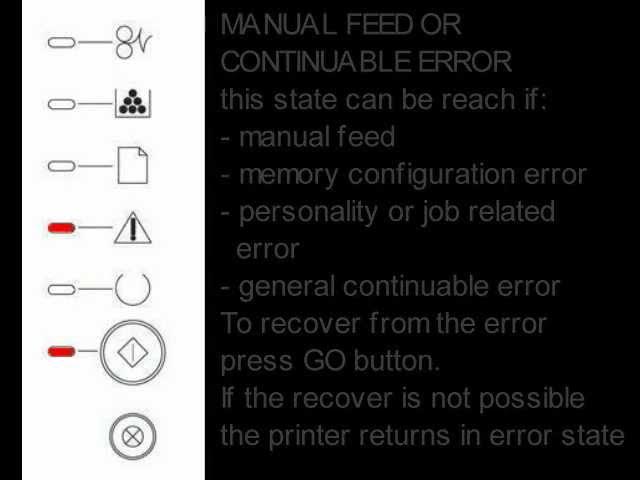
- Solid On: Printer is in manual feed mode, waiting for paper. This happens if you select “Manual Feed” in your print settings.
- Blinking: Printer is receiving data or resuming after a pause. If the blinking continues, check the print queue on your computer for errors.
If you see the Go light solid but nothing prints, try pressing the Go button to continue. Some print jobs (like envelopes or special paper) require you to press Go to start.
Main Error Combinations And Troubleshooting
The P2015’s lights often work together to show more specific issues. Here are the most common combinations, what they mean, and how to fix them.
All Lights On
If every light is on at the same time, the printer is in a fatal error state.
- Possible Causes: Hardware failure, firmware problem, or corrupted memory.
- What To Do: Turn off the printer, unplug it for 30 seconds, then plug it back in. If the error stays, try a cold reset (hold the ‘Go’ button while powering on). If nothing works, the printer may need service.
Extra Explanation: This error can sometimes be caused by a power surge or a failed firmware update. If you know there was a power outage, check your surge protector and try the printer in a different outlet.
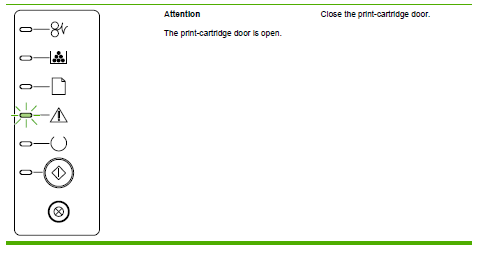
Attention Light On, Others Off
The printer has a simple problem that needs attention.
- Possible Causes: Paper jam, open door, or missing toner.
- What To Do: Check the paper path for jams, close all covers, and check that the toner is seated. Often, simply opening and closing the door can reset this error.
Example: If you just replaced the toner and the Attention light is on, remove and reinstall the toner, and close the door firmly.
Paper Light On, Others Off
Printer has run out of paper or the paper isn’t loaded correctly.
- What To Do: Load paper into the tray and make sure it’s aligned. If paper is already loaded, remove and reload it. Check for small scraps of paper blocking the sensors.
Practical Tip: Fan the paper before loading to prevent sheets from sticking together, which can cause multiple sheets to feed and jam.
Toner Light On, Others Off
Toner cartridge is empty or not recognized.
- What To Do: Replace the toner cartridge. If it’s new, remove and reinsert it, making sure it clicks into place.
Extra Detail: Sometimes, the toner chip may not make good contact. Gently wipe the metal contacts on the cartridge and inside the printer with a dry, lint-free cloth.
Ready Light Blinking
Printer is receiving or processing data.
- What To Do: Wait for the printer to finish. If it never stops blinking, check the connection to your computer or the print queue for stuck jobs.
Practical Example: If you sent a PDF with many high-resolution images, the print job might be too large for the printer’s memory. Cancel the job and print in smaller sections.
Attention And Paper Lights On
Combination often signals a paper jam.
- What To Do: Open the top cover and carefully remove any jammed paper. Check the rear door and the tray as well. Never pull jammed paper backward; always pull it in the direction of the paper path to avoid damaging the printer.
Common Mistake: Ripping jammed paper out quickly can leave small pieces inside, causing more jams. Always remove paper slowly and check for torn bits.
Toner Light Blinking
Cartridge is not installed correctly or is defective.
- What To Do: Remove the cartridge and shake it gently to loosen the toner. Reinstall firmly. If the light keeps blinking, try another cartridge.
Extra Insight: Some third-party toners may not communicate well with the printer, even if they physically fit. Genuine HP toners are less likely to cause this issue.
All Lights Flashing
Printer is performing a firmware update or has a critical hardware problem.
- What To Do: Wait if you recently updated firmware. If not, restart the printer. If the lights still flash, the device may need service.
Do not unplug the printer during a firmware update, as this can cause permanent damage.
Comparison Of Error Light Patterns
Here’s a quick reference for the most common error patterns and what they mean.
| Error Light Pattern | Meaning | Suggested Action |
|---|---|---|
| All lights on | Fatal error | Restart, cold reset, service if needed |
| Attention solid | General error | Check for jam, open door, missing parts |
| Paper solid | No paper | Load paper, align tray |
| Toner solid | Low/empty toner | Replace or reseat cartridge |
| Ready blinking | Processing data | Wait or check computer connection |
Extra Note: If your error pattern doesn’t match any above, look for combinations or call HP support for help with rare patterns.
How To Reset The Hp P2015
Resetting the printer can clear many error states. There are two main types of reset: simple reset and cold reset.
Simple Reset
- Turn off the printer.
- Unplug the power cord.
- Wait 30 seconds.
- Plug in and turn on.
This clears temporary errors, such as a stuck print job or a false paper jam signal.
Cold Reset
A cold reset sets the printer back to factory defaults.
- Turn the printer off.
- Press and hold the Go button.
- Turn the printer on while holding the Go button.
- Release the button after all lights turn on and then go out.
Cold reset also clears network settings. Write down any custom settings before you reset.
Extra Detail: After a cold reset, you may need to reinstall the printer on your network or re-enter custom configurations, such as IP addresses. It’s wise to keep a record of your settings before you reset.
How To Prevent Common Errors
Many printer errors can be avoided with good habits. Here are practical ways to reduce problems:
- Use good-quality paper. Cheap paper sheds fibers, causing jams and sensor errors.
- Store toner cartridges properly. Keep them in a cool, dry place. Shake gently before installing.
- Clean the printer regularly. Dust and toner build-up causes jams and poor print quality.
- Don’t overload the tray. Only fill the paper tray to the marked line.
- Update firmware only when needed. Avoid unnecessary updates that can cause new errors.
- Do not pull jammed paper backward. Always pull in the direction the paper travels.
Further Prevention Tips:
- Power protection: Use a surge protector to avoid damage from power surges, which can cause fatal errors or damage internal parts.
- Room environment: Avoid placing the printer in damp or dusty locations. Humidity and dust can trigger sensor errors and affect print quality.
- Regular test prints: Print a test page every few weeks to check for early signs of problems, such as faded printing or unusual noises.

Advanced Troubleshooting For Persistent Errors
Some errors won’t go away with basic steps. Here’s how to deal with stubborn problems.
Firmware Corruption
If the printer freezes or all lights flash after an update, the firmware may be corrupted.
- Solution: Download the latest firmware from the official HP site and reinstall using a USB connection. Avoid updating firmware over a network, as interruptions can cause problems.
Extra Example: If your printer was working before a firmware update and now shows all lights flashing, the update process may have been interrupted. Always use a reliable computer and cable for firmware updates.
Faulty Formatter Board
If errors remain after all resets, the formatter board (main logic board) may be failing.
- Solution: This usually needs professional service. If you are experienced, you can find replacement boards online, but it’s risky for beginners.
Practical Note: Signs of a bad formatter board include random lights, frequent resets, or the printer failing to start. If your printer is very old, it may be more cost-effective to replace it than repair this part.
Sensor Issues
Paper and toner sensors can become blocked by dust or scraps.
- Solution: Open the printer and gently clean sensors with compressed air or a soft brush. Never use water inside the printer.
Extra Detail: Pay special attention to the small levers and optical sensors near the paper path and toner area. Even a small buildup can cause repeated jams or false errors.
Real-world Examples
- Multiple Paper Jams in a Week: A user had jams almost daily. They switched from cheap paper to HP-branded paper, and the jams stopped. The higher quality paper fed smoothly and created less dust inside the printer.
- All Lights On After Power Surge: After a storm, the printer showed all lights on. A cold reset fixed the issue. The surge had confused the printer’s memory, but no permanent damage occurred.
- Blinking Toner Light With New Cartridge: Even with a new cartridge, the toner light blinked. Removing and cleaning the contacts with a dry cloth solved the problem.
- Printer Not Found on Network After Reset: After a cold reset, the printer did not appear on the network. Manually setting the IP address again solved the problem.
- Repeated Attention Light After Clearing Jam: A user kept getting the Attention light after clearing a jam. They found a small piece of paper stuck behind the rear roller. After removing it, the printer worked fine.
Key Differences: Hp P2015 Vs. Newer Hp Printers
Newer HP printers often have display screens that show detailed error messages. The P2015 uses only lights, making it harder to diagnose. Here’s a quick comparison:
| Feature | HP P2015 | Newer HP Models |
|---|---|---|
| Error display | LED lights only | LCD messages |
| Troubleshooting | Manual, visual | On-screen instructions |
| Reset method | Button + power cycle | Menu-driven reset |
| Network setup | Manual, needs cold reset | Menu-based, easier |
Extra Insight: If you are used to newer printers, troubleshooting the P2015 may feel old-fashioned. However, the simplicity of LED lights can make it easier to maintain and repair, since there is less that can go wrong with the display.
Most Overlooked Fixes For Hp P2015 Error Symbols
Many users miss these simple but effective solutions:
- Check for small scraps of paper. Even a tiny piece can cause a paper jam error.
- Clean the rollers. Dirty rollers cause feeding problems. Use a lint-free cloth with isopropyl alcohol.
- Reseat memory modules. If you added extra RAM, remove and reinstall it firmly.
- Use genuine toner cartridges. Third-party cartridges may not always fit correctly and can trigger errors.
- Check the paper tray guides. Guides that are too tight or too loose can cause paper jams and misfeeds.
- Inspect the power cable and USB cable. Damaged or loose cables can cause random errors or disconnects.
Practical Example: One user fixed a stubborn error by simply replacing an old, frayed USB cable. The printer had been losing communication with the computer, which caused random lights to flash.
When To Call For Professional Help
If you have tried all the steps above and the error remains, it’s time to contact a technician. Signs that you need expert help:
- Repeated all lights on errors after resets
- Printer won’t start at all
- Burning smell or unusual sounds
- Visible damage to the printer’s internal parts
Don’t try to fix hardware problems yourself unless you have experience. You could make the problem worse or void your warranty.
Extra Note: If your printer is still under warranty, always contact HP support before opening the printer or replacing parts. Self-repair may void warranty coverage.
Where To Find More Help
The official HP support site has user guides, firmware downloads, and troubleshooting tools. Forums like HP’s support community also share real-world solutions. For in-depth information, visit the HP Official Support page.
You can also find video guides on common fixes on YouTube and in community forums. Sometimes, watching someone else solve the same problem can make the solution clearer.
Frequently Asked Questions
What Should I Do If All Lights On My Hp P2015 Are On?
This means the printer has a fatal error. Turn off the printer, unplug it, and wait 30 seconds. Plug it back in and turn it on. If the error stays, perform a cold reset. If that fails, contact HP support as the printer may need repair.
Why Does The Toner Light Keep Blinking After I Replaced The Cartridge?
A blinking toner light can mean the cartridge is not installed correctly, the contacts are dirty, or the cartridge is defective. Remove the cartridge, clean the contacts gently, and reinstall it. If the problem remains, try another cartridge.
How Can I Clear A Paper Jam That Isn’t Visible?
Sometimes, small scraps of paper remain in the printer and block sensors. Open all doors, remove the paper tray, and check carefully for any tiny pieces. Use a flashlight if needed. Clean the rollers and sensors with compressed air.
Is It Safe To Use Third-party Toner Cartridges?
It is possible to use third-party cartridges, but it’s not always reliable. Some may not fit perfectly or have poor-quality chips, causing error lights. For best results, use genuine HP cartridges.
How Do I Reset Network Settings On The Hp P2015?
Perform a cold reset by holding the Go button while turning on the printer. This will reset all settings, including the network. Remember to write down any custom settings before you reset, as you will need to re-enter them.
What If My Printer Prints Blank Pages?
This can be due to an empty toner cartridge, a protective seal left on a new cartridge, or a failure of the laser/scanner unit. Check the cartridge, remove any seals, and make sure you are using the correct toner type.
The HP P2015 is a solid printer, but its error symbols can be confusing. With the information above, you can quickly diagnose most issues and keep your printer running smoothly. A little preventive care and knowledge of the error lights will help you avoid downtime and frustration.
If you need more help, check the official HP resources and remember, sometimes a small fix makes a big difference.