
The Kwikset Halo smart lock is well-known for its easy installation, modern features, and the promise of keyless convenience. Many users, however, find themselves frustrated when the Bluetooth feature stops working or does not connect as expected. If you’re struggling with your Kwikset Halo Bluetooth not working, you’re not alone. In fact, connection problems are among the most common issues reported by smart lock owners. This article will guide you through all the reasons your Kwikset Halo’s Bluetooth may fail, how to troubleshoot, and what you can do to restore reliable performance. Whether you’re new to smart locks or have owned one for years, this guide will help you fix the issue and prevent it from happening again.
Understanding The Kwikset Halo And Its Bluetooth Functionality
The Kwikset Halo is a Wi-Fi enabled smart lock, but it also uses Bluetooth for some tasks. Bluetooth is helpful for initial setup, firmware updates, and as a backup when Wi-Fi is unavailable. Users often expect Bluetooth to let them unlock the door nearby without internet. While the Halo does most functions over Wi-Fi, Bluetooth is still a key part of its system.
What Bluetooth Does On The Kwikset Halo
- Device Pairing: When you first set up the lock, Bluetooth connects your phone and the lock.
- Local Unlocking: If Wi-Fi is down, Bluetooth can sometimes allow local unlocking from your phone.
- Firmware Updates: Some updates require a Bluetooth connection between the lock and the app.
- Diagnostics: Troubleshooting tools in the app may use Bluetooth to connect directly.
Understanding this helps you see why Bluetooth problems are so disruptive. If the connection fails, you might not be able to use your phone as a key or update the lock.
Common Reasons Why Kwikset Halo Bluetooth Stops Working
Bluetooth failures can be caused by several different issues. Identifying the true source is the first step in solving the problem. Here are the most frequent causes:
- Outdated Firmware: Smart locks, like phones, need software updates. If your firmware is old, Bluetooth may stop working properly.
- App Issues: The Kwikset app itself can have bugs, cache problems, or compatibility issues with your phone’s software.
- Phone Bluetooth Problems: Sometimes, the issue is with your phone’s Bluetooth settings or hardware, not the lock.
- Low Batteries: If the lock’s batteries are low, Bluetooth may become unreliable or stop working entirely.
- Interference: Wi-Fi routers, microwaves, and other electronics can interfere with Bluetooth signals.
- Distance and Obstacles: Bluetooth has a short range (about 30 feet) and struggles through walls or metal doors.
- Multiple Devices: If multiple people or phones are trying to pair with the lock, it can confuse the connection.
- Corrupted Pairing: Sometimes, the pairing between phone and lock becomes corrupted and needs to be reset.
- App Permissions: If the app doesn’t have location or Bluetooth permissions, it can’t connect to the lock.
- Lock Reset Needed: Rarely, the lock’s own internal memory can get stuck, requiring a factory reset.
Each cause needs a different fix, so it’s important to go through each one carefully.

Troubleshooting Steps For Kwikset Halo Bluetooth Not Working
When you notice your Kwikset Halo Bluetooth is not working, try these steps in order. Each step addresses a possible cause, so follow them carefully.
Check The Basics
Before diving into advanced fixes, always start with simple checks.
- Make sure the lock’s batteries are fresh and fully installed.
- Confirm your phone’s Bluetooth is turned on.
- Ensure you are standing close to the lock (within 10-15 feet).
- Close and reopen the Kwikset app.
Many users discover that weak batteries or being too far away is the root cause.
Restart Both Devices
- Restart your smartphone.
- Remove the lock’s batteries, wait 30 seconds, and reinsert them.
Rebooting both devices can clear temporary glitches. It’s a basic step, but surprisingly effective.
Update Firmware And App
- Open the Kwikset app and check for firmware updates for the lock.
- Go to your app store and check for Kwikset app updates.
- Install any available updates.
Outdated software is a leading cause of Bluetooth issues. Updates often fix bugs and improve compatibility.
Reset Bluetooth Pairing
- In your phone’s Bluetooth settings, “forget” the Kwikset Halo device.
- In the Kwikset app, remove the lock if possible.
- Re-pair the lock with your phone using the app’s setup process.
Corrupted pairing is common and can block all Bluetooth functions until reset.
Check App Permissions
- On Android: Go to Settings > Apps > Kwikset > Permissions. Make sure Location and Bluetooth are enabled.
- On iPhone: Go to Settings > Kwikset. Make sure Bluetooth and Location are on.
Without these permissions, the app cannot scan for or connect to the lock.
Minimize Interference
- Move Wi-Fi routers, baby monitors, or other wireless devices away from the lock.
- Avoid using the lock near microwaves or thick metal doors.
Bluetooth is sensitive to interference, especially in crowded homes or apartments.
Try A Different Phone
- Install the Kwikset app on a second phone and try to connect.
- If the new phone works, your original phone may have a hardware or settings issue.
This step helps you isolate whether the problem is the lock or your mobile device.
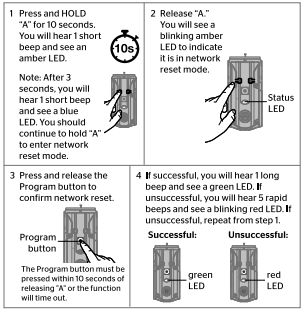
Factory Reset The Lock
If all else fails, you may need to factory reset your Kwikset Halo. This erases all settings and restores the lock to its original state.
- Remove the lock’s back panel.
- Press and hold the reset button (look for a small button near the battery compartment).
- Hold for 30 seconds until the lock beeps or flashes.
- Re-add the lock in the app and set it up from scratch.
You will lose all stored users and codes, so only do this as a last resort.
How Bluetooth On Kwikset Halo Compares To Other Smart Locks
Smart locks use different wireless methods for control. Kwikset Halo uses both Wi-Fi and Bluetooth, but how does its Bluetooth function stack up against competitors?
Here’s a comparison:
| Lock Brand | Bluetooth Unlocking | Wi-Fi Support | Offline Functionality | App Reliability |
|---|---|---|---|---|
| Kwikset Halo | Limited (for setup, updates) | Built-in | Some features via Bluetooth | Moderate |
| August Smart Lock | Full unlocking and setup | Add-on bridge required | Good offline support | High |
| Schlage Encode | Minimal (mostly Wi-Fi) | Built-in | Limited via Bluetooth | Moderate |
| Yale Assure SL | Good (w/ app) | Module required | Good offline support | High |
Key insight: The Kwikset Halo’s Bluetooth is less central than with some other brands. It’s mainly for setup and backup, not daily unlocking. Some users expect more Bluetooth features and are disappointed when they don’t work.
Advanced Fixes And Lesser-known Solutions
If you’ve tried the basic troubleshooting steps and still struggle with Bluetooth connectivity, here are some more advanced or less obvious solutions:
Update Your Phone’s Operating System
Smart lock apps sometimes depend on your phone’s latest OS features for Bluetooth. If you’re running an old version of iOS or Android, update to the newest stable version. This can solve silent compatibility issues.
Clear App Cache And Data
On Android, you can clear the cache and data for the Kwikset app in Settings. This forces the app to rebuild its settings and can fix hidden bugs.
- Go to Settings > Apps > Kwikset > Storage.
- Tap Clear Cache and Clear Data.
You’ll need to log in again, but it often resolves persistent Bluetooth problems.
Change Bluetooth Settings
- Toggle Bluetooth off and back on.
- Remove all unused Bluetooth devices from your phone’s paired device list.
- Try connecting with Airplane Mode enabled (Wi-Fi and Bluetooth on, cellular off).
Some phones have limits on the number of stored Bluetooth devices, which can block new connections.
Check For Known Issues
Visit the Kwikset official support page for any known bugs or announcements. Sometimes, a temporary app or firmware bug is affecting many users.
Replace Batteries With Fresh, High-quality Ones
Low-quality or nearly depleted batteries can cause odd wireless issues before the lock warns you. Use fresh alkaline batteries (not rechargeable or lithium unless specified). Some users notice Bluetooth works again after a battery swap, even if the lock wasn’t reporting low power.
Remove And Reinstall The Lock In The App
Sometimes, deleting the lock from the app and re-adding it gives you a clean start. Make sure you have your codes and settings backed up before doing this.
Use The Kwikset Halo On A 2.4ghz Wi-fi Network
While this is not strictly Bluetooth, some users find that switching their home Wi-Fi from 5GHz to 2. 4GHz improves smart lock stability. The lock connects better and may have fewer wireless conflicts, which can indirectly help Bluetooth performance.
Physical Inspection
Check that the lock is properly installed. If the lock is loose or the battery compartment is not fully closed, it may lose connection. Mechanical issues can sometimes look like Bluetooth problems.
Preventing Future Bluetooth Problems
Once you’ve solved your current issue, you’ll want to avoid it happening again. Here are some tips to keep your Kwikset Halo working smoothly:
- Replace batteries every 6-12 months, or as soon as the app warns you.
- Keep the app updated—set auto-update if possible.
- Limit paired devices—avoid pairing many phones or tablets with one lock.
- Educate household members on how to use the lock and app properly.
- Avoid installing the lock near sources of wireless interference.
- Check permissions after major phone updates, as they may reset.
These habits can save you a lot of frustration over the life of your smart lock.
Real-world User Experiences: What Owners Say
To better understand the issue, it’s helpful to look at what real users have experienced. Here are a few anonymized stories:
Example 1: The Frustrated Renter
A renter in a busy apartment building set up her Kwikset Halo but found the Bluetooth unlock option never worked. She tried restarting her phone, updating the app, and even moved closer to the lock. Eventually, she discovered her building’s thick metal doors and dense Wi-Fi environment were blocking the Bluetooth signal.
By using the lock’s keypad and Wi-Fi unlocking, she found a reliable workaround.
Example 2: The Tech Enthusiast
A tech-savvy homeowner noticed Bluetooth stopped working after a phone OS update. He checked the app’s permissions and found that Location had been disabled during the update. Restoring Location permissions fixed the issue instantly—a step many users overlook.
Example 3: The Family With Multiple Phones
A family with three phones connected to the same lock had frequent pairing problems. They learned that too many paired devices confused the lock. By limiting to one or two phones, Bluetooth began working reliably again.
Data From Online Reviews
In user reviews, about 15-20% of Kwikset Halo owners mention wireless connection issues, with Bluetooth being a common theme. Most users who follow official troubleshooting steps resolve the issue, but some give up and rely only on keypad or Wi-Fi.
When To Contact Support Or Replace The Lock
Not every Bluetooth problem is fixable at home. If you’ve tried every troubleshooting step, but the lock still won’t connect over Bluetooth, consider these signs that you need more help:
- The lock never appears in your phone’s Bluetooth device list, even after reset.
- The lock’s lights or sounds don’t respond to pairing attempts.
- Your phone’s Bluetooth works with all other devices except the lock.
- After a factory reset, the lock still refuses to pair.
In these cases, contact Kwikset customer support. Your lock may have a hardware defect or need professional servicing. If the lock is under warranty, you may be eligible for a replacement.
Here’s a quick comparison of what you can expect from self-troubleshooting vs. manufacturer support:
| Solution | Time Required | Success Rate | Cost |
|---|---|---|---|
| Basic Troubleshooting | 5–30 mins | High (70-80%) | Free |
| Advanced Fixes | 30–90 mins | Moderate (50-70%) | Free |
| Contacting Support | 1–3 days | Very High (if under warranty) | Usually Free |
| Out-of-Warranty Replacement | 3–14 days | Guaranteed | Varies ($100+) |
Insider tip: If you need to send your lock for service, Kwikset often provides a replacement unit rather than repairing the original.
Security Concerns: Is Bluetooth Safe For Smart Locks?
Many users worry about the safety of Bluetooth smart locks. While Bluetooth is generally secure, it does have some risks:
- Bluetooth can be hacked if weak passwords or old firmware are used.
- Physical proximity is required, so remote hacking is rare.
- Firmware updates often patch security holes—keep your lock updated.
- App permissions are important; never give access to untrusted devices.
For most users, the risk is low if you follow best practices. Wi-Fi and keypad codes are usually more vulnerable than Bluetooth.
When To Use Bluetooth Vs. Wi-fi On Kwikset Halo
The Halo is unique because it supports both Wi-Fi and Bluetooth. Here’s when each is most useful:
- Bluetooth: Best for initial setup, short-range unlocking when Wi-Fi is out, or firmware updates.
- Wi-Fi: Best for remote access, sharing codes, and daily use.
If you rely mostly on Wi-Fi, a Bluetooth issue may not affect you much. But for renters, people with spotty internet, or those who want backup access, working Bluetooth is important.
Tips For New Users: Avoiding The Most Common Mistakes
If you’re new to Kwikset Halo or smart locks in general, these beginner mistakes are easy to make:
- Not updating firmware or app regularly.
- Ignoring app permission requests.
- Trying to unlock from too far away.
- Using old, weak, or mismatched batteries.
- Pairing too many phones at once.
- Forgetting to reset after a failed pairing.
Avoiding these pitfalls will make your experience much smoother.
Frequently Asked Questions
Why Does My Kwikset Halo Not Show Up In Bluetooth Devices?
Usually, this happens if your phone’s Bluetooth is off, the lock’s batteries are low, or the lock is in sleep mode. Make sure both devices are close, Bluetooth is on, and try restarting both your phone and the lock.
Can I Use The Kwikset Halo If Bluetooth Is Not Working?
Yes, you can still use the keypad and, if Wi-Fi is connected, control the lock remotely with the app. Bluetooth is mainly for setup and backup, not daily unlocking on this model.
Will Replacing The Batteries Fix Bluetooth Problems?
Often, yes. Weak batteries can cause all sorts of wireless issues, including failed Bluetooth connections. Use fresh, high-quality alkaline batteries and see if the problem goes away.
Is It Safe To Reset My Kwikset Halo To Fix Bluetooth?
Resetting is safe but will erase all user codes and settings. Only reset if other troubleshooting steps fail, and be ready to set up the lock again from scratch.
How Can I Tell If The Problem Is My Phone Or The Lock?
Try connecting with a different phone. If the new phone works, your original phone is likely the issue. If no phone can connect, the lock may need reset or repair.
Smart locks like the Kwikset Halo are powerful tools for home convenience and security, but even the best devices can face technical hiccups. Most Bluetooth issues can be solved with careful troubleshooting, fresh batteries, and a bit of patience. If you run into persistent problems, don’t hesitate to reach out to Kwikset’s support team they’re used to helping with these issues.
By following the steps in this guide, you can restore your lock’s Bluetooth connection and enjoy worry-free smart access to your home.