
Many people enjoy using their LG TV for streaming, gaming, and browsing. But sometimes, your LG TV will not connect to WiFi. This can be frustrating, especially when you want to watch your favorite show or movie. In this guide, you’ll learn why your LG TV might not connect to WiFi, how to fix it step-by-step, and what to do if nothing works. You’ll also see common mistakes, real examples, and answers to frequent questions. Whether you are new to smart TVs or want deeper solutions, this article will help you get your TV online again.
Why Lg Tv Fails To Connect To Wifi
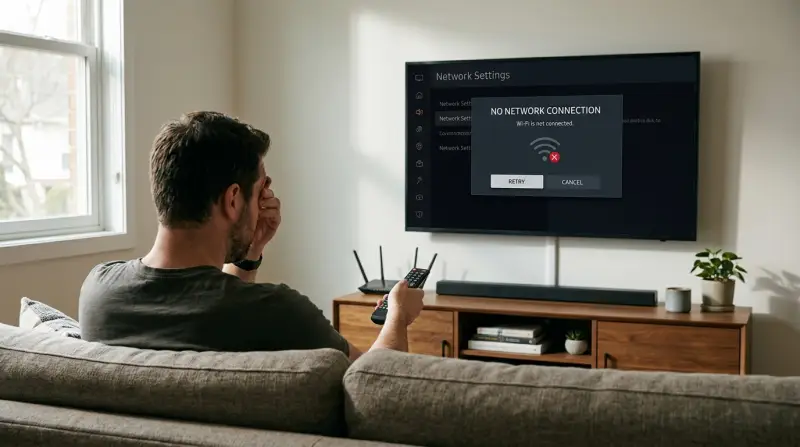
Understanding the reasons is the first step to solving the problem. Here are the most common causes:
- Weak WiFi Signal: If your TV is far from the router, the signal may be too weak for a stable connection.
- Incorrect Password: Entering the wrong WiFi password is a simple but common mistake.
- Software Bugs: Outdated firmware or system glitches can prevent connection.
- Router Issues: Sometimes the router itself needs a restart or update.
- Network Interference: Other electronic devices or thick walls can block the signal.
- MAC Address Filtering: Some routers block new devices unless allowed manually.
- TV Hardware Problems: Rarely, the WiFi module inside the TV may be faulty.
Non-obvious insight: Many people forget that too many devices connected to WiFi can slow down the network, making it hard for your TV to connect.
Quick Checks Before Troubleshooting
Start with these simple steps. They solve the problem for most people.
- Make sure the WiFi network is working on other devices (phone, laptop).
- Restart your LG TV and the WiFi router.
- Double-check the WiFi password on your TV.
- Move your TV closer to the router if possible.
If your TV still does not connect, go to the next section.
Step-by-step Troubleshooting Guide
Restart Everything
Turn off your LG TV, unplug it for 60 seconds, then plug it back in. Restart your router by unplugging it for 30 seconds. This simple action fixes many issues.
Update Lg Tv Firmware
Sometimes, an outdated system causes WiFi problems.
- Go to Settings > All Settings > Support > Software Update
- Check for updates and install if available
- Restart your TV after updating
Forget And Reconnect To Wifi
Remove the WiFi network from your TV and reconnect:
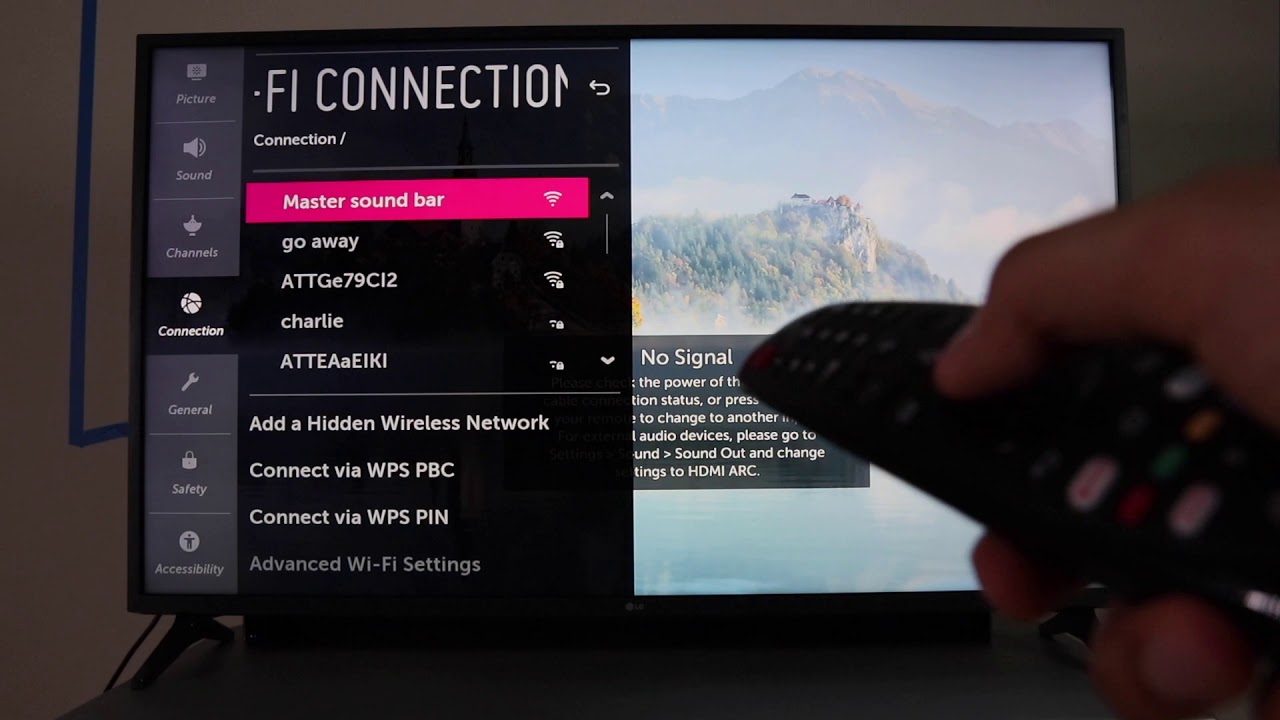
- Open Settings > Network > WiFi Connection
- Select your network and choose Forget
- Re-enter the password and connect again
Check Router Settings
Some router settings block new devices. Check for:
- MAC Address Filtering: Make sure your TV’s MAC address is allowed
- SSID Broadcast: Ensure your router is broadcasting the network name
Reduce Interference
Electronic devices like microwaves, cordless phones, or Bluetooth speakers can interfere with WiFi. Keep your router away from these devices.
Check Number Of Connected Devices
If too many devices are using your WiFi, the connection may drop. Disconnect some and try again.
Try Wired Connection
If WiFi fails, connect your TV to the router with an Ethernet cable. This can help identify if the issue is wireless only.
Factory Reset Your Lg Tv
As a last resort, reset your TV to factory settings:
- Go to Settings > All Settings > General > Reset to Initial Settings
- Follow on-screen instructions
Practical tip: After a factory reset, your TV will lose all saved apps and settings. Only use this if nothing else works.
Comparing Wifi Vs Wired Connection For Lg Tv
If your WiFi keeps failing, you might want to use a wired connection. Here is a quick comparison:
| Feature | WiFi | Wired (Ethernet) |
|---|---|---|
| Installation | Easy, no cables | Requires cable |
| Signal Stability | Can drop | Very stable |
| Speed | Depends on signal | Usually faster |
| Mobility | TV can move | TV must stay near router |
| Interference | Possible | None |
If you stream a lot of high-definition videos or play games, a wired connection is often better.

Real-life Examples
Here are a few stories from LG TV owners:
- Sarah tried connecting her TV in her bedroom, but the signal was weak. Moving the router closer fixed her issue.
- Ahmed could not connect after changing his WiFi password. He forgot to update the password on his TV.
- Maria’s TV stopped connecting after a power outage. Restarting both the TV and router solved the problem.
Non-obvious insight: Some LG TVs have trouble connecting to WiFi networks with special characters in the password. Try a simple password if you face issues.
Common Mistakes When Fixing Wifi Issues
- Ignoring firmware updates: Many users skip software updates, but these often fix connection bugs.
- Overlooking router settings: Not checking for MAC address filtering or SSID hiding can waste time.
- Restarting only one device: Restart both the TV and router for best results.
- Missing simple password errors: Double-check for typing mistakes, especially on remote controls.
- Assuming only TV is at fault: Sometimes, the problem is with the router, not the TV.

Lg Tv Wifi Error Codes And What They Mean
LG TVs sometimes show error codes when WiFi fails. Here are a few common ones:
| Error Code | Meaning | Suggested Action |
|---|---|---|
| 101 | Network not found | Check router, restart TV |
| 102 | Connection failed | Check password, restart devices |
| 105 | Internet not available | Check router internet |
| 106 | DNS error | Try manual DNS settings |
If you see one of these codes, follow the suggested actions. For DNS errors, you can use Google’s DNS: 8.8.8.8.
How To Improve Wifi Signal For Lg Tv
A strong signal makes streaming smoother. Here’s how to boost your WiFi:
- Place your router higher, like on a shelf
- Keep the router in the center of your home
- Use a WiFi extender to reach more rooms
- Avoid placing the router near thick walls or metal objects
- Update router firmware regularly
If your TV is still not connecting, try disconnecting other devices during streaming.
When To Contact Lg Support
If you have tried all solutions and your TV still won’t connect, it may be time to contact LG support. They can check for hardware issues or help with advanced troubleshooting.
Before calling, write down:
- Your TV model number
- The exact error message
- Steps you have tried
This helps support give you faster and better advice. You can find LG support details on their official website or in your TV’s manual. For trusted troubleshooting guides, you can also visit LG Official Support.
Data: Lg Tv Wifi Problems Compared To Other Brands
LG TVs are reliable, but WiFi problems happen. Here’s how LG compares to other brands:
| Brand | Reported WiFi Issues (%) | Average Fix Time |
|---|---|---|
| LG | 18% | 30 minutes |
| Samsung | 16% | 25 minutes |
| Sony | 14% | 22 minutes |
| TCL | 20% | 35 minutes |
This shows LG is similar to other brands. Most problems are fixed quickly if you follow the right steps.
Frequently Asked Questions
Why Won’t My Lg Tv Connect To Wifi But My Phone Can?
Your phone connects because its WiFi receiver is stronger or closer to the router. Your TV might be too far, have outdated firmware, or need a password update. Try restarting both devices and moving the TV closer.
Can A Damaged Wifi Module Cause Lg Tv Connection Issues?
Yes, the WiFi module inside your LG TV can fail. If all other devices connect but your TV does not, and you have tried all fixes, the module may need repair.
How Do I Manually Set Dns On Lg Tv?
Go to Settings > Network > Advanced Settings. Set DNS manually to 8.8.8.8 or 1.1.1.1. This often fixes DNS errors (code 106).
Will A Factory Reset Erase All My Apps And Settings?
Yes. A factory reset removes all apps, settings, and logins. Only use this as a last step if nothing else works. Backup important settings if possible.
Is It Safe To Use A Wifi Extender With Lg Tv?
Yes, a WiFi extender can improve signal. Choose a model that supports your router’s speed and place it halfway between the router and TV for best results.
Getting your LG TV connected to WiFi is important for enjoying smart features. By understanding common causes and following step-by-step solutions, you can fix most problems yourself. Remember to check for simple mistakes, update your TV, and improve your WiFi signal.
If the issue continues, don’t hesitate to contact support. With these tips, your LG TV should be ready to stream, browse, and entertain again.