
When you rely on your phone for calls, having voicemail issues can be frustrating—especially with a popular carrier like Mint Mobile. If your Mint Mobile voicemail is not working, you’re not alone. Many users face this problem at some point, whether it’s missing notifications, trouble setting up voicemail, or messages not coming through. The good news: most voicemail problems can be fixed with a few simple steps. This guide explains why Mint Mobile voicemail sometimes fails, how to troubleshoot, and what to do if standard solutions don’t work.
Common Reasons Mint Mobile Voicemail Fails
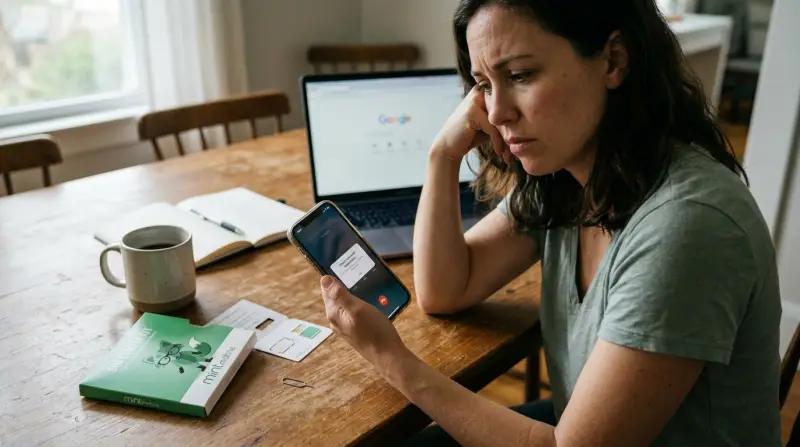
Understanding the possible causes helps you fix issues faster. Mint Mobile voicemail can stop working for several reasons:
- Network Problems: Weak signal or outages may block voicemail services.
- Incorrect Settings: Wrong voicemail number or disabled notifications can cause problems.
- Software Bugs: Outdated apps or operating systems sometimes interfere with voicemail.
- SIM Card Issues: A damaged or loose SIM card may affect all phone functions.
- Carrier Glitches: Temporary Mint Mobile system errors can stop voicemail.
- Device-Specific Bugs: Some phones (especially older Android or iPhones) have known voicemail quirks.
Often, users miss the real cause. For example, voicemail might not work after switching devices, porting numbers, or updating the OS—details people forget to mention to support. Also, many users don’t realize that voicemail is a carrier service, not just a phone feature.
Fixing the app alone may not solve a network problem.
How To Troubleshoot Mint Mobile Voicemail Issues
Fixing Mint Mobile voicemail usually takes a few steps. Here’s what to do, starting from easiest to most advanced.
1. Check Your Signal And Data
Voicemail needs a good network connection. No signal = no voicemail.
- Make sure you have at least two bars of cellular signal.
- Try making a test call. If it fails, voicemail won’t work either.
- Switch Airplane Mode ON, wait 10 seconds, then OFF again to reset the connection.
- Move to a location with better coverage.
2. Restart Your Device
A simple restart can clear minor glitches. Power off your phone completely, wait 20 seconds, then turn it on again. This resets apps and network services.
3. Verify Voicemail Settings
Incorrect settings are a common issue, especially if you changed SIM cards or phones.
- Open your Phone app, tap the dial pad, and enter `#61#`* then call. This shows your current voicemail number.
- The number should look like: +1[Your Area Code][Your Number]. If not, contact Mint Mobile to get the correct voicemail access number.
- On Android, open Phone > Settings > Voicemail > Advanced Settings > Voicemail number.
- On iPhone, go to Settings > Phone > Voicemail.
4. Set Up Voicemail (if Not Done)
If voicemail was never set up, it won’t work.
- Call your own number or press and hold “1” on the dial pad.
- Follow the prompts to set up a voicemail PIN and greeting.
- Save your changes.
5. Update Carrier Settings
Mint Mobile may send carrier updates that you must install:
- On iPhone: Settings > General > About. If an update is available, you’ll see a prompt.
- On Android: Settings > About Phone > Carrier. Follow any update prompts.
6. Update Your Operating System
Sometimes, voicemail bugs are fixed in the latest OS update. Go to Settings > Software Update and install any pending updates.
7. Clear Voicemail App Data (android)
Old voicemail data can block new messages.
- Go to Settings > Apps > Voicemail > Storage > Clear Data.
- Restart your phone.
8. Remove And Reinsert Sim Card
A poorly-seated SIM can cause network issues.
- Power off your phone.
- Remove the SIM tray, wait 10 seconds, and reinsert it carefully.
- Turn the device back on.
9. Call Mint Mobile Support
If nothing works, your account may need a reset. Contact Mint Mobile support and explain the steps you’ve tried. They can reset your voicemail box or check for network issues.
Comparing Mint Mobile Voicemail Problems To Other Carriers
To see how Mint Mobile stacks up, here’s a quick look at common voicemail issues across major US carriers:
| Carrier | Common Voicemail Issues | Average Fix Time |
|---|---|---|
| Mint Mobile | Setup errors, missed notifications, no messages | 5-30 min |
| T-Mobile | Visual voicemail bugs, PIN errors | 10-45 min |
| AT&T | Voicemail not loading, call forwarding issues | 15-60 min |
| Verizon | Delayed messages, broken notifications | 10-40 min |
Mint Mobile’s voicemail issues are usually quick to fix compared to legacy carriers, especially if you know the right steps.
Visual Voicemail Vs. Traditional Voicemail
Many users don’t realize there are two types of voicemail:
| Voicemail Type | How It Works | Common Issues |
|---|---|---|
| Traditional Voicemail | Call a number, listen to messages by phone | Access number errors, PIN problems |
| Visual Voicemail | See/listen to messages in an app or phone menu | App bugs, sync errors, missing notifications |
Mint Mobile supports both types, but visual voicemail is only available on certain devices (mainly newer iPhones and some Androids). If you switch phones or use a device not officially supported, you may lose visual voicemail, even if regular voicemail works fine.
Advanced Fixes And Special Cases
Ported Numbers
If you recently switched to Mint Mobile and kept your old number, voicemail may be stuck in transition. It can take up to 24 hours for all services—including voicemail—to activate fully. If it’s been longer, contact support and mention your number was ported.
Roaming Or Traveling
When outside Mint Mobile’s network (especially international), voicemail delivery may fail or delay. Use Wi-Fi calling where possible, and check Mint’s international support page for voicemail access methods when abroad.
Full Voicemail Box
A full inbox is a surprisingly common reason new messages don’t come through. Call your voicemail, delete old messages, and then test again.
Device-specific Bugs
Some older Android models have known voicemail app bugs. If you suspect your device, try a third-party visual voicemail app from the Play Store, or use traditional voicemail dialing.
How To Prevent Future Voicemail Problems
Once you’ve fixed your voicemail, a few habits can prevent new issues:
- Update your phone regularly (OS and carrier settings).
- Check for app updates—especially the Phone or Voicemail app.
- Set a memorable PIN and save it somewhere secure.
- Test voicemail after changing your SIM, phone, or porting your number.
- Keep your voicemail box less than 80% full to avoid missed messages.
Credit: piunikaweb.com
When To Contact Mint Mobile Support
Most problems can be fixed without calling support, but contact Mint Mobile if:
- You’ve tried all steps above and voicemail still fails.
- Your voicemail was working, then stopped after a carrier update.
- You get error messages like “Mailbox not found” or “Voicemail unavailable.”
- You cannot set or change your voicemail PIN.
Mint Mobile’s customer support can be reached via their website, app, or by dialing 611 from your Mint phone. Be ready to share your account details and describe the troubleshooting you’ve already done.
Real-world Example
Jenna, a Mint Mobile user in Texas, recently noticed her voicemail stopped working after she swapped her SIM card to a new iPhone. She could make calls and use data, but callers couldn’t leave her messages. Here’s how she fixed it:
- She restarted her phone—no change.
- She checked her voicemail number using `#61#`, which was blank.
- She contacted Mint Mobile support, who reset her voicemail box and provided the correct access number.
- After entering the new number and restarting, voicemail worked again.
Jenna’s case shows the importance of checking the voicemail access number and reaching out to support when self-service fails.
Credit: www.mintmobile.com
Useful Resources
For official troubleshooting, Mint Mobile’s help center offers updated guides: Mint Mobile Help Center. Apple and Google also provide device-specific voicemail support if you suspect a phone issue.
Frequently Asked Questions
Why Is My Mint Mobile Voicemail Not Working After Switching Phones?
When you switch phones, voicemail settings (like the access number) may not transfer automatically. Always check your voicemail settings after inserting your SIM into a new device. If you notice problems, update your carrier settings and reboot your phone.
How Do I Reset My Mint Mobile Voicemail Password?
Dial your voicemail by pressing and holding “1” on your dial pad, then follow the prompts to change or reset your PIN. If you forget your PIN and can’t reset it via prompts, contact Mint Mobile support for a manual reset.
Can I Use Visual Voicemail On All Phones With Mint Mobile?
Visual voicemail is only supported on certain devices—mainly newer iPhones and some Android models. If your phone doesn’t support it, you can still access traditional voicemail by dialing your number. For more info, check your device’s documentation or Mint Mobile’s FAQ.
What Should I Do If I Don’t Get Voicemail Notifications?
First, make sure your phone’s notification settings allow the voicemail app to send alerts. Check the app permissions, and ensure Do Not Disturb is off. If notifications are still missing, try updating your phone and voicemail app, or reset app preferences.
Is Voicemail Included In All Mint Mobile Plans?
Yes, all Mint Mobile plans include basic voicemail at no extra cost. However, advanced features like visual voicemail may depend on your device’s compatibility and settings.
Getting your voicemail working again is usually simple if you follow the right steps. Address the basics—signal, settings, updates—and don’t hesitate to contact Mint Mobile support if you’re stuck. With the right approach, you won’t miss another important message.