
A simple power cycle is the most effective way to address a Modem Not Working Spectrum situation, as it clears temporary data errors that block your connection. Most connection issues stem from outdated local cache files or a brief interruption in the signal from the provider. If your lights are blinking or off, a full restart is almost always the required first step to restore your internet access.
Why your Modem Not Working Spectrum: Common Causes
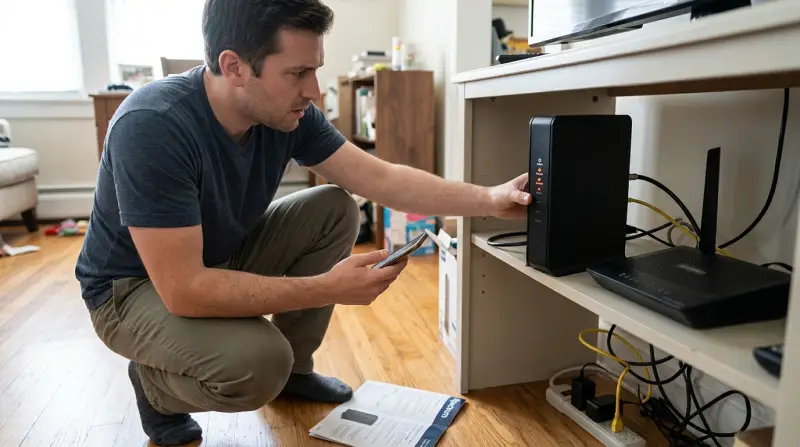
Connection failures occur for a few predictable reasons. The most common cause is a service outage in your local area. Providers perform routine maintenance or face hardware failures at the street level, which cuts off your signal entirely. You can check for these outages by logging into your account on the Spectrum support status page to see if there’s a known issue in your neighborhood.
Another frequent cause is a loose or damaged coaxial cable. These cables carry the data from the wall to your equipment. If the connector has vibrated loose, the modem cannot “talk” to the provider’s server. Even if the cable looks tight, it may have a slight gap that prevents a solid connection.
Finally, your equipment may have a software glitch. Modems are small computers that run 24/7. Over time, the internal memory can become cluttered with old error logs. This is why a power cycle works; it forces the hardware to dump its temporary memory and request a fresh configuration file from the provider’s network. If the internal hardware itself has failed, the unit will remain unresponsive even after a hard reset.
Perform a power cycle
A power cycle is the primary fix for most users, but you must do it in the correct order to ensure the handshake between devices works. This fix is for anyone seeing flashing red or amber lights, or no lights at all. First, unplug the power cord from the back of the modem. Don’t just press the button; you must pull the plug to fully cut the electricity. Wait at least 60 seconds before plugging it back in. This wait time allows the modem’s internal memory to clear completely.
Once you plug it back in, wait for the lights to stabilize. This can take up to five minutes. If you have a separate router, keep it unplugged until the modem lights are solid. If the modem lights don’t turn solid after ten minutes, check the coaxial cable again. Tighten the connector on the back of the modem and the wall outlet by hand; don’t use pliers, as over-tightening can crush the center pin. If you have a splitter on the line, remove it and connect the cable directly to the wall. If you still have no signal, the issue is likely with the signal strength at the street. This fix isn’t for users who have damaged cables or visible water damage on the unit. If you see burned wires or smell smoke, stop immediately and contact the provider for a technician visit.
Check your cable connections
This fix focuses on the physical signal path. If your modem is powered on but the “Online” or “Internet” light is blinking, the unit is struggling to find the signal. Start by inspecting the coaxial cable that runs from your wall jack to the modem. Ensure the cable isn’t bent at a sharp angle. Coaxial cables have a copper core that can snap if the cable is kinked, which will stop the signal immediately.
If you have a cable wall plate, ensure it’s screwed tightly to the wall. Sometimes the connection behind the plate comes loose over time. If you have a spare cable of the same type, try swapping it out. This is a common mistake; people often assume the cable is fine because it looks clean on the outside. A damaged inner wire is invisible to the eye but fatal to your connection. If you have multiple wall jacks in your home, try moving the modem to a different room. If it works in another room, the issue is with the wiring inside your home walls. If it fails in every room, the problem is likely outside your house or with the modem itself. This fix is for those who are comfortable moving equipment. If you can’t reach the wall jacks safely or the cable is stuck behind heavy furniture, don’t force it. Call the provider to request a technician who has the proper tools to test the wall wiring.
Use the provider app

When manual resets fail, use the official provider tools to run a remote diagnostic. This is the best way to see if the problem is on your end or theirs. Log in to the official mobile app or the provider’s website on your phone using cellular data. Most modern apps have a “Troubleshoot” or “Repair” button that sends a signal to your modem to force a factory reset. This is worth the effort because it can detect if your modem’s software is outdated or if there’s a signal mismatch.
This isn’t for users who don’t have an active mobile account or who have already been told by the provider that a technician is required. If the app tells you to call, don’t keep trying to reset it. It means the system has detected a physical failure, such as a dead modem or a severed line. At this point, you need a professional to bring a new unit or repair the external line. Don’t attempt to repair external lines yourself, as this can violate your service agreement and lead to fines. If the app confirms the modem is unresponsive, it’s time to exchange the hardware at a local store.
What not to do
-
Don’t press the “Reset” pinhole button repeatedly. This triggers a factory reset that wipes your custom Wi-Fi settings, forcing you to reconfigure the entire network from scratch. If you hold the button for more than 10 seconds, the device performs a factory reset, which will require you to reconfigure your custom Wi-Fi settings.
-
Don’t use a power strip or surge protector during troubleshooting. These devices can provide inconsistent voltage, causing the modem to reboot mid-update. Always plug the unit directly into a wall outlet to ensure a clean, steady current.
-
Don’t open the modem casing. Opening the unit voids your warranty immediately. There are no user-serviceable parts inside, and high-voltage capacitors can retain a dangerous charge even after the power is disconnected.
-
Don’t attempt to splice or cut your own coaxial cables. Improperly shielded or joined cables introduce “noise” into the line. This interference drops your speeds and can degrade signal quality for everyone on your local node. If you see a frayed wire, call your provider to replace the entire segment.
How to stop it happening again
To keep your connection stable, follow a regular maintenance routine for your hardware. If you’re experiencing frequent drops, the table below highlights how to adjust your habits to prevent future issues.
| If you’re doing this | Do this instead | Why |
|---|---|---|
| Leaving the modem in a cabinet | Place it in an open, airy spot | Overheating causes random reboots |
| Using old, thin cables | Use high-quality RG6 cables | Better shielding prevents signal noise |
| Plugging into a power strip | Plug directly into the wall | Ensures consistent voltage delivery |
| Ignoring blinking status lights | Check the app immediately | Early detection prevents total failure |
Most users mistake a simple reboot for a permanent fix. If your connection drops more than three times in a single week, a restart is merely a temporary patch. You must inspect the physical cable connections for oxidation or loose pins.
If the cable feels warm to the touch, unplug the modem immediately and contact a professional, as this indicates a dangerous electrical fault. If you see a solid red light after a reset, don’t wait for it to clear. Call your provider, as this indicates a line-side fault that no amount of hardware adjustment can repair.
Frequently asked questions
Can I fix a modem that has no lights?
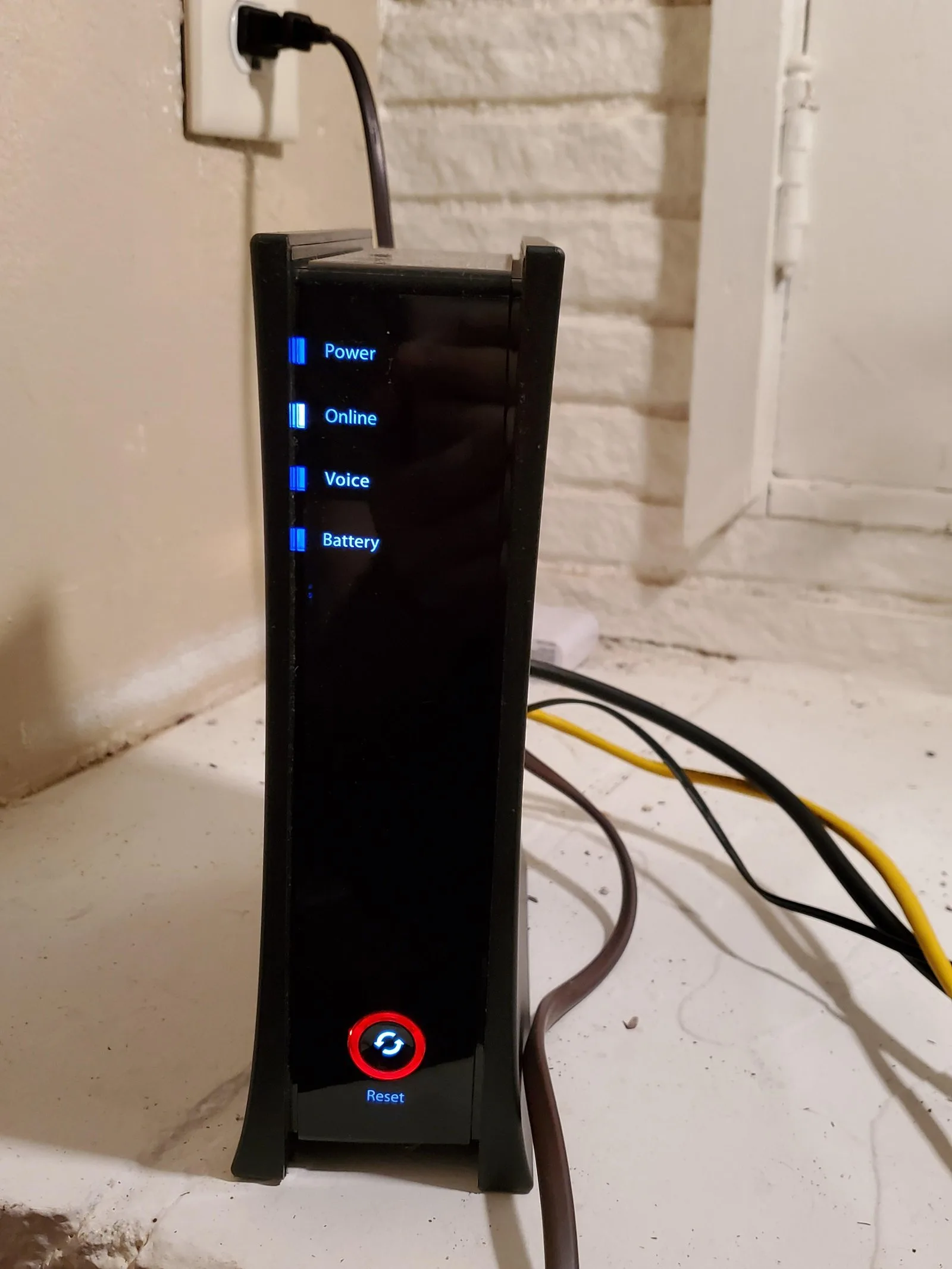
A modem with no lights has likely suffered a power supply failure or internal hardware death. Verify your wall outlet works by plugging in a lamp. If the outlet is functional and the modem remains dark after checking the power connection, the unit is broken and requires replacement.
Why is my internet light blinking red?
A blinking red light indicates the modem can’t detect a network signal from your provider. This often occurs following storms or power outages. If power cycling the unit doesn’t resolve the issue within ten minutes, contact support to check for local outages or line problems.
How long should a modem take to restart?
A full restart typically takes between three and five minutes to complete. The modem needs to connect to the network, download its configuration file, and then verify the handshake with the provider’s server. If your modem takes longer than ten minutes to show a solid connection, it’s likely stuck in an error loop. Try the power cycle process one more time, and if it fails, contact the provider for further assistance.
Is it safe to leave my modem on all the time?
Yes, your modem is designed to remain powered on 24/7 to maintain your connection and receive security updates. Turning the device off nightly can cause it to miss critical firmware updates. Only power down the unit if you’re traveling for an extended period or performing a troubleshooting reset.
What happens if I move my modem to another room?
You can move your modem to another room if that location has an active, working coaxial wall jack. Not all wall jacks are connected to the main service line. If the modem lights don’t turn solid after moving it, that jack is likely inactive and requires professional activation.
Final Thoughts
If your connection still doesn’t stabilize after these efforts, don’t hesitate to reach out to their support team. They’ll be able to run a remote diagnostic check to see if there’s a deeper outage in your neighborhood. Getting back online shouldn’t be a struggle, so let them help you out today.
Related guides
- Spectrum Remote Not Working Input Button Red? Quick Fix Guide
- Spectrum DVR Not Working: Quick Fixes to Restore Your Service
- Spectrum Remote Fast Forward Not Working: Quick Fixes and Tips