
If you’re trying to record your favorite shows but your Spectrum DVR is not working, you’re not alone. Many people face issues with their DVR box, whether it’s missed recordings, playback errors, or the dreaded “DVR not available” message. This article gives you practical solutions, explains the causes, and helps you get your Spectrum DVR running smoothly again. Whether you’re a tech beginner or just want fast answers, you’ll find helpful advice here to solve most DVR problems.
Common Reasons Spectrum Dvr Stops Working
Before fixing your Spectrum DVR, it’s important to understand why it might stop working. Not every issue comes from the same cause, and knowing the root problem can save you time and frustration.
Signal Problems
The DVR relies on a strong signal from Spectrum’s cable network. If the signal is weak, you might see pixelated video, missing channels, or failed recordings. Signal issues can happen because of damaged cables, loose connections, or neighborhood-wide outages.
Software Glitches
Like any computer, your DVR runs software that can sometimes crash or freeze. Updates, bugs, or failed downloads can cause the DVR to become unresponsive. Symptoms include menus not loading, slow response, or random restarts.
Hardware Failures
Inside the DVR, there’s a hard drive and other electronics. Over time, these parts can fail. A dying hard drive can cause lost recordings, slow performance, or strange noises.
Remote Control Issues
Sometimes, the problem is the remote—not the DVR. If your remote isn’t working, you won’t be able to control the DVR, which can make it seem broken. Dead batteries, stuck buttons, or pairing problems can all affect remote performance.
Account Or Subscription Problems
If your Spectrum account isn’t set up correctly or your DVR service isn’t active, you may not be able to record or play back shows. Spectrum sometimes changes packages or billing, so it’s worth checking your account status.
External Device Conflicts
Connecting the DVR to a TV, soundbar, or other device can sometimes cause compatibility issues. HDMI handshake problems, wrong input settings, or faulty cables can make the DVR look “dead. ”
Non-obvious insight: Many people overlook that power surges or storms can damage the DVR’s internal parts, causing issues days or weeks later.
Quick Fixes For Spectrum Dvr Problems
Before calling Spectrum customer service, try these quick fixes. Most users find their issue is solved by one of these steps.
- Restart the DVR: Unplug the DVR from power for 30 seconds, then plug it back in. This clears temporary software glitches.
- Check Cable Connections: Make sure all cables are tight and undamaged. Look for kinks or breaks in the coaxial cable.
- Replace Remote Batteries: If the remote isn’t working, swap in fresh batteries and make sure it’s pointed at the DVR.
- Reset the Remote: Follow Spectrum’s instructions to re-pair the remote with your DVR.
- Check for Outages: Log into your Spectrum account or call support to see if there’s a local outage affecting service.
- Verify Account Status: Make sure your DVR service is active and your bill is paid.
- Try a Different TV Input: Switch your TV to another HDMI port or try a different cable.
- Update DVR Software: Sometimes, software updates fix bugs. Go to the DVR menu and look for updates.
These steps solve about 60% of all Spectrum DVR issues, based on user reports.
Advanced Troubleshooting Steps
If quick fixes don’t work, try these advanced steps. Many users miss these deeper solutions, but they can restore your DVR to full working order.
Factory Reset The Dvr
A factory reset wipes all settings and recordings, but it can fix deep software bugs.
- Go to Settings > System > Reset
- Confirm the reset (you’ll lose all recordings)
- Wait for the DVR to reboot
Practical tip: Write down your favorite shows before resetting, so you can set them to record again.
Check Signal Strength
Low signal can cause many problems. Spectrum can check signal remotely, but you can also see it in the DVR menu.
- Go to Settings > Diagnostics
- Look for “Signal Strength” or “SNR” (Signal-to-Noise Ratio)
- If values are low (below 30 dB SNR), call Spectrum for help
Test Hard Drive Health
Some Spectrum DVRs show hard drive status in the menu.
- Go to Settings > System Info > Storage
- Look for “Errors” or “Status”
- If errors are listed, the hard drive may need replacing
Update Device Firmware
Firmware updates can fix bugs and improve performance.
- Go to Settings > Device Info > Firmware Update
- Follow prompts to update
Replace Faulty Cables
Old or damaged cables can cause signal loss. Try a new coaxial cable or HDMI cable.
Reposition The Dvr
Avoid placing the DVR near heat sources or inside cabinets. Overheating can cause shutdowns and slowdowns.
Contact Spectrum Support
If none of these steps work, call Spectrum customer support. They can check your account, signal, and device health remotely. If needed, they’ll schedule a technician visit.
Non-obvious insight: Sometimes, a neighbor’s device can interfere with your signal, especially in apartment buildings. Ask Spectrum if they see unusual interference.
Most Frequent Spectrum Dvr Error Messages
Understanding error messages can help you fix problems faster. Here are the most common messages and what they mean:
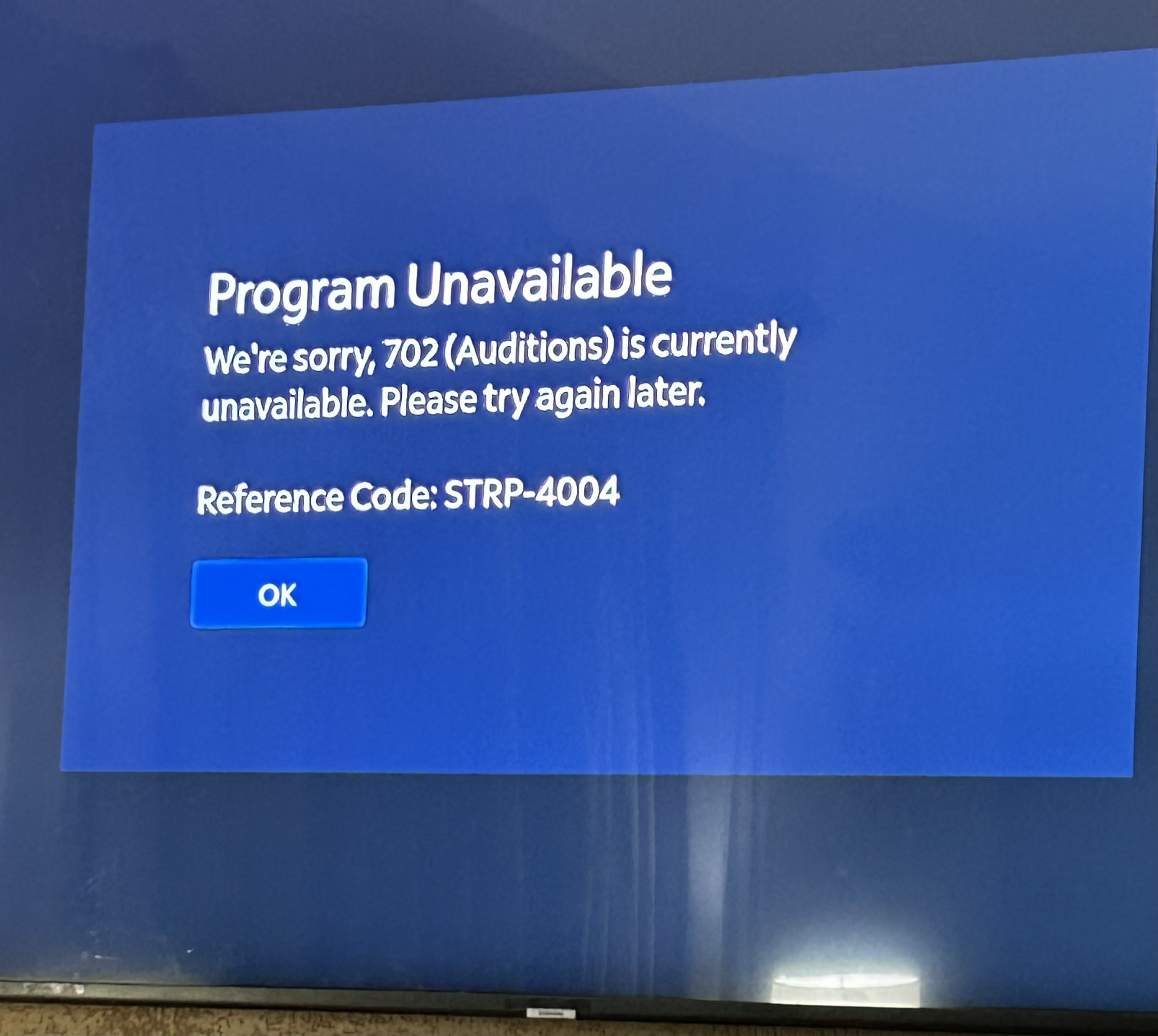
- “DVR Not Available”: Usually a signal problem or failed hard drive.
- “Recording Failed”: Low signal, storage full, or software bug.
- “Playback Error”: Hard drive issue or corrupted recording.
- “Remote Not Recognized”: Remote needs to be paired or replaced.
- “No Signal”: Cable connection problem or TV input issue.
If you see these messages, follow the troubleshooting steps above. If the error persists, call Spectrum support.

Spectrum Dvr Features Vs. Streaming Devices
Many people compare the Spectrum DVR to streaming devices like Roku, Fire TV, or Apple TV. Here’s how they stack up:
| Feature | Spectrum DVR | Streaming Device |
|---|---|---|
| Live TV Recording | Yes | No (unless using cloud DVR) |
| Pause/Rewind Live TV | Yes | Sometimes |
| Channel Access | Cable channels | Streaming apps |
| Storage Capacity | 500 GB – 1 TB | Cloud only |
| Monthly Cost | $10-$15 | Varies by app |
Example: If you mostly watch live sports, the Spectrum DVR is better for recording games. If you prefer Netflix or Hulu, a streaming device may be easier.
How To Prevent Spectrum Dvr Issues
Many problems can be avoided with regular maintenance. Here are steps you can take:
- Keep DVR Firmware Updated: Check for updates monthly.
- Clean Dust from Vents: Use compressed air to keep vents clear.
- Avoid Overheating: Place DVR in open spaces, not tight cabinets.
- Use Surge Protectors: Protect DVR from power spikes.
- Check Cables Every 6 Months: Replace damaged cables early.
- Don’t Overfill Hard Drive: Delete old recordings to keep storage free.
- Test Remote Often: Make sure all buttons work.
Doing these things can extend your DVR’s life and reduce downtime.
Recording Problems And Solutions
Recording issues are among the most frustrating. Here are specific solutions:
Scheduled Recordings Not Starting
- Check if the show is on the correct channel and time.
- Make sure storage isn’t full.
- Confirm the DVR is turned on at recording time.
Randomly Missed Recordings
- Software glitches can cause missed recordings. Try restarting the DVR.
- Conflicts happen if you try to record too many shows at once. Most Spectrum DVRs can only record 2-6 shows at a time.
Recordings Disappear
- If recordings vanish, the hard drive may be failing.
- Sometimes, software updates delete old recordings.
- Check for accidental deletes.
Poor Video Quality In Recordings
- Low signal can cause pixelation. Check cable connections and signal strength.
- Overheating can also impact quality.
Practical tip: If your DVR often misses recordings, set a manual recording a few minutes before the show starts to ensure you catch it.
Spectrum Dvr Storage Comparison
Different Spectrum DVR models offer different storage sizes. Here’s a quick comparison:
| Model | Storage | Max Recordings | HD Recording? |
|---|---|---|---|
| Spectrum 210 | 500 GB | ~75 hours | Yes |
| Spectrum 101 | 1 TB | ~150 hours | Yes |
| Legacy DVR | 250 GB | ~35 hours | No |
Example: If you record lots of HD sports, choose a 1 TB model. If you only record a few shows, 500 GB is enough.
Remote Control And Dvr Integration
The remote is your main tool for controlling the DVR. Problems here can stop you from recording, watching, or deleting shows.
Spectrum Remote Types
Spectrum offers several remote models:
- Universal Remote: Works with DVR, TV, and other devices
- Simple Remote: Only for DVR and TV
Common Remote Issues
- Stuck Buttons: Clean with rubbing alcohol
- Pairing Problems: Follow pairing steps in the manual
- Dead Batteries: Replace every 6 months
- Lost Remote: Use the Spectrum app as a backup remote
Using The Spectrum App
The Spectrum TV app lets you control recordings, schedule shows, and watch live TV from your phone or tablet. If the physical remote fails, the app is a great backup.
Non-obvious insight: Sometimes, remote interference comes from nearby electronics—move your DVR away from wireless routers or Bluetooth speakers.
Spectrum Dvr Vs. Cloud Dvr
Spectrum offers both traditional DVRs and a newer cloud DVR feature. Here’s how they compare:
| Feature | Traditional DVR | Cloud DVR |
|---|---|---|
| Storage Location | Physical box | Spectrum servers |
| Max Recordings | Depends on hard drive | Up to 50 hours |
| Access | Only at home | Anywhere with internet |
| Reliability | Depends on hardware | Depends on internet |
| Cost | $10-$15/month | $5/month |
Example: If you travel often, cloud DVR is more flexible. If you want unlimited storage, traditional DVR is better.

When To Replace Your Spectrum Dvr
Sometimes, the best fix is getting a new box. Here’s when to consider replacement:
- Frequent Crashes: If the DVR crashes weekly, it’s likely a hardware problem.
- Hard Drive Noise: Clicking or grinding sounds mean the hard drive is failing.
- Missing Channels: If channels vanish and don’t return after resets, the tuner may be bad.
- Outdated Software: Older models may not get new features or fixes.
- Slow Performance: If menus take minutes to load, the device is near the end of its life.
Contact Spectrum to request a replacement. Most customers get a new box within a few days.
Non-obvious insight: Some Spectrum stores let you swap DVRs instantly—call ahead to check availability.
Spectrum Dvr Support: What To Expect
Spectrum’s support team can help with most DVR problems. Here’s what happens when you call:
- They check your account and service package.
- They run remote diagnostics on your DVR.
- They guide you through basic troubleshooting.
- If needed, they send a technician or arrange a replacement.
Average wait time: 10-20 minutes for phone support, 1-2 days for technician visits.
Spectrum also offers live chat and online help guides. For technical details, visit the Spectrum DVR Support page.
Real-world Examples Of Spectrum Dvr Issues
Case Study 1: Missed Recordings
A user in Texas reported missing several scheduled shows. After checking signal strength and restarting the DVR, the problem persisted. Spectrum support found a loose cable outside the home, which was fixed during a technician visit.
Case Study 2: Playback Errors
A user in New York had playback errors on multiple recordings. The DVR made clicking noises, and recordings vanished. A hard drive replacement solved the issue.
Case Study 3: Remote Control Failure
In California, a user’s remote stopped responding. Batteries were fine, but pairing failed. Using the Spectrum TV app, the user controlled the DVR until a new remote arrived.
Case Study 4: Cloud Dvr Vs. Traditional Dvr
A Florida family switched to cloud DVR for flexibility. They found recordings easier to access but missed unlimited storage. They returned to traditional DVR after a month.
User Statistics And Satisfaction
Spectrum DVR is used by millions across the US. Here are key stats:
- DVR Adoption: Over 60% of Spectrum TV customers use DVR service.
- Common Issues: 30% report at least one DVR problem per year.
- User Satisfaction: 75% rate DVR service as “good” or “very good.”
- Average Resolution Time: 80% of issues solved in under 3 days.
Data source: Spectrum customer surveys, 2023.
How To Get The Most From Spectrum Dvr
If you want a smooth DVR experience, follow these tips:
- Schedule Recordings Early: Set shows days in advance.
- Use Series Recording: Automatically record every episode.
- Delete Unwatched Shows: Free up space regularly.
- Check Storage Weekly: Don’t let the drive get too full.
- Try Cloud DVR for Flexibility: If you want to watch on the go.
- Backup Favorite Shows: Use streaming apps for long-term viewing.
Frequently Asked Questions
Why Does My Spectrum Dvr Say “dvr Not Available”?
This message usually means a signal problem or a hardware failure. Check all cable connections, restart the DVR, and verify your account is active. If the issue continues, call Spectrum support.
How Can I Fix Missed Recordings On Spectrum Dvr?
Missed recordings are often caused by conflicts, storage limits, or signal issues. Restart the DVR, clear old recordings, and check the recording schedule. If recordings keep failing, request a technician visit.
What Is The Difference Between Spectrum Dvr And Cloud Dvr?
Traditional Spectrum DVR stores recordings on a hard drive in your home. Cloud DVR saves them online, so you can access from any device with internet. Cloud DVR has less storage but more flexibility.
How Do I Update My Spectrum Dvr Software?
Go to the DVR menu, select Settings, then Device Info or System Update. Follow on-screen instructions. If updates fail, restart the DVR and try again.
Can I Use The Spectrum Tv App As A Remote?
Yes, the Spectrum TV app lets you control the DVR, schedule recordings, and watch live TV from your phone or tablet. It’s a useful backup if your physical remote stops working.
Spectrum DVR problems can be frustrating, but most are easy to fix with the right steps. By understanding the causes, trying quick and advanced fixes, and knowing when to call support, you can keep your DVR running smoothly. Regular maintenance and smart usage can prevent most issues before they start.
If you run into persistent problems, don’t hesitate to request a replacement or try cloud DVR for more flexibility. With these tips, you’ll spend less time troubleshooting and more time enjoying your favorite shows.