
If you’re seeing an orange light on your Netgear router, you’re not alone. Many users face this issue, and it can be frustrating when your internet suddenly stops working or slows down. The orange (sometimes called amber) light on a Netgear router usually signals a problem with your internet connection, the device itself, or the way your network is set up.
But with the right guidance, you can find the cause and fix it—often in just a few minutes.
This guide explains what the orange light means, the most common reasons for it, and step-by-step solutions you can use right now. Whether you’re a beginner or have some technical experience, this article will help you get your Netgear router working again and keep your home or office online.
What The Orange Light On A Netgear Router Means
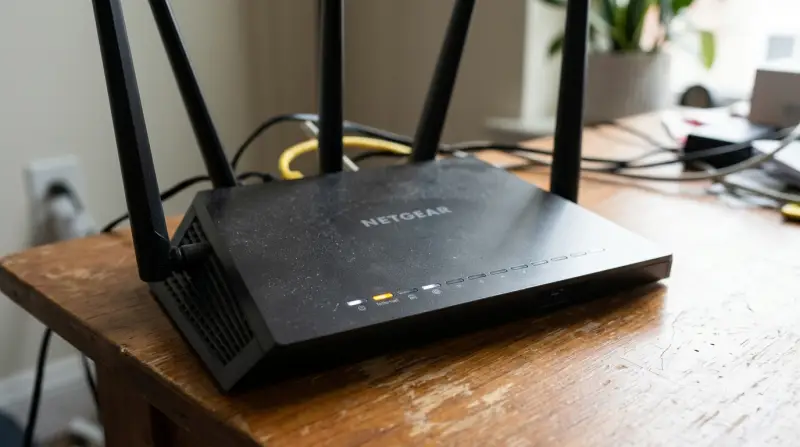
Netgear routers use different colored lights to show the status of your connection and devices. The meaning of the orange light may vary slightly depending on the model, but in most cases:
- Solid orange: The router is not connected to the internet, or the Ethernet cable is detected but there’s no internet service.
- Blinking orange: There is a hardware issue, or the router is starting up and has not finished booting.
Understanding the exact pattern and location of the orange light will help you diagnose the problem faster.
Main Types Of Orange Lights
| Light Pattern | What It Means |
|---|---|
| Solid orange on Internet LED | No internet connection detected |
| Blinking orange on Power LED | Router is booting or firmware is corrupted |
| Orange on Ethernet port | Device connected, but speed is 10/100 Mbps (not gigabit) |
Why Is My Netgear Router Showing An Orange Light?
Several reasons can cause the orange light on your Netgear router. These are the most common:
- Internet service is down: Your ISP (Internet Service Provider) may be having issues in your area.
- Loose or damaged cables: A bad Ethernet or power cable can interrupt the connection.
- Modem problems: If your modem is not working properly, your router cannot connect to the internet.
- Outdated or corrupted firmware: Software on the router may need an update or be damaged.
- IP conflict or wrong settings: Wrong network settings or IP conflicts can prevent connection.
- Hardware failure: Rare, but possible if the router is old or overheated.
Let’s look at each cause more closely.
Isp Issues
Internet providers sometimes experience outages. If your internet suddenly stops and you see an orange light, this is a likely cause. You can confirm by checking your ISP’s service status page or calling them directly.
Cable Problems
A loose, unplugged, or damaged Ethernet or power cable can break the connection between your modem and router. Even a slightly bent pin inside the cable can cause trouble.
Modem Not Working
If your modem is offline, your router cannot pass internet traffic to your devices. Sometimes, modems need to be rebooted or have a firmware update.
Firmware Or Settings
Router firmware controls how it works. If this becomes outdated or corrupted, the router may fail to connect. Wrong network settings, such as incorrect login or wrong IP address, can also cause issues.
Hardware Defects
Old routers or those exposed to heat and dust can develop hardware faults. While rare, these can cause persistent orange lights even if everything else is correct.

Credit: datafeature.com
How To Fix Netgear Router Orange Light
You can fix most orange light problems yourself. Follow these steps in order, and you’re likely to solve the issue.
1. Check Your Internet Connection
Before changing anything, check if your internet service is down.
- Try using your phone’s mobile data to visit your ISP’s website.
- Look for service outage notifications.
- If possible, connect a computer directly to the modem with an Ethernet cable. If there’s still no internet, the problem is not with your router.
2. Inspect Cables And Power
Cables often cause connection problems.
- Unplug both the Ethernet and power cables from your router and modem.
- Inspect for any visible damage.
- Plug them back in firmly—make sure you hear a click for Ethernet cables.
- Avoid using old or worn-out cables.
3. Restart Your Network Devices
A simple restart can clear temporary glitches.
- Turn off your modem and router.
- Wait for at least 30 seconds.
- Turn on the modem first. Wait until all lights are stable.
- Turn on the router. Wait until lights settle.
This sequence resets the connection between your devices and often solves the orange light problem.
4. Update Router Firmware
Outdated firmware can cause malfunctions. Here’s how to update:
- Connect a computer to the router using an Ethernet cable.
- Open a browser and go to routerlogin.net or 192.168.1.1.
- Log in with your admin credentials.
- Find the firmware update option (usually in the “Administration” or “Advanced” section).
- If an update is available, follow prompts to install it.
Never turn off the router during a firmware update, as this can corrupt the device.
5. Check For Ip Conflicts And Reset Settings
Wrong settings can block internet access.
- In the router settings, check that your internet connection type matches what your ISP provides (DHCP, PPPoE, Static IP).
- If unsure, you can reset the router to factory settings.
- To reset: Press and hold the reset button (usually a small hole) for 10 seconds using a paperclip.
This will erase all custom settings (Wi-Fi name, password, etc.), so you’ll need to set them up again.
6. Test With A Different Modem Or Router
If possible, try using a different router or modem to check which device is causing the issue. If the orange light appears only with your Netgear router, it is likely the problem.
7. Contact Support
If none of these steps work, your router may have a hardware problem. Contact Netgear support or visit their official Netgear Support page for advanced troubleshooting or warranty service.
Common Mistakes When Troubleshooting
Many people make small mistakes that can delay fixing the problem. Here are some to avoid:
- Skipping the modem check: Always test the modem first before blaming the router.
- Not restarting devices fully: Turning off and on too quickly may not reset the connection.
- Ignoring firmware updates: These often contain important bug fixes.
- Using old cables: Even if cables look fine, they can have internal breaks.
- Forgetting to reset after major changes: Some settings require a full reboot or reset to take effect.
Comparison: Netgear Router Light Patterns
Identifying the correct light pattern is key. Here’s a quick comparison of what different colors mean on Netgear routers.
| LED Color | Status | What To Do |
|---|---|---|
| Solid White | Fully connected | No action needed |
| Blinking White | Data transferring | Normal operation |
| Solid Orange | No internet | Check ISP, cables |
| Blinking Orange | Startup or error | Wait, then reset |
| No Light | No power | Check power cable |
How To Prevent Orange Light Issues In The Future
Once your router is working again, you want to avoid seeing the orange light in the future. Here are some proactive steps:
- Keep router firmware updated: Check every 2-3 months for updates.
- Position your router in a cool, open space: Avoid overheating and dust buildup.
- Replace old cables regularly: Don’t wait for problems to appear.
- Use a surge protector: Prevent damage from power spikes.
- Schedule regular reboots: Restart your router once a month to keep it running smoothly.
Example: Setting Up Automatic Firmware Updates
Some Netgear models allow you to set automatic updates.
- Log in to your router’s admin page.
- Find the firmware or software update section.
- Enable automatic updates if available.
This saves time and reduces the risk of missed security or bug fixes.

Credit: www.reddit.com
When To Replace Your Netgear Router
Routers don’t last forever. If your device is more than 5 years old, frequently shows orange lights, or drops connections often, it may be time to upgrade. Newer models offer:
- Faster Wi-Fi speeds
- Better security
- More reliable performance
A new router can also help if your home has many connected devices, as older models may struggle with high demand.
Router Age And Failure Rate
Studies show that consumer routers over 5 years old have a much higher chance of failure. In one survey, about 30% of routers older than 5 years developed regular connection problems.
Troubleshooting Specific Netgear Models
Some Netgear routers have unique features or light patterns. Here are a few examples:
| Model | Special Orange Light Indicator | Extra Steps |
|---|---|---|
| Netgear Nighthawk Series | Amber on WiFi LED for band issues | Check both 2.4 GHz and 5 GHz bands |
| Netgear Orbi | Orange on Satellite | Move satellite closer to router |
| Netgear R7000 | Orange on Internet LED | Check WAN port and update firmware |
Always check your model’s manual for specific troubleshooting lights and tips.
Frequently Asked Questions
Why Does My Netgear Router Show An Orange Light After A Power Outage?
A power outage can disrupt the router’s firmware or settings. When power returns, the device may not boot up properly or reconnect to the modem. Try restarting both your modem and router. If the orange light continues, do a factory reset.
Can A Faulty Ethernet Cable Cause An Orange Light?
Yes, a damaged or loose Ethernet cable can interrupt communication between your modem and router, causing the orange light. Always check and replace cables if you suspect they’re faulty.
How Do I Know If The Problem Is My Router Or My Modem?
Connect a computer directly to the modem using an Ethernet cable. If you have internet, the modem is fine and the router is likely at fault. If there’s no internet, contact your ISP or replace the modem.
Will Resetting My Netgear Router Delete My Wi-fi Password?
Yes, a full factory reset will erase all settings, including your Wi-Fi network name and password. You’ll need to set them up again after the reset.
Is It Safe To Update My Netgear Router’s Firmware?
It’s safe and recommended, as updates fix bugs and improve security. Make sure you do not power off the router during the update, as this can corrupt the device. Always download firmware updates directly from the official Netgear website or your router’s admin page.
Getting stuck with an orange light on your Netgear router can be annoying, but most problems have simple solutions. By following the steps above, you’ll understand what the orange light means, how to fix it, and how to prevent it from happening again.
Regular maintenance and updates will keep your network running smoothly and help avoid downtime in the future. If you ever need more help, check the official Netgear resources or your ISP’s support center.