
Sometimes, you press the Print Screen button and expect Snagit to capture your screen, but nothing happens. For many users, Snagit is a favorite tool for fast, clear screenshots. When Print Screen stops working with Snagit, it feels frustrating. You might miss important moments, lose productivity, or need to explain things without visuals. Fixing this problem quickly is important, but most guides use confusing terms or skip key details.
This article explains why Print Screen Snagit Not Working happens, how to solve it, and how to avoid future problems. You’ll see step-by-step advice, practical examples, and clear comparisons. By the end, you’ll know how to make Snagit capture your screen again, even if you’re not a tech expert.
Understanding The Print Screen And Snagit Issue
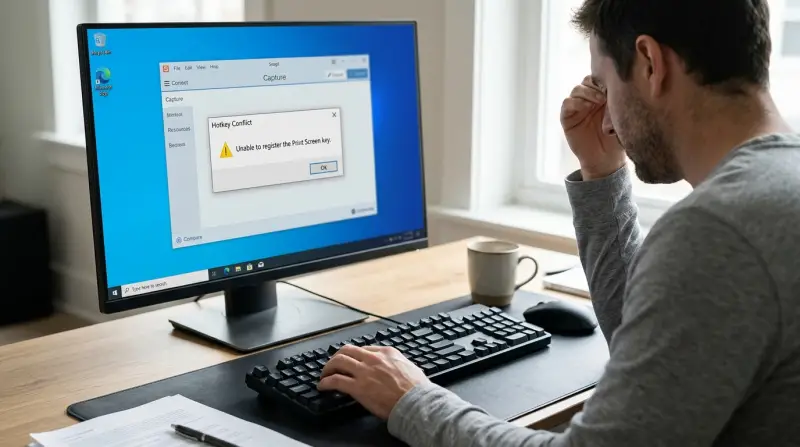
Snagit relies on the Print Screen key to launch its capture tool. When you press Print Screen, Snagit should open and let you select what to capture. If this doesn’t happen, the issue can be caused by many factors. It’s easy to blame Snagit itself, but sometimes the problem comes from Windows or your hardware.
Why Print Screen Stops Working With Snagit
- Keyboard conflicts: Other apps may use Print Screen, causing a conflict. For example, cloud services like OneDrive or Dropbox can “take over” the Print Screen key for auto-saving screenshots, which blocks Snagit from responding.
- Snagit not running: If Snagit isn’t open or is frozen, Print Screen won’t trigger it. This can happen if Snagit was closed by mistake or crashed in the background.
- Windows updates: Updates sometimes change how keyboard shortcuts work. After a big update, the settings for keyboard permissions or default screenshot tools can reset.
- Keyboard driver problems: Faulty drivers can block Print Screen. Even if other keys work, the Print Screen key may be “invisible” to Snagit until drivers are fixed.
- Snagit settings: Misconfigured hotkeys or permissions can prevent capturing. Sometimes, users accidentally change the hotkey, or Snagit’s permissions are changed by another program.
Many users don’t realize that Windows or other apps can silently change hotkey behavior, so it’s not always easy to spot the real cause right away.
Real Example
A user installed a new keyboard app, and suddenly Print Screen stopped working for Snagit. Uninstalling the app solved the issue. Another user found after a Windows update, Print Screen triggered nothing until they restarted their PC.
In another case, a user switched keyboards and the new keyboard required the “Fn” key to activate Print Screen. After learning this, they held Fn + Print Screen and Snagit worked again. This shows that hardware changes, even small ones, can affect Snagit’s hotkeys.
Step-by-step Troubleshooting For Print Screen Snagit Not Working
Solving the Print Screen problem with Snagit is often straightforward. Here are the steps:
1. Check If Snagit Is Running
Snagit must be active for Print Screen to work. Look for the Snagit icon in your system tray. If it’s missing:
- Open Snagit from your Start menu.
- Wait for it to load fully.
- Try Print Screen again.
If you see Snagit in the tray but it does not respond, right-click the icon and choose “Exit,” then reopen the app. Sometimes, Snagit gets stuck and needs a fresh start.
2. Test The Print Screen Key
Verify if Print Screen works outside Snagit.
- Open Paint or Word.
- Press Print Screen, then paste (Ctrl+V).
- If nothing appears, the key might be broken.
If your keyboard is wireless, check the battery. Try another keyboard if possible.
Some laptops require holding the “Fn” key together with Print Screen. Check your keyboard for a small “PrtSc” marking and any special instructions.
3. Fix Hotkey Conflicts
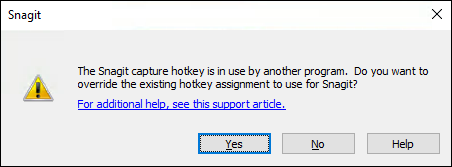
Snagit lets you set custom hotkeys. If Print Screen is used by another app, Snagit may not respond.
- Open Snagit settings.
- Go to the Hotkeys section.
- Change the hotkey to another button (like F11) and test.
- If Snagit works now, another app was blocking Print Screen.
If you discover another tool (like Dropbox or OneDrive) is using Print Screen, open that tool’s settings and turn off their screenshot feature, then set Snagit back to Print Screen.
4. Restart Your Computer
Sometimes, restarting solves hidden issues. After a restart, try Print Screen with Snagit again.
Restarting helps clear “stuck” background processes or memory conflicts that can block hotkeys. It’s a simple step, but it often works.
5. Update Snagit And Windows
Outdated software can cause problems. Update both:
- In Snagit, go to Help > Check for Updates.
- In Windows, visit Settings > Update & Security.
Updates often include bug fixes for hotkey handling or compatibility with newer Windows versions. If you skip updates, you may miss important fixes.
6. Reinstall Snagit
If nothing works, uninstall and reinstall Snagit. This resets settings and fixes corrupted files.
Make sure to back up any custom Snagit profiles or settings before uninstalling, if you use them. After reinstalling, test Print Screen again before changing any advanced options.
7. Check Keyboard Drivers
- Go to Device Manager.
- Find Keyboards.
- Right-click and select Update driver.
If updating does not help, uninstall the keyboard device and restart your computer. Windows will reinstall the driver automatically. Some users find their Print Screen key returns after this step.
8. Disable Other Screen Capture Tools
Tools like OneDrive, Dropbox, or Windows Snipping Tool can override Print Screen.
- Close all other capture tools.
- Try Print Screen again.
If you use multiple screenshot tools, pick one to handle the Print Screen key. Running several tools together often causes conflicts.
Comparing Common Causes And Solutions
Here is a quick comparison of frequent causes and their solutions:
| Problem | Symptom | Solution |
|---|---|---|
| Keyboard conflict | Print Screen does nothing | Change hotkey, close other apps |
| Snagit not running | No capture window | Start Snagit, check icon |
| Windows update | Shortcut stops working | Restart, update drivers |
| Driver issue | No response to Print Screen | Update/reinstall keyboard driver |
Sometimes, more than one problem is present. For example, after a Windows update, you might have both a driver issue and a hotkey conflict.
Advanced Fixes For Persistent Print Screen Snagit Issues
If basic steps fail, try these advanced fixes.
Change Snagit Permissions
Sometimes, Windows blocks Snagit from accessing the keyboard.
- Right-click Snagit icon.
- Select Run as administrator.
- Test Print Screen.
Running as administrator can help Snagit “see” keyboard events, especially after a Windows update that changes security settings.
Reset Snagit Hotkeys
- Open Snagit settings.
- Reset all hotkeys to default.
- Save and restart Snagit.
This step is helpful if you made several changes and aren’t sure what broke the shortcut. Defaults often work best.
Repair Snagit Installation
- Go to Control Panel > Programs > Snagit > Repair.
- Follow on-screen instructions.
Repairing does not remove your captures or profiles, but it does fix missing or damaged files.
Check Windows Keyboard Settings
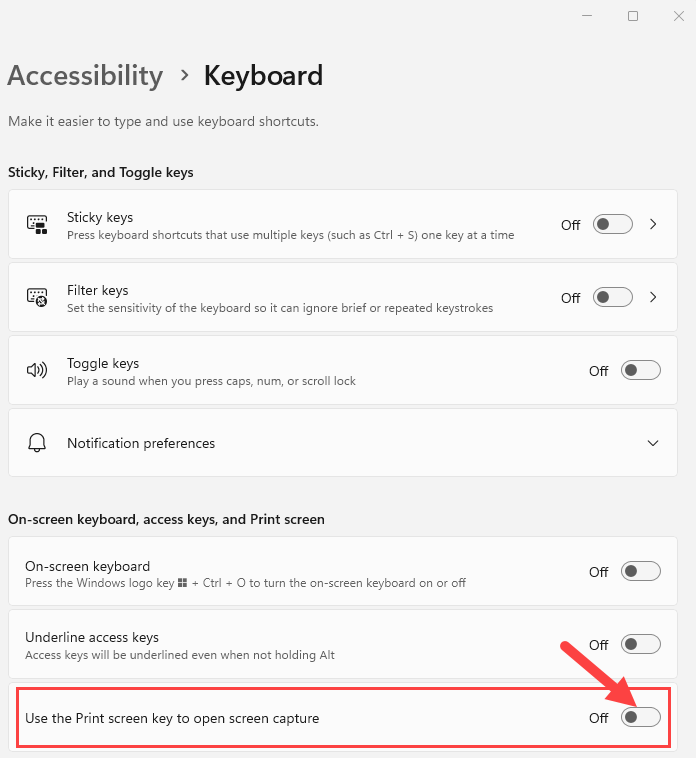
Windows can disable Print Screen in accessibility settings.
- Go to Settings > Ease of Access > Keyboard.
- Make sure Print Screen shortcut is enabled.
On newer Windows versions, there’s a setting called “Use the PrtScn button to open screen snipping. ” If enabled, Print Screen may trigger Windows’ tool instead of Snagit.
Use Alternative Capture Methods
Snagit supports other hotkeys, like Ctrl+Shift+C.
- Try alternate hotkeys.
- Set a new hotkey for capture.
If Print Screen is blocked by Windows or another app, using a different hotkey ensures you can still capture your screen without interference.
Data: Print Screen Snagit Not Working Frequency
Snagit’s support forums show Print Screen issues are common after updates or new software installs. According to TechSmith (Snagit’s developer), about 20% of support tickets involve hotkey issues. Most are solved with hotkey resets or software updates.
| Issue Source | Percentage of Cases |
|---|---|
| Windows updates | 35% |
| Keyboard conflicts | 25% |
| Snagit not running | 20% |
| Driver issues | 10% |
| Other causes | 10% |
These numbers show that most Print Screen problems are not because of Snagit itself, but because of Windows or other tools interfering. Updating and checking settings after major Windows changes can prevent many issues.
Preventing Print Screen Snagit Problems
Avoiding issues is easier than fixing them. Here’s how:
- Keep Snagit updated: Updates fix bugs and improve compatibility.
- Check hotkeys after installing new software: Apps like OneDrive may change Print Screen behavior.
- Restart your computer regularly: Prevents software conflicts.
- Use unique hotkeys: Assign Snagit a special shortcut if Print Screen is used elsewhere.
- Monitor Windows updates: If Print Screen stops after an update, check Snagit and your keyboard settings.
Non-obvious Tips
- If you use remote desktop software, Print Screen may capture the remote PC, not your local one. In this case, use Snagit’s menu or set a different hotkey.
- Some keyboards have a Print Screen lock. Look for a small light or toggle button.
- On some gaming keyboards, special software can block or remap the Print Screen key without obvious signs. Check your keyboard’s software for these features.
- Snagit’s “Capture Preferences” lets you see if Snagit is detecting your key press at all. Open preferences and try pressing Print Screen—if nothing happens, the problem is likely outside Snagit.
Credit: support.techsmith.com
Comparing Snagit Hotkey Functionality To Other Screenshot Tools
Snagit is popular, but other tools use Print Screen differently. Here’s a comparison:
| Tool | Print Screen Behavior | Custom Hotkeys |
|---|---|---|
| Snagit | Opens capture window | Yes |
| Windows Snipping Tool | Requires manual launch | Limited |
| Lightshot | Captures area directly | Yes |
| Greenshot | Captures area, shows menu | Yes |
| OneDrive | Saves screenshot to cloud | No |
Snagit stands out for its custom hotkey support and editing features. If Print Screen is blocked, you can set another hotkey or use the capture menu.
Unlike Snagit, built-in Windows tools may not let you change hotkeys or may only capture the full screen. With Snagit, you have more control, which is useful if you need to take many screenshots for work or tutorials.
What To Do If Print Screen Still Doesn’t Work
If Print Screen remains broken after all steps, consider:
- Using Snagit’s capture menu instead of keyboard shortcuts.
- Contacting TechSmith support.
- Checking your keyboard for hardware faults.
- Trying Snagit on another computer.
Sometimes, rare software or hardware issues block Print Screen. In these cases, Snagit support or a hardware replacement may be needed.
If your job depends on regular screenshots, consider keeping a backup capture tool installed, just in case. This way, even if Print Screen fails, you won’t lose time or important captures.

Credit: www.youtube.com
Frequently Asked Questions
Why Does Print Screen Not Open Snagit After A Windows Update?
Windows updates can change keyboard shortcut behavior or reset permissions. This may block Snagit from responding to Print Screen. Restart your computer, update Snagit, and check your hotkeys. Sometimes, you must reset Snagit’s permissions by running as administrator after a major update.
Can Other Apps Block Print Screen From Working With Snagit?
Yes. Apps like OneDrive, Dropbox, or remote desktop tools may use Print Screen for their own functions. Close these apps or change their settings so Print Screen is free for Snagit. Also, check if any installed browser extensions or toolbar apps might affect keyboard shortcuts.
How Can I Set A New Hotkey For Snagit If Print Screen Is Blocked?
In Snagit, open the Hotkeys section in settings. Assign another key, such as F11 or Ctrl+Shift+C. Test the new hotkey and see if it launches the capture tool. Make sure your new hotkey is not already used by another app.
Is There A Way To Fix Print Screen If My Keyboard Is Broken?
If the Print Screen key is physically damaged, use an external keyboard or assign a different hotkey in Snagit. Some virtual keyboards also support Print Screen. You can also use on-screen keyboard apps in Windows to “press” Print Screen.
Where Can I Get Official Help For Snagit Print Screen Issues?
For official support and troubleshooting guides, visit the TechSmith Snagit Support website.
Snagit is a powerful tool, but Print Screen issues can slow you down. With the steps and tips above, you can solve most problems quickly and keep capturing your screen with ease. Remember, updating your software and checking your settings often prevents most issues.
If you have unique hardware or software, customizing Snagit’s hotkeys gives you flexibility. With this guide, you’re ready to fix Print Screen Snagit problems and get back to productive work.