
A smart home can make life easier, safer, and more convenient. But sometimes, smart devices like the Leviton Smart Switch need a fresh start. Maybe your switch is acting strangely, you want to connect it to a new network, or you’re moving and need to wipe your data. Resetting your Leviton Smart Switch is a simple process, but there are key steps and hidden details that matter. This guide will walk you through everything you need to know, from the basics to advanced troubleshooting, with clear instructions and practical tips.
Understanding Leviton Smart Switches
Leviton is a well-known name in home automation. Their smart switches can control lights, fans, or other appliances, often using Wi-Fi or Z-Wave. You can schedule lights, use voice assistants like Alexa or Google Assistant, and monitor energy use—all from your phone.
There are several models, such as the Decora Smart Wi-Fi Switch (DW15S), Decora Smart Z-Wave Switch (DZ15S), and Decora Smart Switch with HomeKit support. Each model has its own features, but the reset process is similar for most.
Key Features
- Remote control: Turn lights on/off from anywhere using an app.
- Voice control: Works with Alexa, Google Assistant, or Siri.
- Scheduling: Set lights to turn on or off at specific times.
- Energy monitoring: Some models track electricity use.
- Scene support: Control multiple devices with a single action.
Smart switches make homes more energy-efficient and secure. But like all technology, they sometimes need a reset to clear errors or prepare for a new setup.
When Should You Reset Your Leviton Smart Switch?
Resetting a smart switch is not something you do every day. It’s like rebooting your computer when it’s slow or not working right. Here are the most common situations where a reset is needed:
- Switch not responding: If it does not turn on/off from the app or manually.
- Wi-Fi problems: If you changed your Wi-Fi network or password.
- App connection issues: The switch is not showing up in the Leviton app.
- Selling or moving: You want to erase your data before giving the switch away.
- Firmware update failed: Sometimes, an update may cause issues that a reset can fix.
- Strange behavior: Lights flickering, schedules not working, or random disconnects.
A reset brings the switch back to its original state, just like when you first installed it.
Types Of Reset: Soft Reset Vs. Factory Reset
Not all resets are the same. Leviton offers two main types:
Soft Reset
- What it does: Restarts the switch without erasing settings or Wi-Fi details.
- When to use: If the switch is unresponsive but you don’t want to lose your schedules or network info.
Factory Reset (hard Reset)
- What it does: Erases all settings, schedules, Wi-Fi info, and removes the switch from the app.
- When to use: If you’re troubleshooting deep issues, changing networks, or want a fresh start.
It’s important to know which reset you need, as a factory reset wipes everything.
Preparing To Reset Your Leviton Smart Switch
Before you reset, take a few minutes to prepare. This avoids mistakes and saves time later.
- Identify your model: Check the product label or in the Leviton app.
- Backup settings: Write down schedules or scenes you want to keep. There’s no automatic backup.
- Check app version: Make sure your Leviton app is up to date for the latest features.
- Locate your Wi-Fi details: You’ll need your network name and password after a factory reset.
- Safety first: If you need to open the wall plate, turn off power at the breaker.
Most resets do not require any tools, but if you’re unsure about wiring, always consult an electrician.
How To Soft Reset A Leviton Smart Switch
A soft reset is the first thing to try for minor issues. It’s quick and safe.
Steps To Perform A Soft Reset
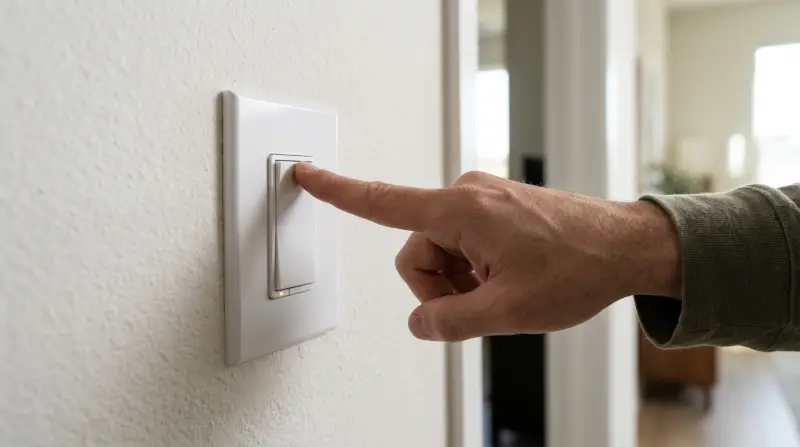
- Press and hold the top paddle: Hold for 7 seconds.
- Release when the LED blinks amber: The light should blink quickly.
- Wait for reboot: The switch will restart. All settings remain.
A soft reset fixes simple glitches and is safe to try anytime.
Example: When A Soft Reset Helps
Imagine your switch is not responding to the app, but works manually. A soft reset can reconnect it to your phone without erasing schedules.
How To Factory Reset (hard Reset) A Leviton Smart Switch
A factory reset is more serious. It removes all your settings and disconnects the switch from your network.
Steps To Perform A Factory Reset
- Press and hold the top paddle: Hold for 14 seconds.
- Watch the LED: It will turn amber after 7 seconds, then red after 14 seconds.
- Release when LED is red: This signals a full reset.
- Wait for reboot: The switch restarts with factory settings.
After a factory reset, the switch is like new. You must set it up again in the app.
Important Tips
- Don’t rush: If you let go too early, only a soft reset happens.
- Network info erased: Be ready to re-enter your Wi-Fi password.
- Factory reset is permanent: There’s no way to undo.
Resetting Different Leviton Smart Switch Models
Leviton has several smart switch models. While the reset steps are similar, there are some differences.
Decora Smart Wi-fi (dw15s, Dw6hd, Dw1kd)
- Soft reset: Hold top paddle for 7 seconds (amber blink).
- Factory reset: Hold for 14 seconds (red blink).
- LED location: Bottom of the paddle.
Decora Smart Z-wave (dz15s, Dz6hd, Dz1kd)
- Exclusion required: For Z-Wave, you must remove (exclude) the switch from your hub before a factory reset.
- Soft reset: Hold top paddle for 7 seconds.
- Factory reset: Hold for 14 seconds.
- Network process: Use your Z-Wave controller for exclusion.
Decora Smart Homekit (dh15s)
- Reset process: Similar, but use the HomeKit app to remove the accessory before or after a reset.
- Pairing code: Keep your HomeKit setup code handy for re-adding.
Comparison Of Reset Methods By Model
| Model | Soft Reset | Factory Reset | Special Steps |
|---|---|---|---|
| Decora Smart Wi-Fi (DW15S) | 7 sec hold (amber blink) | 14 sec hold (red blink) | None |
| Decora Smart Z-Wave (DZ15S) | 7 sec hold | 14 sec hold | Exclude from hub |
| Decora Smart HomeKit (DH15S) | 7 sec hold | 14 sec hold | Remove from HomeKit app |
Knowing your model helps you avoid mistakes and ensures a smooth reset.
Reconnecting Your Switch After A Reset
After a factory reset, your switch is ready to set up again. Here’s what to do:
Wi-fi Models
- Open the Leviton app: Choose “Add Device.”
- Follow the instructions: Put the switch in pairing mode (hold paddle for 7 seconds until amber).
- Connect to Wi-Fi: Enter your network name and password.
- Name your switch: Choose a clear name for easy control (e.g., “Kitchen Light”).
- Set up schedules or scenes: Restore any automations you want.
Z-wave Models
- Open your Z-Wave hub app: Start the “Add Device” process.
- Put the switch in pairing mode: Hold paddle for 7 seconds.
- Follow hub instructions: Complete pairing.
- Rename and organize: Add to rooms or groups as needed.
Homekit Models
- Open Apple Home app: Tap “Add Accessory.”
- Scan QR code: Use your HomeKit pairing code.
- Assign to room: Name your switch and set up automations.
Example Setup Flow
A user resets a Leviton Wi-Fi switch after moving to a new home. They open the app, follow the setup steps, and connect to the new Wi-Fi. Within minutes, the switch is ready to use again.
Common Problems And Troubleshooting
Resetting usually solves most issues, but sometimes problems remain. Here are common challenges and how to fix them.
Switch Won’t Reset
- Not holding long enough: Make sure you hold for the full 14 seconds for factory reset.
- LED not working: Double-check the switch is powered.
- Wrong model: Confirm instructions match your model.
Switch Not Pairing After Reset
- Wi-Fi band issue: Leviton Wi-Fi switches only support 2.4 GHz networks.
- Weak signal: Move your router closer or use a Wi-Fi extender.
- App not updated: Update your Leviton or smart home app.
- Device limit: Some routers have limits—disconnect unused devices.
Z-wave Exclusion Problems
- Not excluded: Always exclude the switch from your hub before re-adding.
- Hub not in exclusion mode: Start exclusion from the hub app first.
Homekit Code Lost
- Sticker lost: The code is on the switch and in the original box. If lost, contact Leviton support.
Factory Reset Fails
- Power interruption: Don’t turn off power during a reset.
- Wiring issue: If the switch is not wired correctly, it may not reset.
Comparison Of Common Issues And Solutions
| Problem | Possible Cause | Solution |
|---|---|---|
| Switch not resetting | Incorrect hold time | Hold paddle for full 14 seconds |
| Not pairing to Wi-Fi | Wrong Wi-Fi band | Use 2.4 GHz network |
| Z-Wave not connecting | Not excluded from hub | Exclude in hub app first |
| HomeKit code lost | Sticker missing | Contact Leviton support |
Advanced Tips: What Most Beginners Miss
Resetting is simple, but some details are easy to overlook:
- Timing is key: Letting go of the paddle too early or late changes the reset type. Always count seconds carefully.
- Device removal from app: After a factory reset, manually remove the switch from your Leviton or smart home app if it still appears. Some platforms keep “ghost” devices.
- Network setup: Use a simple Wi-Fi password (letters and numbers only) for easier pairing.
- Firmware updates: After resetting, check for firmware updates in the app. Updates fix bugs and add features.
- Physical access: If your switch is behind a heavy appliance or in a hard-to-reach spot, plan ahead before resetting.
Many users forget to check their Wi-Fi network type (2.4 GHz only) or skip exclusion for Z-Wave, leading to repeated failures.
Credit: www.youtube.com
Safety And Security Concerns
Smart switches are generally safe, but a reset affects your home’s security and privacy.
- Clear all data: Factory reset erases Wi-Fi passwords, schedules, and user info.
- Remove from accounts: Always unlink your device from voice assistants and smart home platforms before selling or giving away.
- Electrical safety: Never work on wiring unless you’re qualified. Always turn off power at the breaker before opening a wall plate.
- Privacy: Resetting ensures your data isn’t shared with new owners.
If you have rental properties or Airbnb, resetting smart switches after each guest protects your home and privacy.
Best Practices For Maintaining Your Leviton Smart Switch
Keeping your switch running smoothly means less need to reset.
- Stable Wi-Fi: Place your router close to switches or use extenders.
- Regular firmware updates: Check the app monthly.
- Clean hardware: Dust and debris can affect touch or paddle response.
- Name devices clearly: Use simple, unique names for each switch.
- Document schedules: Keep a note of important automations in case you need to restore them.
Following these habits reduces problems and makes resets easier if needed.

Real-world Data: How Often Do Users Reset?
According to a recent survey by Statista, about 22% of US smart home users report needing to reset a smart device at least once every six months. For Wi-Fi switches, the most common reasons are network changes and firmware glitches.
Another study from the Smart Home Research Institute found that factory resets solve 85% of persistent issues with smart switches. However, only 60% of users follow the correct reset steps on their first try, leading to frustration.
Comparison: Reset Frequency Among Smart Switch Brands
| Brand | Reset Frequency (per year) | User Success Rate (first attempt) |
|---|---|---|
| Leviton | 2.1 | 60% |
| Lutron | 1.8 | 68% |
| TP-Link | 2.4 | 57% |
These numbers show that Leviton is similar to other brands, but users often miss a step during reset.
When To Contact Leviton Support
Most reset issues can be solved at home, but sometimes you need expert help.
- Hardware failure: The switch won’t power on, or the LED never lights up.
- App errors: The Leviton app crashes or refuses to add the device.
- Lost HomeKit code: You cannot find the pairing code or sticker.
- Wiring questions: If you’re unsure about installation safety.
Leviton offers support via phone, chat, and email. Their website has detailed FAQs and troubleshooting guides. For the latest manuals and support, visit the official Leviton Support Center.
Frequently Asked Questions
How Do I Know If My Leviton Smart Switch Was Reset Successfully?
After a reset, the switch’s LED should blink rapidly (amber for soft reset, red for factory reset) and then return to normal. In the app, the device should disappear after a factory reset. If it still appears, try removing it manually.
Can I Reset My Leviton Smart Switch Remotely?
No, you must physically press and hold the paddle on the switch. There is currently no way to trigger a full reset from the app or remotely.
What Happens To My Schedules And Scenes After A Factory Reset?
All schedules, scenes, and network information are erased. You will need to set them up again after reconnecting the switch.
Why Won’t My Leviton Switch Connect To Wi-fi After A Reset?
Most Leviton Wi-Fi switches only work with 2. 4 GHz networks. Double-check your router settings, ensure the network name and password are correct, and keep the switch close to your router during setup.
Do I Need To Remove The Switch From My Smart Home App Before A Factory Reset?
It’s best practice. Some platforms keep a “ghost” device if not removed, which can cause issues when re-adding. Always delete the device from the app before or after a factory reset for a clean setup.
Smart switches like Leviton’s make homes more comfortable and efficient, but knowing how to reset them is vital for troubleshooting and security. With the right steps, you can solve most problems in minutes and enjoy a smarter, safer home.