
When your Samsung TV suddenly stops recognizing your HDMI ARC connection, it can be frustrating. You expect smooth sound from your soundbar or home theater, but instead you get silence or error messages. This is a common problem with Samsung TVs, and it doesn’t always mean your devices are broken. Usually, it’s a setup, cable, or settings issue—one you can fix yourself with patience and clear steps. Let’s explore why this happens, how to solve it, and what to do if nothing works.
What Is Hdmi Arc And Why Does It Matter?
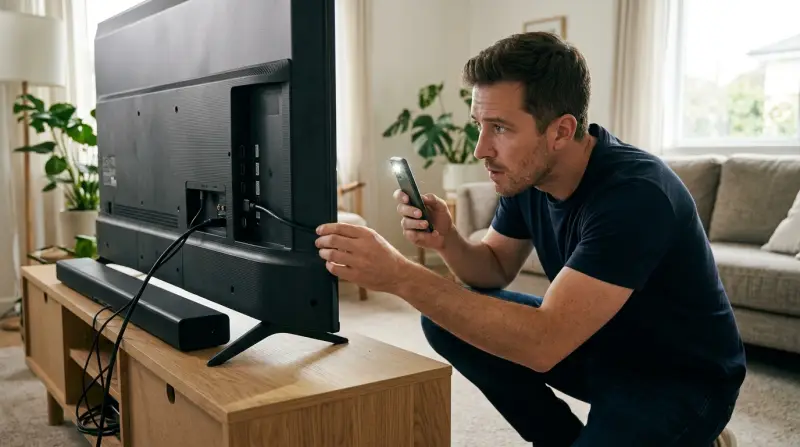
HDMI ARC stands for Audio Return Channel. It allows your TV to send audio “backwards” down the HDMI cable to a soundbar, AV receiver, or home theater system. This means you only need one cable for both audio and video signals, making setup easier and keeping your entertainment area tidy.
With HDMI ARC, you can:
- Use your TV remote to control volume on your soundbar or receiver.
- Enjoy higher-quality audio than standard optical cables.
- Avoid using multiple remotes or cables.
But, for ARC to work, both your TV and your audio device must support it, and the settings must be correct. When something goes wrong, sound may not transfer, or devices may not recognize each other.
Common Reasons Samsung Tv Doesn’t Recognize Hdmi Arc
Many factors can cause this problem. Here are the most frequent:
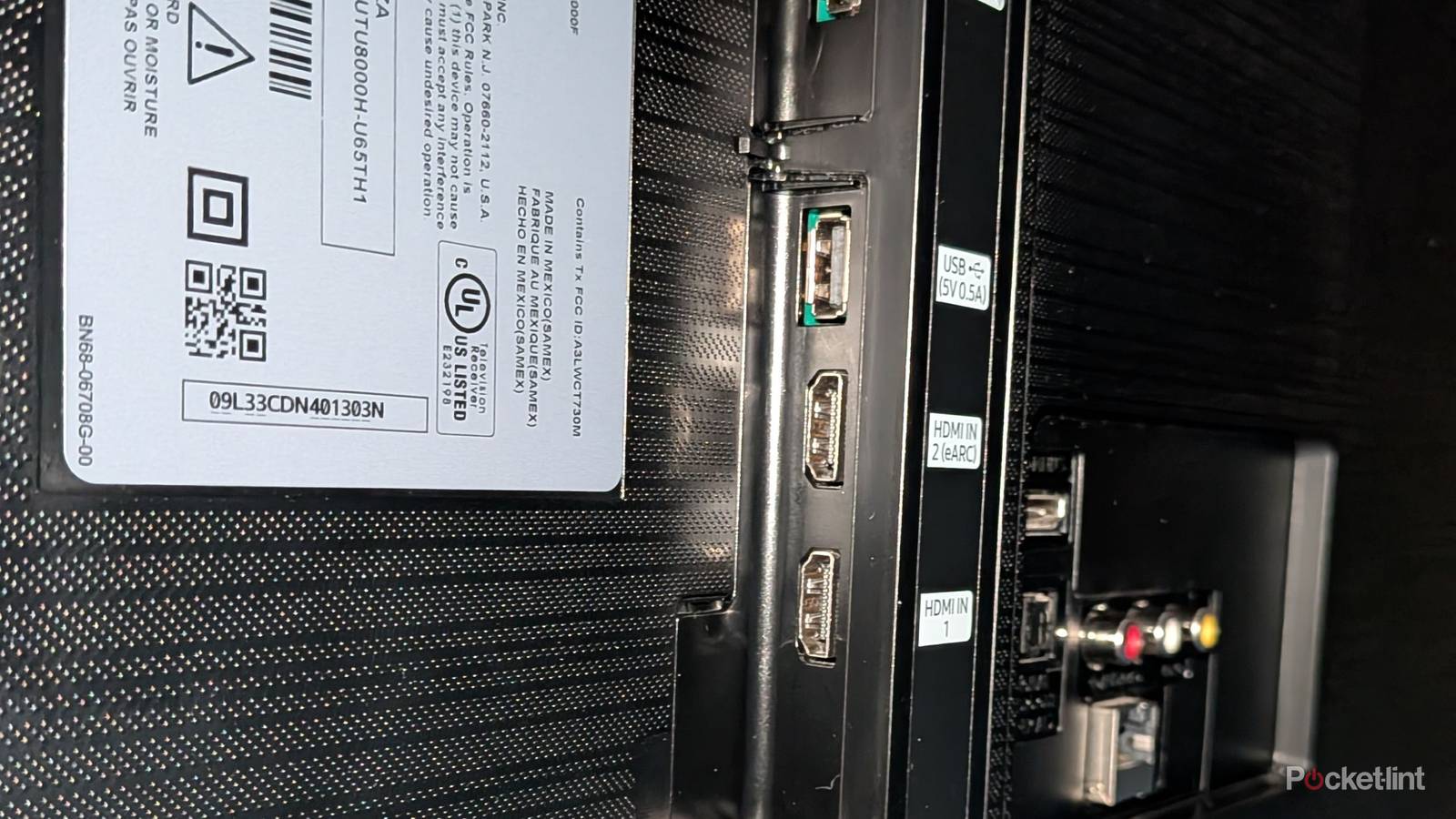
- Wrong HDMI Port: ARC only works on the HDMI port labeled “ARC” or “eARC.”
- Bad HDMI Cable: Not all HDMI cables support ARC. Old or cheap cables may fail.
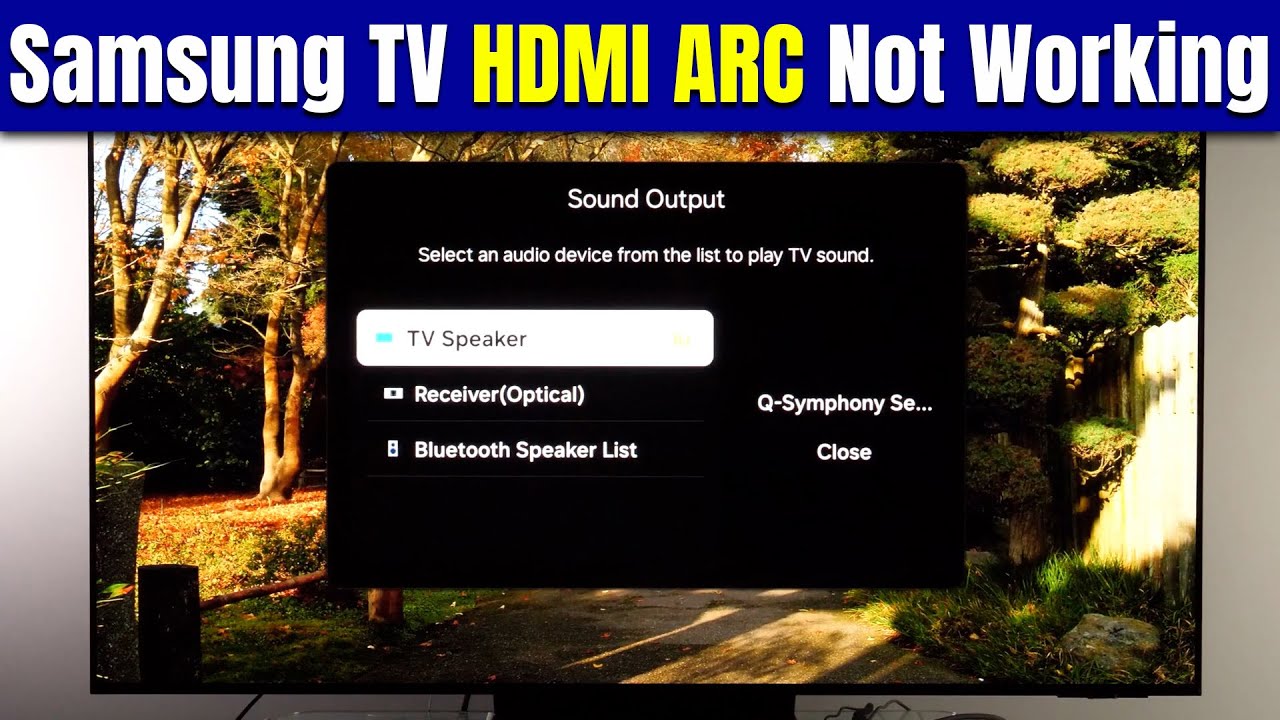
- Incorrect TV Settings: Sound output must be set to “Receiver (HDMI)” or “External Speaker.”
- CEC Disabled: HDMI-CEC (Samsung calls it Anynet+) must be enabled.
- Audio Device Settings: Your soundbar or receiver must also be set to use ARC.
- Power or Software Glitches: Sometimes, devices need a reset.
- Firmware Outdated: Old software can cause compatibility issues.
- Physical Damage or Fault: Rare, but possible—ports or cables can break.
Credit: www.afvt.org
Step-by-step Solutions For Hdmi Arc Problems
Let’s walk through proven solutions. Follow these steps one by one for the best chance of success.
1. Check Your Connections
- Make sure the HDMI cable is firmly plugged into the HDMI ARC port on both the TV and your audio device.
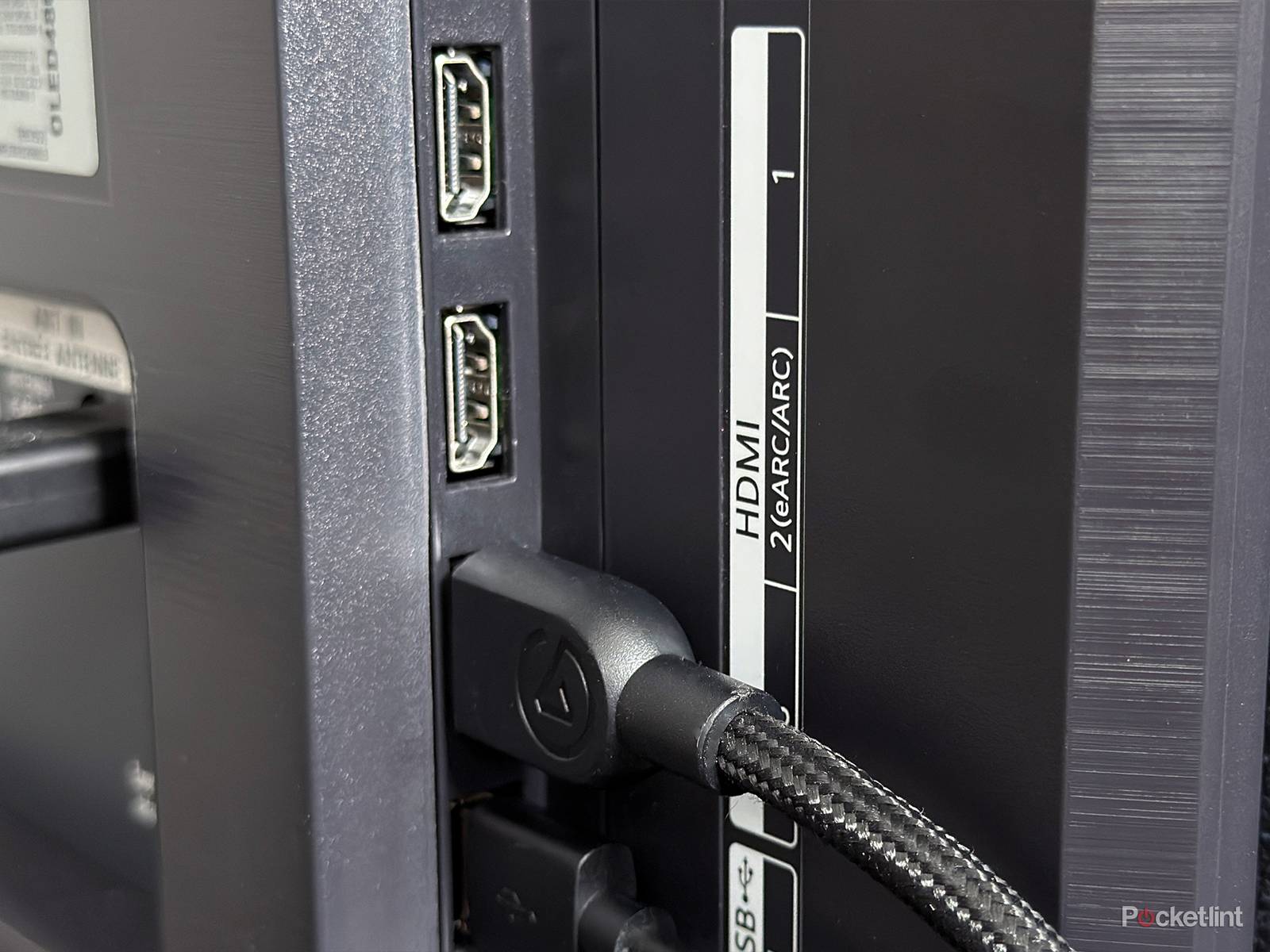
- Look for “ARC” or “eARC” labels on the ports. Using the wrong port won’t work.
2. Use A Proper Hdmi Cable
- Use a High-Speed HDMI cable (sometimes called HDMI 1.4 or later). Cheap or old cables may not support ARC.
- Try a different cable if you are unsure.
3. Enable Anynet+ (hdmi-cec) On Samsung Tv
- Go to Settings > General > External Device Manager.
- Turn on Anynet+ (HDMI-CEC). This allows devices to talk to each other.
4. Set Tv Sound Output Correctly
- Go to Settings > Sound > Sound Output.
- Choose Receiver (HDMI) or Receiver (ARC), depending on your model.
- If you see “TV Speaker” is selected, change it.
5. Check Audio Device Settings
- On your soundbar or receiver, set input to HDMI ARC.
- Some receivers have a dedicated “ARC” button or setting—check your device manual.
6. Power Cycle All Devices
- Turn off your TV and audio device.
- Unplug both from power for at least 2 minutes.
- Plug everything back in, turn on the devices, and test again.
7. Update Firmware
- For your Samsung TV: Go to Settings > Support > Software Update > Update Now.
- For your soundbar/receiver: Check the manufacturer’s website or manual for update steps.
8. Reset Hdmi Ports
- Unplug the HDMI cable from both devices.
- Wait 30 seconds.
- Plug the cable back in, starting with the TV, then the audio device.
9. Factory Reset (last Resort)
- On your Samsung TV: Settings > General > Reset. Enter your PIN (default is usually 0000).
- Warning: This erases all settings. Only do this if nothing else works.
Comparison: Arc Vs. Earc
Some newer Samsung TVs and soundbars support eARC (enhanced ARC). Here’s how they compare:
| Feature | ARC | eARC |
|---|---|---|
| Audio Quality | Up to Dolby Digital 5.1 | Up to Dolby Atmos, TrueHD, DTS:X |
| Bandwidth | ~1 Mbps | Up to 37 Mbps |
| Lip Sync | Optional | Mandatory |
| Device Control | CEC required | CEC not required (but supported) |
If you have an eARC device, use an Ultra High Speed HDMI cable for best results.
Credit: www.youtube.com
Real-world Examples Of Hdmi Arc Problems
Sometimes, the solution depends on your exact devices. Here are some cases:
- Samsung TV with Samsung Soundbar: Many users find that after a power outage, ARC stops working. A power cycle (unplugging both) often restores the connection.
- Samsung TV with Older Receiver: If your receiver doesn’t support ARC, the feature won’t work. Check your receiver’s manual for compatibility.
- Third-Party Soundbars: Brands like Sony, LG, or Bose sometimes have specific settings or require firmware updates to work with Samsung TVs.
Troubleshooting Table: What To Check First
Here’s a quick way to find the problem:
| Issue | What to Check | Solution |
|---|---|---|
| No sound at all | HDMI cable, ARC port, TV sound output | Try another cable, select correct output |
| Sound cuts out | Loose cable, power saving settings | Reconnect cable, turn off power saving |
| Remote doesn’t control volume | Anynet+ (HDMI-CEC) setting | Enable Anynet+ in TV settings |
| ARC option missing on TV | Firmware version, HDMI port used | Update TV software, use ARC port |
| Receiver not detected | Audio device input setting | Switch to HDMI ARC input on receiver |
When To Suspect Hardware Problems
Most issues are from setup or software. But, if you have tried all steps above and ARC still fails, consider:
- Damaged HDMI ports: Wiggle the cable gently. If the sound works only when held a certain way, the port could be loose or damaged.
- Broken cables: Test with a known good cable, ideally one that works in another setup.
- Device fault: Try your soundbar or receiver with another TV to see if ARC works.
If the TV or audio device is under warranty, contact Samsung or the manufacturer for repair.
Extra Tips Most People Miss
Many guides stop at the basics, but these extra steps often help:
- Disconnect all other HDMI devices: Sometimes, other devices confuse the TV’s HDMI control. Leave only the TV and audio device connected during setup.
- Turn devices on in the right order: Try turning on the TV first, then the soundbar/receiver. Some devices need the TV signal to detect ARC.
- Rename HDMI input: Some Samsung TVs allow you to rename the HDMI input to “Receiver” or “Soundbar.” This can sometimes trigger ARC recognition.
- Check for hidden settings: Some soundbars have an app or website where you adjust deep settings. Check if there is a setting for “HDMI Control” or “ARC Mode.”
- Try a different HDMI ARC port: Some TVs offer more than one ARC/eARC port. If one doesn’t work, try the other.
Credit: www.afvt.org
Which Samsung Tv Models Are Most Affected?
While HDMI ARC can fail on any model, users report more problems on:
- Older Samsung TVs (2015–2018): These often need firmware updates to fix ARC bugs.
- Entry-level models: Lower-cost TVs sometimes have simpler HDMI circuits, which can be more sensitive to cable quality.
- Newer QLED/Neo QLED with eARC: These sometimes need special cables and updated soundbars for advanced audio.
How To Future-proof Your Setup
If you are buying new devices or planning an upgrade, keep these tips in mind:
- Choose devices with eARC for the best compatibility and audio quality.
- Use certified Ultra High Speed HDMI cables.
- Update firmware regularly—check every few months.
- Read manuals for both TV and audio device to be sure you follow recommended setup.
Arc Alternatives: Optical And Bluetooth
If you still can’t get HDMI ARC working, you can use:
- Optical cable: Delivers good audio, but lacks some features like remote control from TV.
- Bluetooth: Wireless and easy, but can have audio lag or lower quality.
Here’s how they compare:
| Feature | HDMI ARC | Optical | Bluetooth |
|---|---|---|---|
| Audio Quality | High (up to Dolby Digital) | Good (up to 5.1, no HD audio) | Lower, may lag |
| TV Remote Control | Yes | No | Usually yes |
| Wires Needed | 1 HDMI cable | 1 optical cable | None |
| Setup Complexity | Medium | Easy | Easiest |
Frequently Asked Questions
Why Does My Samsung Tv Say “no Signal” On Hdmi Arc?
This usually means the TV is not detecting the audio device. Check if the HDMI cable is plugged into the ARC port on both devices. Also, make sure Anynet+ (HDMI-CEC) is enabled and the soundbar or receiver is set to ARC input.
Can Any Hdmi Cable Be Used For Arc?
Not all HDMI cables are equal. Use a High-Speed HDMI cable (labeled HDMI 1.4 or above). For eARC, an Ultra High Speed HDMI cable is best. Cheap or old cables may not support the required bandwidth.
How Do I Enable Hdmi Arc On My Samsung Tv?
Go to Settings > General > External Device Manager and enable Anynet+ (HDMI-CEC). Then, set Sound Output to Receiver (HDMI) in Settings > Sound > Sound Output.
Why Does Arc Stop Working After A Power Outage?
Power surges or sudden shutdowns can confuse HDMI handshakes. Unplug both your TV and audio device from power for 2 minutes, then plug them back in and turn them on. This usually resets the connection.
Where Can I Find More Details Or Official Support?
The official Samsung support site has guides, manuals, and live chat. Visit Samsung Support for help.
If you follow these steps and use the right cables, most HDMI ARC problems can be solved without a technician. Taking time to set up devices properly and keeping software up to date will make your Samsung TV and sound system work together, delivering the sound experience you expect.