
A printer that doesn’t talk to your computer can ruin your day. This problem is common, especially with HP printers. You try to print a document, but nothing happens. Maybe you see an error message, or the printer stays silent. The good news is, most communication problems can be fixed. You don’t need to be a tech expert. Let’s explore the main reasons why your HP printer won’t connect, how to solve them, and how to keep your printer working smoothly.
Common Causes Of Communication Problems
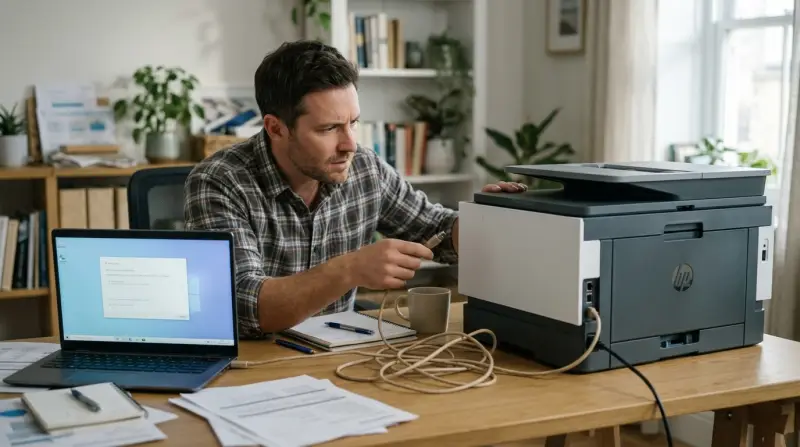
Understanding why your printer is not communicating with your computer is the first step. Here are the most frequent reasons:
- Connection issues: Loose cables, Wi-Fi drops, or USB ports not working can break the link.
- Driver problems: Outdated or wrong drivers make the printer invisible to your computer.
- Printer status: If the printer is offline or paused, nothing will print.
- Software conflicts: Programs or firewalls can block communication.
- Windows updates: Sometimes updates change settings or remove drivers.
- Network problems: If your printer is wireless, a weak or unstable network may cause issues.
- Printer queue errors: Stuck jobs or errors in the queue can freeze printing.
A beginner often misses point 4 and 7. Software conflicts and printer queue errors aren’t obvious, but they cause many headaches.
Checking Physical Connections
Before trying advanced solutions, check your physical setup. Many problems are simple.
Usb And Cable Checks
- Ensure the USB cable is fully plugged into both printer and computer.
- Try another USB port if the printer is not detected.
- Use a different USB cable; old or damaged cables can cause problems.
- If using a hub, connect directly to the computer.
Wireless Connection Troubles
- Make sure your printer is connected to the same Wi-Fi as your computer.
- Check the printer’s display for Wi-Fi status.
- If the signal is weak, move the printer closer to the router.
Power And Status
- Confirm the printer is turned on.
- Look for error lights or messages on the printer screen.
- Restart the printer and computer.

Credit: www.hp.com
Updating And Reinstalling Drivers
Printer drivers are small programs that help your computer “talk” to the printer. If drivers are outdated, missing, or wrong, communication fails.
How To Update Hp Printer Drivers
- Visit the official HP website.
- Download the latest driver for your printer model.
- Run the installer and follow instructions.
- Restart your computer.
Reinstalling Drivers
- Open Device Manager on your computer.
- Find your printer under “Printers.”
- Right-click and uninstall.
- Restart and reinstall the driver.
A common mistake is forgetting to restart after installing drivers. This step helps your computer recognize the printer.
Printer Status And Settings
Sometimes, the printer is set to offline or paused. This blocks communication.
Checking Printer Status In Windows
- Go to Control Panel > Devices and Printers.
- Find your HP printer.
- Right-click and select “See what’s printing.”
- Make sure there’s no checkmark next to “Pause Printing” or “Use Printer Offline.”
If there is, click to remove the checkmark.
Set As Default Printer
- Right-click your printer and select “Set as default printer.”
This ensures your documents go to the correct printer.
Software And Firewall Conflicts
Security software, firewalls, and other programs can block your printer’s signals.
Adjusting Windows Firewall
- Open Windows Defender Firewall.
- Click “Allow an app or feature through Windows Defender Firewall.”
- Find “HP printer” or “Printer Spooler” and make sure boxes are checked.
Antivirus Software
- Temporarily disable your antivirus to see if it is blocking the printer.
- If printing works, add the printer software to your antivirus exceptions.
Many beginners don’t think about firewalls or antivirus as the cause. But they block communication more often than people realize.
Network And Wireless Printer Issues
Wireless printers need a stable network. Problems here can be tricky.
Router And Network Checks
- Restart your router.
- Check if other devices can connect to Wi-Fi.
- Update your router’s firmware if needed.
Printer Ip Address
- Find your printer’s IP address on its screen or by printing a network report.
- On your computer, try to “ping” the printer’s IP address.
- If ping fails, the printer is not connected properly.
Assigning Static Ip
If your printer keeps losing connection, set a static IP address:
- Access printer network settings.
- Choose “Manual” or “Static” IP.
- Enter a unique IP address (e.g., 192.168.1.100).
This prevents IP conflicts and helps keep your printer online.

Credit: www.youtube.com
Troubleshooting Printer Queue Errors
Sometimes print jobs get stuck. This freezes all printing.
Clearing The Printer Queue
- Open Devices and Printers.
- Right-click your printer and select “See what’s printing.”
- Click “Printer” and choose “Cancel All Documents.”
- Restart the printer.
Restarting Print Spooler Service
- Press Windows + R, type “services.msc.”
- Find “Print Spooler.”
- Right-click and select “Restart.”
This clears hidden errors and refreshes communication.
Comparing Wired Vs Wireless Printers
Choosing the right connection type impacts reliability. Here is a comparison:
| Connection Type | Setup Difficulty | Reliability | Common Issues |
|---|---|---|---|
| USB (Wired) | Easy | High | Cable faults, port errors |
| Wi-Fi (Wireless) | Medium | Medium | Network drops, IP conflicts |
| Ethernet | Medium | High | Router setup, cable faults |
Wired connections are more stable but less flexible. Wireless printers are easier to place anywhere but need good Wi-Fi.
Hp Printer Models And Compatibility
Not all HP printers work the same way. Here’s a quick look at common models and their typical problems:
| Model Series | Connection Options | Common Issues |
|---|---|---|
| HP DeskJet | USB, Wi-Fi | Driver issues, Wi-Fi drops |
| HP LaserJet | USB, Ethernet, Wi-Fi | Spooler errors, firewall conflicts |
| HP OfficeJet | USB, Wi-Fi | Offline status, setup errors |
Check your model’s manual for specific troubleshooting steps.
Fixing Hp Printer Not Communicating: Step-by-step Guide
Follow these steps to solve most problems:
- Check cables and power: Make sure everything is plugged in and turned on.
- Restart devices: Turn off and on your printer and computer.
- Update drivers: Download the latest from HP’s website.
- Check printer status: Make sure it’s online and not paused.
- Check firewall and antivirus: Allow printer software through security settings.
- Clear print queue: Remove stuck jobs.
- Restart print spooler: Refresh service.
- Check network connection: Make sure printer and computer are on the same Wi-Fi.
- Set static IP (for wireless): Prevent network conflicts.
Advanced Solutions And Hidden Issues
Some problems are less obvious. Here are advanced fixes:
Firmware Updates
HP printers need firmware updates for best performance. Visit HP’s site, download firmware, and install it. This solves many bugs and improves communication.
Usb Power Management
Windows sometimes turns off USB ports to save power. To stop this:
- Open Device Manager.
- Find “Universal Serial Bus controllers.”
- Right-click each and select “Properties.”
- Go to “Power Management” and uncheck “Allow the computer to turn off this device to save power.”
Multiple Printers Installed
Having more than one printer installed can confuse your computer. Remove extra printers in Devices and Printers.
Print Spooler Corruption
If the spooler is corrupted:
- Delete files in C: WindowsSystem32spoolPRINTERS
- Restart the spooler service.
Be careful—deleting wrong files can cause issues. Only do this if you know which files to remove.
Preventing Future Communication Problems
To keep your printer working smoothly:
- Update drivers and firmware regularly.
- Restart printer and computer once a week.
- Check cables and Wi-Fi signal often.
- Allow printer software through firewall.
- Use static IP for wireless printers.
- Clean print queue when stuck jobs appear.
These steps reduce the chance of future problems.
Credit: trueimagetech.com
Data: Hp Printer Reliability Statistics
According to a recent survey by Statista, HP printers have a user satisfaction rate of 82%. Communication problems are reported in 18% of cases, mostly due to driver and network issues.
| Issue Type | Percentage of Users |
|---|---|
| Driver Errors | 35% |
| Network Issues | 30% |
| Printer Offline | 20% |
| Cable/Port Problems | 10% |
| Other | 5% |
This shows the importance of checking drivers and network connections first.
When To Contact Hp Support
If you tried everything and your printer still won’t communicate, it’s time to reach out to HP support. They offer phone, chat, and email help. Keep your printer model and serial number ready.
It’s also smart to check the official support site for the latest troubleshooting guides: HP Official Support.
Frequently Asked Questions
Why Does My Hp Printer Show “offline” Even When It’s Turned On?
This happens when your computer can’t reach the printer. Check cables, Wi-Fi, and printer status. Sometimes, restarting the printer and computer solves the issue.
How Do I Fix A Stuck Print Job In The Queue?
Open Devices and Printers, right-click your printer, choose “See what’s printing,” and cancel all documents. Restart the printer. If jobs stay stuck, restart the print spooler service.
Can Antivirus Programs Block My Hp Printer?
Yes, antivirus software can stop printer communication. Try turning off your antivirus briefly. If printing works, add the printer to exceptions in your antivirus settings.
What Is A Printer Driver And Why Is It Important?
A printer driver helps your computer talk to the printer. Without the correct driver, the printer won’t work. Always use the latest driver from HP’s website.
Why Does My Wireless Hp Printer Lose Connection Often?
Wi-Fi printers depend on a strong network. If your signal is weak or there are many devices, the printer may disconnect. Set a static IP and keep the printer close to the router for a stable connection.
Solving HP printer communication issues may seem hard at first, but most problems have simple solutions. By checking connections, updating drivers, and clearing queues, you can fix your printer fast. Regular maintenance and understanding common causes help prevent trouble. If all else fails, HP support is just a click away.
Printing should be easy—now you know how to make it work.