
You can fix an iPhone Not Syncing Hotmail by removing the account from your settings and adding it back as an Exchange account. This is the fastest way to reset the connection between your device and the Microsoft servers. The most common cause is an expired password or a token error that prevents the mail app from reaching the server. If this doesn’t work, check your internet connection or verify that your account isn’t locked on a desktop browser.
Why your iPhone Not Syncing Hotmail
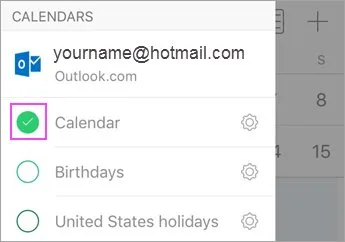
Synchronization issues occur when the handshake between your iPhone and the Outlook/Hotmail server fails. This is rarely a hardware fault. Instead, it’s usually a software conflict within the iOS Mail app.
The primary cause is an authentication error. When you change your password on a computer, your phone may still try to use the old credentials. If the phone sends the wrong password too many times, the server temporarily blocks the device for security. This isn’t a permanent ban, but it keeps your inbox from updating until you provide the new credentials.
Another common cause is a setting conflict regarding how often the phone fetches data. If you have “Fetch” set to “Manual,” the phone will never download new emails unless you actively open the app and pull down to refresh. This isn’t a bug; it’s a power-saving feature.
Finally, a system glitch can corrupt the local cache of your mailbox. When this happens, the iPhone thinks it’s synced, but it can’t display new messages. Removing and re-adding the account forces the app to build a fresh index of your messages from the cloud. If you’re unsure if your account status is correct, check your Microsoft account status on their official security dashboard to see if there are any suspicious login blocks or verification requests that need your attention.
Remove and re-add the account
This method is for when the mail app stops updating entirely. It’s the most reliable way to clear out corrupt settings without losing your actual emails, as they’re stored on the server.
- Open Settings on your iPhone and tap Mail.
- Tap Accounts and select your Hotmail entry.
- Tap Delete Account at the bottom. Confirm this choice.
- Restart your iPhone to clear the temporary cache.
- Go back to Settings, Mail, Accounts, and tap Add Account.
- Select Microsoft Exchange instead of Outlook.com.
Using the Exchange option is often more stable than the standard IMAP/POP settings. It allows for better syncing of your calendar and contacts alongside your email. Enter your full email address and description. When prompted, provide your password. If you have two-factor authentication enabled, you’ll need to approve the login through the Microsoft Authenticator app or a text code.
This fix is for users who have a stable internet connection but see a “Can’t Get Mail” error. If you have a corporate account, check with your IT department first, as they may have custom server settings that require manual entry. If you see your mail start to populate after a few minutes, you know the connection is restored.
Adjust fetch settings
If your mail arrives but only when you open the app, your fetch settings are likely too restrictive. This fix is for those who need real-time notifications for new messages.
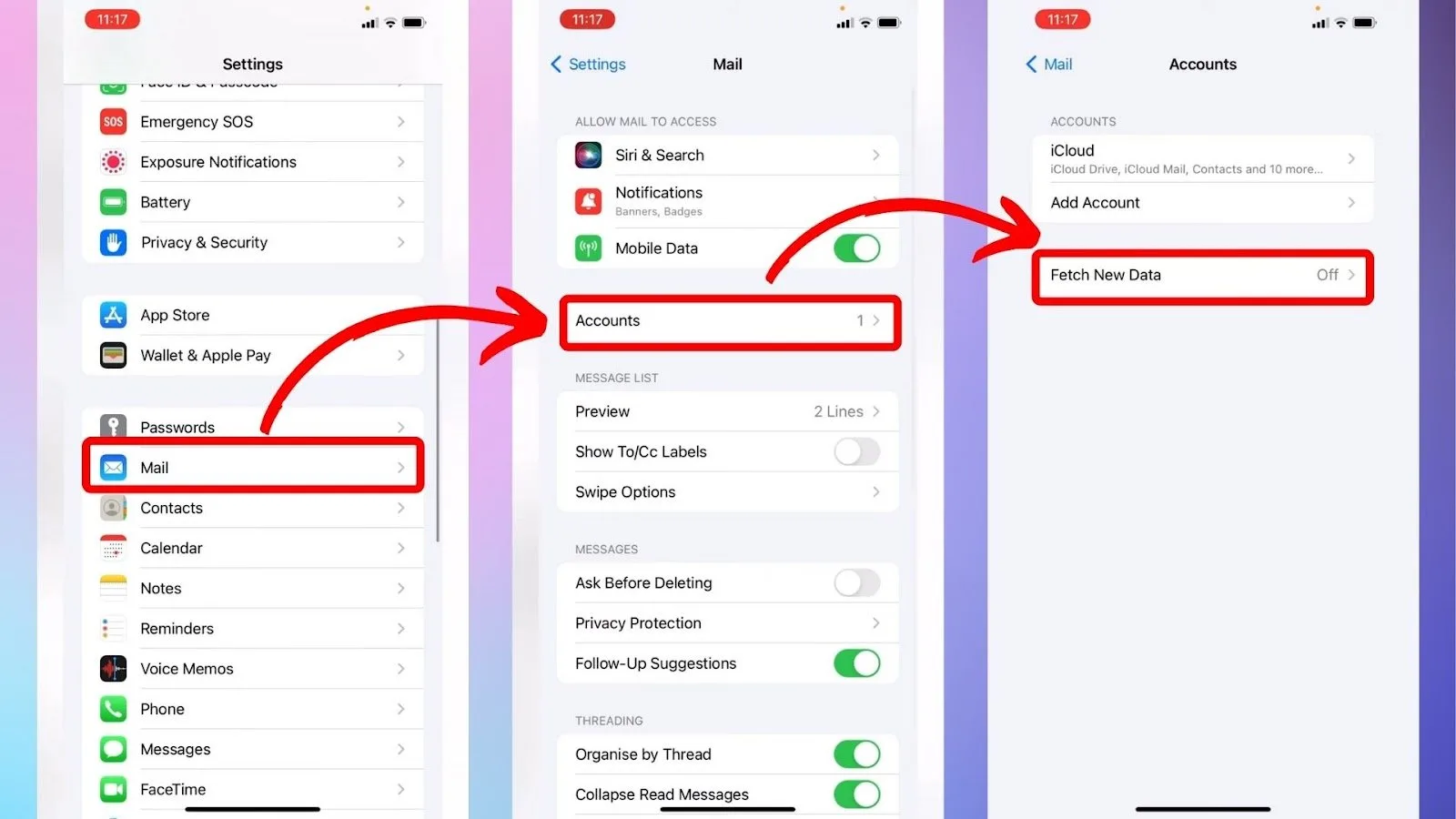
Go to Settings, then Mail, and tap Accounts. Select Fetch New Data. Ensure the Push toggle at the top is turned on. If it is, look at your Hotmail account listed under the “Fetch” section. If it’s set to “Manual,” change it to “Fetch.”
You can then choose a schedule at the bottom of the screen. Setting this to “Automatically” allows the iPhone to prioritize battery life, but it may delay mail arrival by a few minutes. If you need immediate alerts, set it to “Every 15 Minutes.”
This is a trade-off between battery life and convenience. If you have five or more email accounts synced, checking them all every 15 minutes will drain your battery faster than a single account. If you don’t see the “Push” option for your specific account, it means the server doesn’t support real-time alerts for that configuration. In that case, use the “Fetch” interval to ensure your phone checks the server periodically throughout the day. This varies by model—check the label of your iOS version in Settings > General > About to see if your software is up to date, as older versions often struggle with modern sync protocols.
Verify network and server status
Sometimes the issue isn’t with your phone at all. Before spending hours troubleshooting your settings, check if the Microsoft service itself is down.
Use a web browser on another device to log into Outlook.com. If you can’t log in there, the issue is with your account, not your iPhone. If you can log in, but the site is extremely slow, Microsoft may be experiencing a regional outage.
If the website works fine, check your iPhone’s network. If you’re on Wi-Fi, try switching to cellular data. Sometimes, a corporate or public Wi-Fi network blocks the ports required for email synchronization. If the mail starts working on cellular data, you know the issue is your Wi-Fi router’s firewall.
This is the point where you should stop trying to fix the phone. If the account works on a computer but fails on every network you test with your iPhone, there may be a deeper software conflict. In this case, perform a “Reset Network Settings” under Settings > General > Transfer or Reset iPhone > Reset. Note that this will erase your saved Wi-Fi passwords, so have them ready. Don’t attempt to factory reset your entire phone unless you have a full backup, as that’s a major step that should be a last resort.
What not to do
- Don’t delete your email app and reinstall it. This only removes the interface and rarely clears the hidden account sync settings that cause the problem.
- Don’t change your server settings (IMAP/SMTP) to random numbers. Using incorrect server addresses will prevent the account from ever connecting, even if the password is correct.
- Don’t factory reset your phone immediately. This is a drastic measure that erases all your data and is almost never required for a simple email sync error.
- Don’t pay for “premium” support services. Many third-party websites claim they can “fix” your account for a fee, but they’re just using the same free steps listed above.
How to stop it happening again
Consistency is the best way to keep your inbox synced. If you maintain a clean connection, you’ll avoid the frustration of missing important messages.
| If you’re doing this | Do this instead | Why |
|---|---|---|
| Changing passwords often | Keep one secure password | Frequent changes trigger re-auth errors |
| Using “Manual” fetch | Set to “Every 15 Minutes” | Manual requires active user input |
| Ignoring app updates | Update iOS regularly | Updates include new security certificates |
| Using public Wi-Fi | Use a trusted network | Public networks often block sync ports |
Frequently asked questions
Can I fix this without deleting my account?
Removing and re-adding the account is the only way to force the iOS Mail app to clear the stored authentication token. This process clears corrupted handshake data to trigger a fresh authentication request. Note that this procedure won’t delete your actual emails from the Microsoft server.
Why does my iPhone ask for my password repeatedly?
This happens because the stored password on your phone doesn’t match the current password on the Microsoft server. The iPhone continues sending old credentials until you delete and re-add the account. This process overwrites the rejected data with your correct, current password.
How long does it take for mail to sync after a reset?
It typically takes between one and five minutes to see your inbox populate after re-adding the account. The speed depends on the number of emails in your folders and your internet connection strength. If you have thousands of messages, the phone may take longer to index them.
Is it safe to use the Exchange setting for Hotmail?
Yes, choosing the Exchange option is safe and recommended for a better experience. Microsoft uses the Exchange protocol as the native backbone for all its email services. It provides a more robust connection for mail, calendar, and contacts than the older IMAP setting.
What happens if I have two-factor authentication enabled?
If you have two-factor authentication enabled, you must have your second device or code generator ready when re-adding the account. The iPhone will open a secure window to verify your identity after you enter your password. You must complete this step or the account will remain in a pending state.
Why is my mail only syncing on Wi-Fi?
If your mail only syncs on Wi-Fi, you likely have the “Use Cellular Data” setting turned off for the Mail app. Go to Settings, tap Cellular, and ensure the toggle switch for Mail is turned to the “On” position. This setting prevents the iPhone from using your data plan to check for emails.
Final Thoughts
If your emails still don’t appear after these adjustments, it’s a good idea to update your device to the latest iOS version. Sometimes, small software bugs interfere with server communication, and a quick update usually clears them up. You’ll be back to receiving your messages in no time at all.
Related guides