
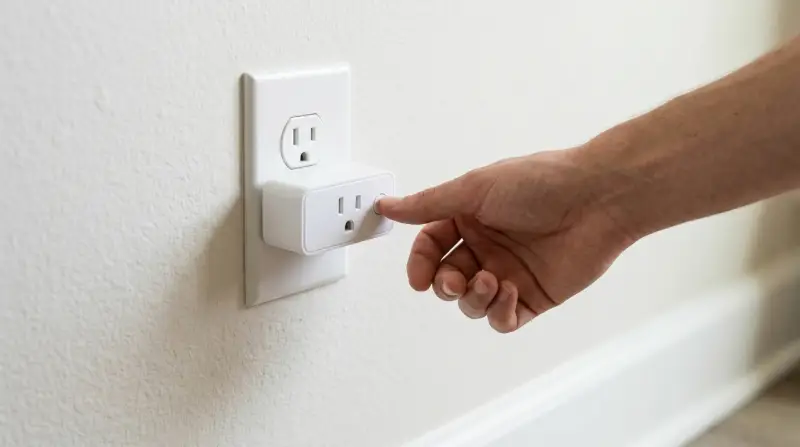
You can How to Reset Wyze Plug by holding the side button for ten seconds until the status light flashes blue. This process clears your previous Wi-Fi settings and returns the device to its original factory state, allowing you to pair it with a new network. This simple method works for all standard smart plug models, though you should check the label on your specific device if you’re using an older version or a power strip variant.
Prepare to reset your Wyze plug
-
A stable 2.4GHz Wi-Fi connection, as these devices don’t support 5GHz networks. If your router uses band steering, temporarily disable the 5GHz frequency during setup to prevent the phone from forcing the plug onto the wrong network.
-
Your smartphone with the latest version of the Wyze app installed. Ensure your phone’s Bluetooth is enabled, as the app requires it to discover the plug during the initial handshake.
-
A user account registered with the manufacturer to manage your connected hardware. If you lose your login credentials, use the “Forgot Password” feature in the app to regain access. Don’t attempt to bypass account requirements, as these are necessary to link the device to your home network securely.
-
Access to the physical plug while it’s connected to a live wall outlet. You must be within five feet of the device during the pairing process to ensure a strong signal.
-
A stable internet connection to finish the setup once the reset is complete. If the setup fails, check if your firewall settings block cloud-based device registration.
-
The original quick start guide or the official Wyze support page to verify your specific model’s blinking patterns. If the light doesn’t pulse as described, the plug is likely not in pairing mode.
If you require advanced networking configurations like VLANs or static IPs, a professional installer can help. For standard home use, the app guides you through every step. Avoid using public or guest networks, as these often prevent the plug from communicating with the Wyze cloud servers.
Step-by-step
- Plug the device into a wall outlet that you know has power.
- Locate the small circular button on the side of the housing.
- Press and hold this button firmly for exactly ten seconds.
- Watch the small LED status light on the front of the unit.
- Release the button once the light begins to pulse or flash blue.
- Wait for the light to stabilize, which signals the device is ready for pairing.
- Open the app on your phone and select the “Add Device” option.
- Follow the in-app instructions to reconnect the plug to your local Wi-Fi.
Careful: Don’t unplug the device during the flashing process, as this can interrupt the internal memory wipe and may cause an error. Tip: If the light doesn’t flash after ten seconds, ensure the outlet is providing power by testing it with a simple lamp first. If the device still fails to reset, contact the manufacturer’s official support team, as attempting to open the casing to inspect internal components is dangerous and will void your warranty.
Situations for resetting hardware
The time and effort required to restore your device depend on your network environment and the current state of the hardware.
| Situation | Time Needed | What Changes | Watch For |
|---|---|---|---|
| Changing Wi-Fi SSID | 2 minutes | Network credentials | Signal interference |
| Moving to new home | 5 minutes | Cloud account link | Router compatibility |
| Fixing connection error | 3 minutes | Internal IP cache | Blinking light speed |
| Initial factory reset | 1 minute | All saved settings | Power stability |
If the device remains unresponsive after a standard power cycle, check the error code pattern. A slow, rhythmic blink often indicates a firmware handshake failure, while a rapid, erratic flicker suggests a hardware-level power delivery issue.
Most users make the mistake of pulling the power cable while the device is actively writing data to its flash memory. This shortcut frequently corrupts the bootloader, turning a simple connectivity fix into a permanent bricking event.
Use this decision rule: if the device responds to a ping, perform a soft reboot via the software interface to preserve your cache. If the device is invisible to your network scanner, proceed with the physical factory reset button.
It’s always safer to perform a single, deliberate reset than to repeatedly force the device on and off. Constant power cycling confuses the firmware during the handshake process, often forcing the device into a recovery mode that requires a manual firmware flash.
How to tell you did it right

You’ll know the process was successful when the LED status light shows a steady, rhythmic blue pulse. A poor result is indicated by a solid light that doesn’t change or a light that remains dark even when the button is held.
This failure usually happens if the internal capacitor hasn’t been fully discharged or if the power connection is loose. To prevent this, ensure your finger remains pressed firmly on the button for the full ten seconds without slipping. A common mistake is releasing pressure early; doing so interrupts the reset cycle, forcing you to start the entire ten-second count over.
If the device is unresponsive, check that the wall outlet is active and that no debris is blocking the button from being fully depressed. You can test the outlet by plugging in a known working lamp. If the light remains off after confirming power, the hardware may have reached the end of its functional life.
Use this decision rule: if the light blinks red once before going dark, the internal battery is likely failing to hold a charge. If the light simply never illuminates, the issue is almost certainly a physical obstruction or a faulty power cable.
Maintenance and operational standards
The device must operate within the power limits specified by the manufacturer to avoid overheating or electrical failure. You should never exceed the maximum wattage rating listed on the product label.
After a successful reset, ensure you keep the app updated to receive the latest security patches. Neglecting these updates often leads to persistent connection drops or complete device lockouts.
Clear away any dust from the prongs regularly to maintain a solid electrical connection. Accumulated debris creates a high-resistance path that generates localized heat, which can melt the housing over time. Use a dry, non-conductive microfiber cloth for this task.
If you notice the casing feels hot to the touch or if the plastic shows signs of discoloration, disconnect the unit immediately and stop using it. Discoloration indicates that the internal insulation has already begun to degrade from thermal stress.
Any repairs involving internal components are strictly for authorized technicians. A capacitor can hold a lethal charge even after the unit is unplugged. Never attempt to bypass the internal fuse or modify the circuitry to increase power output. If the device fails to power on after a standard reset, check the status light for error codes. A solid red light signifies a hardware failure, while a blinking amber light indicates a firmware corruption issue.
Alternative recovery methods
App-based removal
You can remove the device from your account settings menu within the app before performing a physical reset. This ensures the cloud server clears your data correctly, which prevents ghost devices from appearing in your device list later.
Router power cycle
If the plug isn’t responding, turn off your wireless router for thirty seconds and turn it back on. Sometimes the plug is fine, but the router’s DHCP table is full and can’t assign a new address to the device.
Network band selection
If the plug refuses to connect, ensure your phone is connected to your 2.4GHz network, not your 5GHz network, during the setup phase. The plug cannot “see” the 5GHz band, and this mismatch is the most common reason for a failed secondary setup.
Frequently asked questions

Can I reset the plug without the app?
Yes, you can perform a physical reset by holding the button for ten seconds, regardless of whether the app is currently connected. The device will wipe its internal memory and return to factory state independently of the software. You’ll still need the app later to finish the configuration, but the physical reset happens entirely on the hardware side.
Why is my plug blinking red?
A blinking red light usually indicates that the device has lost its connection to the internet or your local router. First, verify that your home Wi-Fi is working on other devices. If the internet is fine, try power cycling your router. If the red light persists, perform the ten-second reset to clear the old network settings and start the pairing process from scratch.
Is it safe to reset the plug while a lamp is connected?
Yes, it’s perfectly safe to reset the plug while a device is attached, provided the attached device doesn’t exceed the maximum wattage limit. The reset button only affects the internal Wi-Fi chip and the memory of the smart plug itself. It doesn’t send a surge of power through the outlet, so your lamp or other connected appliance will remain unharmed.
How long does the reset take?
The physical reset takes exactly ten seconds of holding the button, followed by about thirty seconds for the device to reboot and enter pairing mode. After the light begins to pulse blue, you have five minutes to complete the setup in the app before the device times out and stops searching for a connection.
What happens if the reset fails?
If the device doesn’t respond after holding the button for ten seconds, confirm that the outlet has power and that the button is clicking properly. If you have confirmed power and the device remains unresponsive, it may have a hardware fault. At this stage, don’t attempt to open the unit; instead, check the manufacturer’s warranty policy for a potential replacement.
Final Thoughts
Once your device is ready, open the app to begin the setup process again. It shouldn’t take more than a few minutes to get everything connected to your home network. If you run into any trouble, don’t hesitate to check the support page for extra tips to help you out.
Related guides
- How to Reset Oculus Pattern: Quick Steps to Regain Access
- How to Reset Elgato Key Light: Quick and Easy Steps
- How to Reset Wemo Light Switch: Quick and Easy Steps