
You can restore your television to its original factory settings by navigating to the General menu in your settings and selecting the Reset to Initial Settings option. How to Reset Lg Tv is a simple process that takes about two minutes, though the TV will require a full restart afterward. This method is best for users dealing with persistent software glitches, app errors, or those preparing to sell their device to a new owner.
What you’ll need

- The original LG Magic Remote or standard remote control.
- A stable power connection to ensure the TV doesn’t lose power during the process.
- Your Wi-Fi network name and password, as these will be wiped from memory.
- Login credentials for any streaming services like Netflix, Hulu, or YouTube.
- A steady internet connection to download any firmware updates that may trigger after the reset.
- The TV’s PIN code, which is usually set to “0000” if you haven’t changed it previously.
If you have lost your remote, you can use the LG ThinQ app on a smartphone, provided the TV is already connected to your home network. You can’t perform a full factory reset using only the physical power button on the TV chassis, as that button is limited to basic volume and input controls.
If you’re unsure about your account passwords, write them down before starting, as you’ll need to re-enter them manually once the system reboots. Most users forget that saved browser history and custom picture settings are also purged. If you have spent hours calibrating your color temperature or motion smoothing, record those values on a separate sheet of paper first.
The decision rule is simple: if you’re troubleshooting a minor app glitch, try clearing the cache in the settings menu first. Only proceed to a full factory reset if the OS remains unresponsive or if you’re selling the device. A factory reset takes roughly ten minutes to complete, but you must remain near the screen to accept the initial privacy policy prompts.
Step-by-step: How to Reset LG TV
- Press the Settings button on your remote control to open the main menu on the side of your screen.
- Select All Settings, which is represented by three vertical dots at the bottom of the menu.
- Choose the General tab from the list on the left-hand side of the screen.
- Scroll down until you find the Reset to Initial Settings option and select it.
- Enter your PIN code when prompted by the screen; if you never set a custom PIN, the default is 0000.
- Confirm your decision by selecting OK to begin the process, knowing that all personal data and apps will be permanently deleted.
- Wait for the TV to turn off and restart automatically; this process can take up to three minutes depending on your specific model.
- Follow the on-screen setup instructions to reconnect to Wi-Fi, sign in to your accounts, and scan for local broadcast channels.
Always keep the TV plugged into a wall outlet during the reset; if the power cuts out, it may corrupt the firmware and require a service call. Careful: Don’t turn the TV off manually while the logo is flashing or the progress bar is active, as this can cause permanent software errors.
Adjusting for device models
The menu path can vary slightly depending on the webOS version your device runs. For older models, the reset option may be located under the “Support” or “Options” menu rather than the “General” tab. Always check the official LG support documentation if your interface doesn’t match these steps, as menu structures change with each software update.
| Situation | Time Required | Difference | What to Watch |
|---|---|---|---|
| Standard Reset | 2 minutes | Basic software wipe | Ensure power is stable |
| Firmware Update | 10 minutes | Includes system patch | Don’t unplug device |
| Account Sign-in | 15 minutes | Manual input needed | Check your credentials |
| Channel Scanning | 5 minutes | Requires antenna connection | Ensure cable is tight |
If your remote lacks a dedicated settings button, navigate to the home screen dashboard. Look for the gear icon in the top right corner.
A common mistake is assuming a factory reset clears your streaming app cache. It does not. If you’re resetting to fix a stuttering app, you must manually clear the cache within the individual app settings first. A factory reset is a blunt instrument; use it only when the operating system itself becomes unresponsive.
It’s always safer to start with a simple power cycle by unplugging the TV for sixty seconds before choosing a full factory reset. This clears the temporary memory without erasing your personalized picture calibrations or saved login credentials. If the display remains frozen after the power cycle, only then proceed to the full reset.
How to tell you did it right
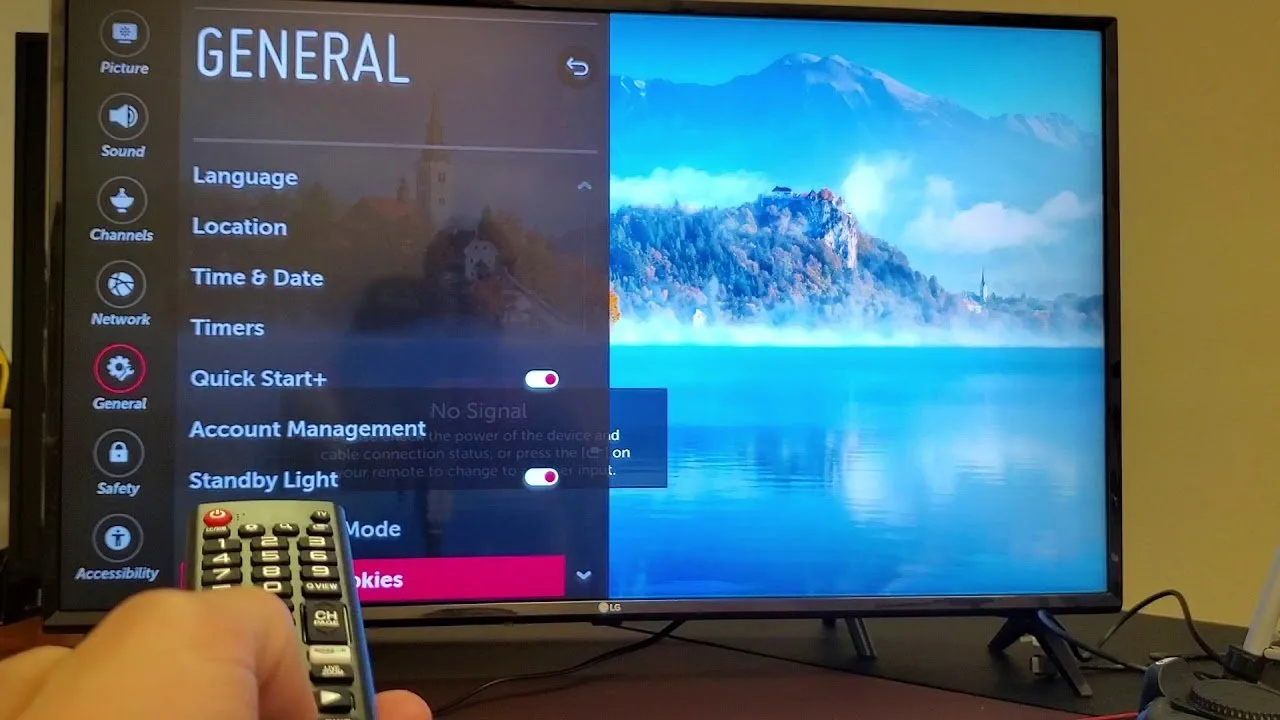
A successful reset is obvious when the TV displays the initial “Welcome” screen, just like it did the day you took it out of the box. You’ll be asked to select your language, country, and network settings immediately. If the TV boots directly into your previous home screen with your apps still visible, the reset didn’t trigger correctly. This usually occurs because the selection was interrupted or the PIN was entered incorrectly.
The most common quality problem is a “partial reset” where settings remain. This happens if you exit the menu before the final confirmation step. To prevent this, stay on the menu screen until the TV screen goes black and the LG logo appears. If you find that your apps are still signed in after the process, simply repeat the steps. Ensure you confirm the final “Yes” prompt.
If the TV fails to reset after three attempts, there may be a deeper hardware fault. You should contact a professional technician in this case.
If the space remains significantly lower, your personal data is still cached on the drive. In that scenario, perform a hard power cycle by unplugging the unit for sixty seconds before attempting the software reset one final time.
Finalizing your system settings
The primary rule after a reset is to check for firmware updates immediately. LG publishes these patches regularly to patch security vulnerabilities and ensure compatibility with modern streaming apps. Skipping this step often causes apps to crash or fail to launch entirely.
Once the setup is complete, clear away any temporary storage cache by performing a quick power-off and power-on cycle. Unplug the unit from the wall for thirty seconds before restarting. This forces the operating system to purge lingering background processes that can cause menu lag.
Record your new PIN in a secure location. This code is your only protection against unauthorized changes to parental controls or system settings. If you forget it, you may be locked out of critical menus, requiring a factory reset that wipes all your saved login credentials.
If you have a complex sound system or external devices attached, reconfigure those inputs manually. The system often defaults to internal speakers, which may cause audio sync issues with high-end soundbars.
A reset is only necessary if the software becomes unresponsive or you’re transferring ownership. If you have limited technical experience, contact the official support line provided by the manufacturer. They can guide you through the process safely without risking your warranty or account access. If you’re unsure about a setting, the decision rule is simple: if the feature doesn’t improve your specific viewing experience, leave it at the factory default.
Other ways to do it
Soft Power Cycle
Unplug the TV from the wall for one full minute while it’s powered on. This clears the temporary memory cache without deleting your apps or passwords. It’s the fastest way to fix minor video lag or frozen menus.
If the TV remains unresponsive after plugging it back in, you likely have a hardware fault rather than a software glitch. In this case, a power cycle won’t help, and you should inspect the power cable for physical damage or test a different wall outlet to rule out an electrical issue.
App-Specific Reset
If only one app is failing, go to that app’s settings within the TV menu and select “Clear Cache” or “Reset App.” This saves you from wiping the entire TV and re-entering all your login credentials for other services.
Most users make the mistake of deleting and reinstalling the app entirely. This is unnecessary and often results in losing local preference data. Simply clearing the cache is sufficient 90% of the time.
Firmware Update
Sometimes a reset isn’t needed; instead, check the “Software Update” menu. Installing the latest version can fix bugs that seem like they require a reset, saving you the time and effort of reconfiguring your entire television setup from scratch.
If the update fails to download, check your router settings. A weak Wi-Fi signal often causes partial installations, which can corrupt system files and force a factory reset anyway.
Frequently asked questions

Can I reset my LG TV without a remote?
Yes, you can use the LG ThinQ app on your smartphone to navigate the menus. If your TV isn’t on your network, you may need to purchase a replacement remote, as there’s no way to perform a full factory reset using only the buttons on the TV frame.
Why is my LG TV asking for a PIN?
Your TV asks for a PIN to protect your personal account information and parental control settings from unauthorized changes. The factory default is usually 0000, but if you have set a custom one and forgotten it, you must contact LG support to reset the security lock.
How long does a factory reset take?
A factory reset takes about two to three minutes to complete the initial wipe and reboot process. However, you should allow an additional ten to fifteen minutes to re-enter your Wi-Fi credentials and sign back into your streaming services.
Is it safe to factory reset my TV?
Yes, it’s perfectly safe to perform a factory reset, provided the TV remains plugged into a stable power source. Ensure you don’t unplug the unit while it’s clearing data, as this could cause a critical software failure.
What happens if I lose power during the reset?
If you lose power during the reset, your TV may get stuck in a boot loop or fail to turn on at all. You’ll likely need to contact a professional technician to perform a manual firmware reflash, as this isn’t a user-fixable hardware issue.
Final Thoughts
Once your screen flickers back to life, you’ll need to reconnect your Wi-Fi and sign into your favorite streaming accounts again. It’s a bit of a chore, but you’ll find that everything runs much smoother. If you still run into trouble, don’t hesitate to contact LG support for further help.
Related guides
- How to Reset Fitbit Charge 3 Black Screen in Minutes
- How to Reset Sonos Play 5: Simple Steps for Quick Setup
- Lucci Fan Remote Reset Button: Quick Guide to Easy Troubleshooting