
If you’re playing on your PlayStation 4 and suddenly notice your controller flashing a steady white light, it can be confusing and even a bit worrying. The blinking white light usually means something isn’t working as it should. Sometimes, your controller won’t connect to your PS4, or it keeps disconnecting in the middle of a game. For many gamers, this issue is frustrating because it interrupts gameplay and can be hard to fix if you’re not sure what’s wrong.
This article will help you understand what the PS4 controller white light blinking means, why it happens, and how to fix it. We’ll look at the four main causes of this problem. You’ll also find helpful tips, real examples, and solutions that work—whether you’re a beginner or you’ve used a PS4 for years. By the end, you’ll know how to get your controller working again and avoid future issues. Let’s get started.
What Does The Ps4 Controller White Light Blinking Mean?
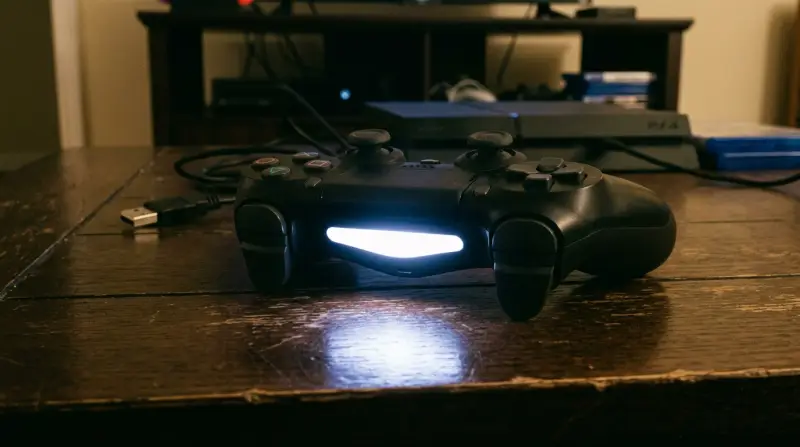
A blinking white light on your PS4 controller can signal several problems, but the most common one is a connection issue. When everything is working well, your controller’s light bar glows blue, red, pink, or green, depending on the player number. But when it blinks white, your controller is often searching for a connection or failing to pair with the console.
Other times, the white light might blink if the controller’s battery is low, there’s a hardware fault, or the software is having trouble. It’s important to note that a quick flash is normal during startup, but a persistent blink means you should take action.
1. Connection Problems Between Controller And Console
The most frequent reason for a blinking white light is a lost connection between the controller and the PS4. This can happen for several reasons:
- The controller is too far from the console.
- There is interference from other wireless devices.
- The USB cable is damaged or not properly connected.
- The controller’s Bluetooth is malfunctioning.
How To Fix Connection Problems
1. Move Closer To The Console
Make sure you’re within 10-15 feet of your PS4. Walls or large objects can block the signal.
2. Check The Usb Cable
Try using a different USB cable. Sometimes, the cable is faulty and can’t charge or connect the controller properly.
3. Restart Your Ps4
Turn off the PS4 completely (not just rest mode) and unplug it for a few minutes. Then restart and reconnect your controller.
4. Re-pair The Controller
Use the USB cable to connect the controller directly to the PS4. Press the PS button to re-sync.
5. Try Another Controller
If possible, connect a different controller to the same PS4. If that works, your original controller may be the problem.
Extra Insight:
Many people overlook the USB port on the console itself. Dust or debris inside the port can stop the controller from syncing correctly. Carefully clean the port with compressed air or a soft brush.
Example Scenario
You’re playing a game, and your controller suddenly disconnects with a blinking white light. You try to reconnect, but nothing happens. Switching to a different USB cable solves the problem immediately. This shows how often a simple cable issue is behind the blinking white light.

Credit: www.youtube.com
2. Battery Or Charging Issues
Another common cause of the white blinking light is battery trouble. If the battery is low or the controller isn’t charging, it may keep flashing white.
Signs Of Battery Problems
- The controller won’t hold a charge.
- The light blinks white when you plug it in, but never turns orange (charging) or blue (connected).
- The controller dies quickly after unplugging.
How To Fix Battery Or Charging Issues
1. Try A Different Charging Cable And Port
Some cables only charge and don’t transfer data, so always use a genuine or good-quality cable. Also, try plugging into a different USB port or a wall charger.
2. Check The Charging Port
Look for dust, lint, or damage inside the controller’s charging port. Cleaning with a toothpick or soft brush can help.
3. Charge The Controller Fully
Leave it connected for at least 30 minutes. Sometimes, a deeply discharged battery needs time before it responds.
4. Replace The Battery
If your controller is old, the battery may be worn out. You can buy replacement batteries online or at electronics stores.
Non-obvious Tip:
Not all USB cables are equal. Some cheap or old cables can’t deliver enough power for charging, even if they look fine. Always test with a cable you know works with other devices.
Comparison Of Charging Solutions
Here’s a quick overview of charging methods and their reliability:
| Charging Method | Success Rate | Notes |
|---|---|---|
| Original PS4 USB cable | Very High | Best for pairing and charging |
| Third-party USB cable | Medium | Quality varies a lot |
| Wall charger | High | Can charge faster but won’t pair |
| PC USB port | Medium | May not provide enough power |
3. Software Or Firmware Glitches
Sometimes, the blinking white light comes from a software glitch—either in the controller or the PS4 system itself. Software bugs can prevent the controller from pairing correctly, even if the hardware is fine.
Common Software-related Causes
- Controller firmware is outdated or corrupted.
- PS4 system software needs an update.
- The controller is stuck in pairing mode.
How To Fix Software Or Firmware Issues
1. Update Ps4 System Software
Go to Settings > System Software Update. Make sure your PS4 has the latest updates installed.
2. Reset The Controller
There is a small reset button on the back of the controller, near the L2 shoulder button. Use a paperclip to press and hold it for 5 seconds, then reconnect with a USB cable.
3. Rebuild Ps4 Database
Turn off your PS4, then hold the power button until you hear two beeps (Safe Mode). Choose “Rebuild Database. ” This can fix many connection issues.
4. Re-pair The Controller
After resetting, plug the controller into the PS4 and press the PS button to re-sync.
Extra Insight:
A hidden trick is to delete the controller from Bluetooth devices in the PS4 settings and re-pair it. This can solve cases where the controller is stuck in a loop trying to connect.
Firmware Update Comparison
How often should you update your PS4 and controller firmware? Here’s a quick look:
| Device | Update Frequency | How to Update |
|---|---|---|
| PS4 Console | Every 2–3 months | Via Settings menu |
| PS4 Controller | With major updates | Automatic when connected |

4. Hardware Failures
If you’ve tried everything else and the white light keeps blinking, you might have a hardware issue. This could be inside the controller, such as:
- Damaged Bluetooth module
- Faulty circuit board
- Broken internal components
Or, the PS4 console itself might have a hardware fault.
Signs Of Hardware Failure
- The controller never works, even on another PS4.
- The controller does not respond after resets and re-pairing.
- Visible physical damage or water exposure.
How To Fix Hardware Issues
1. Test On Another Console Or Device
Try connecting your controller to a different PS4 or even a PC. If it works, your console may be the problem.
2. Check For Physical Damage
Look for cracks, loose buttons, or bent ports. Minor issues may be repairable.
3. Contact Sony Support
If the controller is under warranty, Sony may repair or replace it.
4. Consider Replacement
Sometimes, repairing an old or heavily damaged controller is not worth it. Buying a new one may be the best solution.
Non-obvious Tip:
If your controller was dropped or exposed to liquid, open it and check for corrosion. Cleaning with isopropyl alcohol can sometimes revive a non-working controller, but this should only be done if you’re comfortable with electronics.
Hardware Issue Comparison
Here’s a simple view of common hardware failures and how easy they are to fix:
| Problem | DIY Fix? | Professional Needed? |
|---|---|---|
| Loose charging port | Sometimes | Often |
| Broken Bluetooth chip | No | Yes |
| Cracked shell | Yes | No |
| Water damage | Sometimes | Often |
Preventing Ps4 Controller White Light Problems
Once you’ve fixed the blinking white light, it’s smart to prevent it from happening again. Here are a few tips:
- Store controllers in a dry, cool place.
- Charge controllers regularly to avoid deep discharge.
- Use official or high-quality USB cables.
- Clean the charging port and console connections every few months.
- Update PS4 software as soon as new versions are available.
Many users forget that the PS4 controller is sensitive to moisture and dust. Even sweat from hands can get inside over time, so wiping down the controller after long sessions can extend its life.

When To Get Professional Help
If you’ve tried all the steps and your controller still blinks white, professional repair or replacement might be necessary. Sony’s official support is reliable, and they may help even if your warranty has expired—for a fee. Some local electronics shops also repair PS4 controllers, but always check reviews and ask about guarantees.
For official guidance, see the PlayStation Support website.
Frequently Asked Questions
Why Is My Ps4 Controller Blinking White And Not Connecting?
A blinking white light usually means the controller can’t connect to the PS4. The most common reasons are a faulty USB cable, interference, dead battery, or software bug. Try re-pairing with a different cable and resetting the controller.
Can I Use My Ps4 Controller On A Pc If It’s Blinking White?
If your controller blinks white but won’t connect to your PS4, you can try connecting it to a PC via USB. If it works, the controller is likely fine and your PS4 may have a problem. If it doesn’t work, the controller may need repairs.
How Do I Reset A Ps4 Controller?
On the back of the controller, near the L2 button, there’s a tiny hole. Use a paperclip to press the reset button inside for five seconds. Then reconnect the controller to your PS4 with a USB cable and press the PS button.
Is It Safe To Open My Ps4 Controller To Fix It?
Opening your controller will void the warranty, but it’s safe if you’re careful and follow online guides. Only attempt this if you have experience with electronics. For most people, professional repair is safer.
Why Does My Controller Only Blink White When Charging?
If the light only blinks white while charging and never turns orange or blue, the battery or charging port may be damaged. Try a new cable and port first. If the problem continues, the battery may need to be replaced.
If you follow the steps above, you should be able to fix most PS4 controller white light blinking problems quickly. Staying patient and working through each solution will save you time and get you back to gaming faster.