
Staying healthy feels easier when you can track your steps, sleep, and activity automatically. That’s the promise of the Qantas Wellbeing App. It rewards you for walking, running, and even getting good sleep by syncing data from your fitness device or smartphone. But what if your Qantas Wellbeing app stops syncing? Suddenly, your hard-earned steps are missing, and your rewards don’t add up. If you’re facing the Qantas Wellbeing not syncing issue, you’re not alone—and it’s usually fixable. This guide walks you through why it happens, how to solve it, and how to keep your points flowing smoothly.
Why Qantas Wellbeing Needs To Sync
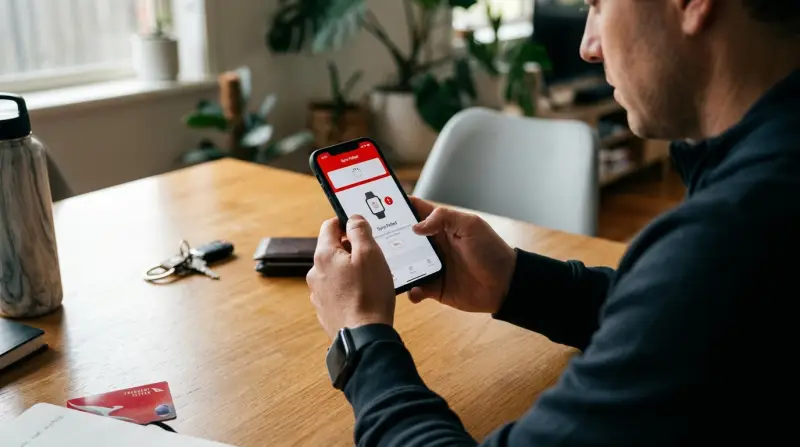
Syncing is the heart of the Qantas Wellbeing program. The app connects to fitness trackers like Apple Health, Google Fit, Fitbit, or Garmin. It collects your health data, checks if you completed challenges, and rewards you with Qantas Points. If syncing fails, you lose out on points and motivation.
Many users don’t realize that the app relies on a chain of permissions, background activity, and third-party integrations. A small glitch anywhere can break the sync, which means understanding the system helps you fix problems faster.
Most Common Reasons Qantas Wellbeing Is Not Syncing
Several issues can disrupt syncing. Here are the most common causes:
- Device Permissions: The app needs permission to read health and activity data. If these are off, syncing fails.
- Background App Refresh: Without this, the app can’t fetch data when you’re not using it.
- Outdated App or OS: New features or bug fixes might require the latest version.
- Third-Party Connection Problems: Issues with Apple Health, Google Fit, Fitbit, or Garmin can block data from reaching Qantas.
- Network Issues: No internet means no sync.
- Battery Optimization Settings: Some phones stop background activity to save battery, breaking the sync.
Even experienced users miss that sometimes two or more issues happen together. For example, a permissions error plus an outdated app will both stop syncing, and fixing only one won’t help.
Step-by-step Troubleshooting
Fixing the Qantas Wellbeing not syncing problem usually takes a few clear steps. Here’s a practical approach:
1. Check App And Device Updates
First, make sure both your phone and the Qantas Wellbeing app are up to date.
- Go to your device’s app store, search for Qantas Wellbeing, and update if needed.
- Update your phone’s operating system if a new version is available.
Why this matters: Many syncing issues are solved by bug fixes in new versions.
2. Review Permissions
Qantas Wellbeing needs permission to access your health data and activity.
For Iphone (apple Health):
- Open Settings > Privacy > Health > Qantas Wellbeing
- Make sure all categories (steps, distance, etc.) Are turned ON
For Android (google Fit):
- Open Settings > Apps > Qantas Wellbeing > Permissions
- Enable permissions for physical activity, location, and storage if requested.
For Fitbit/garmin:
- Open the Qantas Wellbeing app.
- Go to Settings > Connected apps
- Reconnect your device if it shows an error.
Non-obvious tip: Sometimes permissions are lost after a system update or reinstalling the app. Always double-check after updates.
3. Test Internet Connection
Qantas Wellbeing can’t sync without the internet. Open a web page or another app to make sure your connection is stable.
4. Enable Background App Refresh
If the app can’t run in the background, it won’t sync automatically.
- On iPhone: Settings > General > Background App Refresh > Qantas Wellbeing (ON)
- On Android: Settings > Apps > Qantas Wellbeing > Battery > Allow background activity
5. Re-sync Or Disconnect And Reconnect
If the above steps don’t work:
- Open Qantas Wellbeing.
- Go to Settings > Connected apps
- Tap your device (e.g., Apple Health, Fitbit)
- Choose Disconnect then Reconnect and follow the prompts.
6. Restart Your Devices
Sometimes, a simple restart fixes hidden glitches.
- Restart your phone.
- Restart your fitness tracker (if possible).
7. Check Third-party App Status
Sometimes the problem is with the provider, not you. Visit the Fitbit, Garmin, or Apple Health status pages to check for outages.
8. Contact Support
If you still can’t sync:
- Contact Qantas Wellbeing support via the app or their website.
- Include your device type, operating system, and a description of the problem.
How Qantas Wellbeing Syncs With Popular Devices
The Qantas Wellbeing app connects with several popular health platforms. Each has its own process, and knowing the differences helps you spot where syncing might break down.
| Device/Platform | How It Syncs | Common Issues |
|---|---|---|
| Apple Health (iPhone) | Reads step and activity data directly from Health app | Permissions off, Health data not updating |
| Google Fit (Android) | Reads from Google Fit data on your phone | Permissions, Google Fit not recording steps |
| Fitbit | Connects via Fitbit account, syncs through cloud | Fitbit app not syncing, account disconnected |
| Garmin | Connects via Garmin account, syncs through cloud | Garmin Connect issues, data delayed |

Practical Tips For Reliable Syncing
Even if your app is syncing now, these tips help you avoid common mistakes that can break it later.
- Open the Qantas Wellbeing app daily. Some devices only sync when the app is active.
- Keep your fitness tracker charged and updated.
- Don’t force close the app unless needed—this can stop background sync.
- Log out and log back in after major device updates.
- Use one device for tracking. Syncing with multiple devices (like both a phone and a watch) can cause duplicate or missing data.
A surprising insight: Some users lose points by switching devices mid-challenge. If you change phones, make sure you set up syncing before starting new challenges.
Differences Between Qantas Wellbeing And Other Health Apps
Qantas Wellbeing offers unique rewards for healthy behavior, but its syncing process is similar to other apps. Here’s how it compares to a few popular options:
| App | Syncing Method | Rewards |
|---|---|---|
| Qantas Wellbeing | Connects via Apple Health, Google Fit, Fitbit, Garmin | Qantas Points, status credits |
| Vitality | Direct device integration | Gift cards, discounts |
| WW (Weight Watchers) | Apple Health/Google Fit integration | WW Points, badges |
| Strava | Direct device/app sync | Community, leaderboards |
The key difference: Qantas Wellbeing’s rewards are tied to your Qantas Frequent Flyer account, making syncing more important for people who want to earn travel points.

Advanced Troubleshooting For Persistent Syncing Issues
If you’ve tried the basics and still have trouble, these advanced tips may help:
Clear App Cache (android)
- Go to Settings > Apps > Qantas Wellbeing > Storage > Clear Cache.
- Don’t clear data unless you want to reset the app.
Reset Network Settings
- On iPhone: Settings > General > Reset > Reset Network Settings
- On Android: Settings > System > Reset options > Reset Wi-Fi, mobile & Bluetooth
This can solve rare issues where background syncing is blocked by network errors.
Reinstall The App
- Uninstall Qantas Wellbeing.
- Reboot your phone.
- Reinstall and reconnect your health app.
Non-obvious insight: When reinstalling, you may need to reauthorize connections with both your fitness platform and Qantas Wellbeing. Skipping this step is a common mistake.
How Qantas Wellbeing Handles Data
Understanding how your data moves from your device to Qantas can help you spot where syncing might break:
- Your fitness tracker or phone collects step/activity data.
- That data is stored in Apple Health, Google Fit, Fitbit, or Garmin.
- Qantas Wellbeing reads that data when you open the app or in the background (if allowed).
- The app uploads the data to Qantas servers and awards points.
Sometimes, data lags by several hours, especially with third-party trackers like Fitbit or Garmin. If your steps don’t appear instantly, wait a few hours before troubleshooting.
Protecting Your Privacy While Syncing
Qantas Wellbeing asks for sensitive health data, and many users don’t realize they control which categories the app can access.
- Only allow access to data you’re comfortable sharing (e.g., steps, distance).
- Review connected apps every few months.
- If you stop using Qantas Wellbeing, disconnect it from your health platform for extra privacy.
For more on data privacy, the Australian Privacy Commissioner offers helpful information.
Frequently Asked Questions
Why Does My Qantas Wellbeing App Say It’s Synced But Points Aren’t Showing?
The app may show it’s synced, but if your fitness tracker or health app hasn’t uploaded new data, no new points will appear. Try syncing your device manually, opening the Qantas Wellbeing app, and waiting a few hours.
Can I Sync Qantas Wellbeing With More Than One Device?
Technically, you can connect multiple devices, but it’s best to use only one at a time. Using more than one can cause duplicate or missing data, which may result in missed points.
How Long Does It Take For Steps To Appear In Qantas Wellbeing?
Usually, steps sync within a few minutes to an hour. With third-party platforms like Fitbit or Garmin, it can take up to 24 hours for data to transfer fully.
Do I Lose Points If My App Doesn’t Sync Right Away?
No, you don’t lose points as long as you sync within the challenge timeframe. However, delayed syncing can cause stress if you’re close to a points deadline, so it’s best to check daily.
Is Qantas Wellbeing Compatible With Older Phones?
The app works with most modern smartphones, but older phones may lose support for recent updates. Always use the latest possible OS version and app update to avoid syncing problems.
Staying on top of your health data—and your Qantas Points—shouldn’t be stressful. With these steps and tips, you can solve most Qantas Wellbeing syncing issues quickly and keep your rewards coming. If you ever get stuck, don’t hesitate to reach out to Qantas support—they’re there to help you get back on track.