
A power cycle of your hardware is the most reliable way to fix a Roku Tv Not Connecting to Wifi. You need to unplug your television from the wall outlet, wait for at least sixty seconds, and then plug it back in. This simple step clears the temporary cache that often causes network handshake errors. If this doesn’t solve the issue, the problem is likely a conflict between your router settings and the TV’s network card.
Reasons your Roku can’t connect to wifi

Connection errors usually stem from signal interference, outdated software, or incorrect frequency bands. Most modern routers broadcast on both 2.4 GHz and 5 GHz frequencies. If your router is configured to use a specific channel that your Roku device can’t recognize, the connection will fail. This is common if you live in a dense apartment building where many neighbors use the same wireless channels, causing the signal to overlap.
Another cause is a mismatch in the date and time settings on your device. If your Roku TV loses power for a long period, it may reset its internal clock.
Finally, outdated firmware can prevent the TV from communicating with modern security protocols like WPA3. If your router recently updated its security settings, the TV might be unable to negotiate the new encryption standard. You can verify the current software status or check for updates through the Roku official support page which details the specific steps for manual system updates. If you have tried these steps and still see no signal, your router might be blocking the MAC address of the TV, which is a specific identifier for your hardware.
Restart the network connection
If the power cycle didn’t work, you must force the TV to forget the current network and start fresh. Navigate to the Settings menu, select Network, and then choose Set up connection. Select your wireless network from the list and choose the option to forget it or remove it from your saved list. After the network is removed, restart the TV once more.
Once the device reboots, go back to the network setup screen. Select your Wi-Fi name again and enter the password carefully. If you have a complex password, ensure that you’re using the correct case for every letter. If the TV connects but drops the signal after a few minutes, go to the Advanced Settings menu and check the IP address. If the IP address starts with 169.254, it means the TV isn’t getting a signal from your router. In this case, you should restart your router by unplugging it for thirty seconds. This fix is intended for users who have a stable internet connection on other devices but can’t get the TV to join the network. If your router is hidden inside a cabinet or behind a metal object, the signal strength will be poor regardless of settings. This isn’t for users who have a total outage of their home internet service.
Change the wireless frequency
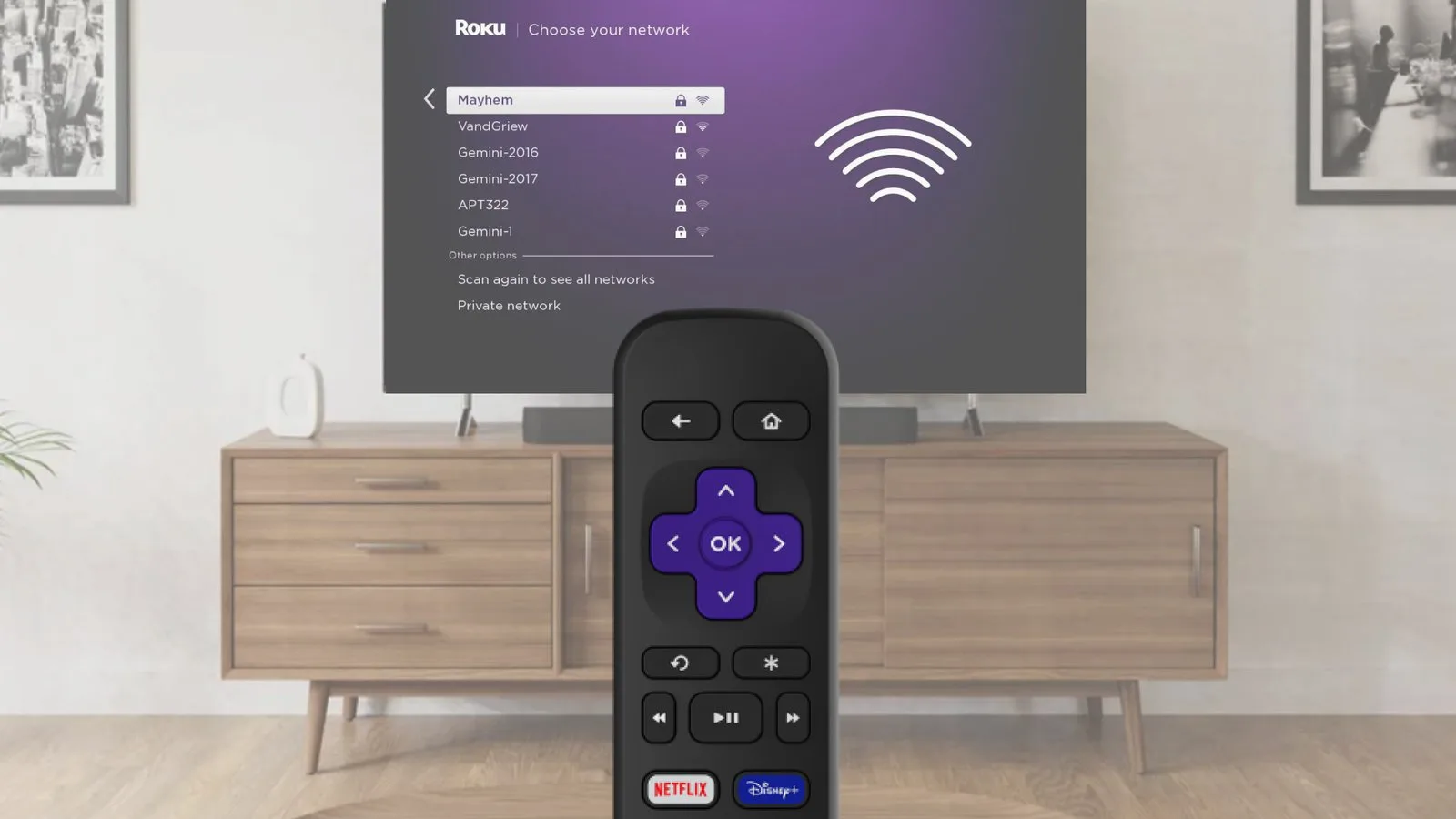
Roku TVs often struggle when a router forces the device onto a congested 5 GHz band. If your router supports dual-band technology, try to force the TV to connect to the 2.4 GHz band instead. This band is slower but travels through walls much better than the 5 GHz band. Log into your router’s administrative panel through your web browser. Look for the wireless settings page and give the 2.4 GHz and 5 GHz bands different names. For example, name them “HomeWiFi_2.4” and “HomeWiFi_5.”
Once you have renamed the networks, go to your Roku TV and scan for available networks again. You should see both names appear. Select the 2.4 GHz network and enter your password. If the TV connects, your issue was likely signal interference on the higher frequency. This fix is excellent for users who have a large home or a router located far from the television. However, if your router automatically combines both bands into one name, you may need to disable the “Band Steering” feature in the router settings to see the two separate networks. This varies by model — check the label on your router for the IP address needed to access these settings. If you aren’t comfortable changing router settings, contact your internet service provider for assistance.
Use a wired ethernet connection
For the most stable performance, connect your Roku TV directly to your router using a Cat6 ethernet cable. This bypasses the wireless radio entirely and removes the possibility of signal interference or password mismatch. This is the best solution if you’re trying to stream high-definition content and find that your wireless signal is constantly buffering.
Most users mistakenly assume all cables are equal. Ensure your cable is labeled “Cat6” or higher to support gigabit speeds. Using an older Cat5 cable will artificially throttle your bandwidth, capping your speed at 100 Mbps regardless of your actual internet plan.
This fix is worth the effort if you own a home and can run a cable along the baseboards or through the wall. If you’re in a rental property or don’t want to manage cables, this may not be the right solution for you. To perform this, simply plug one end of the cable into the back of your TV and the other end into an open LAN port on your router.
The TV should detect the wired connection automatically within a few seconds. If it does not, navigate to Settings, then Network, and select Wired. This method requires no special software and is the most reliable way to ensure your TV stays connected.
If your router is in another room, you can purchase a long ethernet cable to reach the TV. If you can’t run a wire across the floor, consider a Powerline adapter kit. These devices use your home’s existing electrical wiring to transmit the internet signal, providing a stable alternative when a direct cable run is physically impossible.
What not to do
Don’t perform a full factory reset on your TV immediately. This erases all your installed apps and saved logins without fixing persistent network hardware issues. You lose hours of re-authentication for no technical gain.
Avoid using “Wi-Fi extenders” that lack proper configuration. These devices often create a secondary network that causes IP address conflicts. If your TV shows a “Connected, no internet” status, check if your extender is broadcasting a different SSID than your main router.
Never attempt to open the back panel to check the Wi-Fi card. This voids your warranty and poses a lethal risk of electrical shock from high-voltage capacitors.
Don’t ignore error codes shown on the screen. These numbers distinguish between a simple password mismatch and a server-side authentication failure. If you see a code starting with “10,” it’s usually a local credentials error. If it starts with “20,” the issue is external. Use this rule to decide whether to reset your router or wait for the service provider to resolve their outage.
How to stop it happening again

Consistency is the best way to prevent network drops. If you keep your network settings stable, your Roku TV will maintain a solid connection.
| If you’re doing this | Do this instead | Why |
|---|---|---|
| Leaving the router hidden | Place it in an open area | Walls block wireless signals |
| Using “Auto” channels | Set a static channel | Prevents interference from neighbors |
| Relying on old firmware | Update the system regularly | Patches fix known connection bugs |
Most users mistake a weak signal for a hardware failure. If your device drops connection only during peak evening hours, interference is the culprit. Switch your router to a less crowded 5GHz channel to solve this.
If the connection fails immediately after a firmware update, don’t factory reset the TV. Instead, perform a hard power cycle by unplugging the unit for sixty seconds. This forces the network adapter to re-authenticate with your gateway.
If you live in an apartment complex, use a Wi-Fi analyzer app to identify the least congested channel. Manually setting your router to that channel prevents the constant re-negotiation that causes streaming stutters.
Frequently asked questions
Can I fix a Roku TV not connecting to Wi-Fi without a remote?
Yes, you can control your TV using the free Roku mobile app if your smartphone is on the same network. The app automatically scans for your device once connected. Note that you need a physical remote to reconnect the TV to the network if it becomes disconnected.
Why does my Roku TV say it’s connected but has no internet?
This error typically occurs because your TV has a local IP address but can’t reach the external server. Restarting your router often clears the DNS cache and resolves the issue. Ensure your date and time settings are correct, as incorrect values prevent the TV from verifying secure connections.
How long should I wait after unplugging the Roku TV?
You should wait at least sixty seconds before plugging the power cord back into the wall outlet. If you plug it back in too quickly, the device may retain its previous state, and the network error will persist.
Is it safe to change my router channel settings?
Yes, it’s safe to change your router’s wireless channel in the admin panel to improve signal quality. Most modern routers allow these adjustments to optimize performance. If you lose connectivity on other devices, simply log back into the router and revert the channel setting to “Auto.”
What happens if I choose to factory reset my Roku TV?
A factory reset will return the device to its original out-of-the-box state, meaning you’ll lose all downloaded apps, saved passwords, and personalized settings. You’ll need to sign in to your Roku account and re-download every streaming service from scratch. Only use this as a last resort if all other troubleshooting steps, including checking your router, have failed to restore the connection.
If you find that your Wi-Fi signal is consistently weak despite these fixes, you may need to move your router to a more central location or add a mesh Wi-Fi system to your home to ensure consistent coverage for all your devices.
Related guides