
When your monitor suddenly stops playing sound, it can be frustrating and confusing. Maybe you connected your computer, but the speakers inside your monitor stay silent. Perhaps you used to hear audio, but now nothing comes out. Sometimes, even after checking all cables and settings, the problem remains.
This issue is more common than people think, especially with modern monitors that support both video and audio through HDMI or DisplayPort.
This guide explains why sound not working on monitor happens and how to fix it. You’ll learn the main causes, step-by-step solutions, and practical tips to avoid future problems. Whether you’re using Windows, Mac, or a gaming console, this article covers what you need. Let’s get your monitor speakers working again.
Why Does Sound Not Work On Monitors?
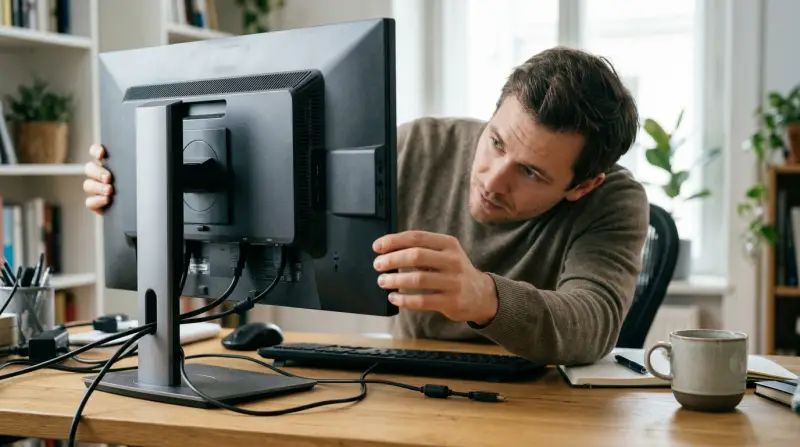
Modern monitors can play audio, but not all do. Some have built-in speakers, while others only pass audio to headphones or external speakers. Knowing your monitor’s features is the first step.
Common reasons for no sound:
- Wrong audio output device selected
- Faulty or disconnected cables
- Mute or low volume settings
- Outdated or missing drivers
- Monitor does not have speakers
- Hardware faults
Many people assume every monitor can play sound, but that’s not true. Always check your monitor’s specifications. If it has no speakers, you’ll need to use headphones or external speakers.
Quick Checks Before Troubleshooting
Before you dive into detailed steps, try these quick checks. Many sound problems are simple and easy to miss.
- Check monitor volume: Look for volume buttons or an on-screen menu.
- Check computer’s volume: Make sure your PC or laptop isn’t muted or set too low.
- Test with headphones: Plug headphones into the monitor (if it has a headphone jack). If you hear sound, the monitor is getting audio but the speakers may be off.
- Try another device: Connect a different device (like a laptop or console) to the monitor. If sound works, the issue is with your main computer.
These steps catch easy-to-fix issues and help you pinpoint where the problem starts.
Understanding Monitor Audio Connections
How you connect your monitor affects whether it can play sound.
| Connection Type | Carries Audio? | Typical Use |
|---|---|---|
| HDMI | Yes | PC, consoles, Blu-ray |
| DisplayPort | Yes | PC, some laptops |
| DVI | No (usually) | Older PCs |
| VGA | No | Very old devices |
| 3.5mm Audio | Yes (audio only) | Speakers, headphones |
HDMI and DisplayPort can send both video and audio. DVI and VGA almost never carry sound. If you connect with DVI or VGA, you must use a separate audio cable.
Non-obvious insight: Some monitors have audio passthrough. This means they get audio over HDMI/DP, then send it to a headphone jack. If your monitor’s speakers don’t work, try plugging headphones into the monitor to check.
Set Your Monitor As Default Audio Device (windows)
A common mistake is forgetting to set the monitor as the main audio device. Windows often sends sound to the wrong place.
- Right-click the speaker icon in the taskbar.
- Click Open Sound settings.
- Under Output, select your monitor (it may show as the monitor model or “HDMI”).
- Test audio by playing a video or sound.
If your monitor isn’t listed, Windows may not detect it. Try unplugging and reconnecting the cable, then checking again.
What If You Don’t See Your Monitor?
- Make sure your monitor is turned on and set to the right input.
- Try a different HDMI or DisplayPort cable.
- Update your graphics drivers (see next section).
Practical tip: Some monitors show up as “Digital Audio (HDMI)” or a random model number. If in doubt, try each option until you hear sound.
Update Or Reinstall Audio Drivers
Outdated or missing drivers can stop sound from working. This is especially true if you just updated Windows or changed your hardware.
How to update drivers:
- Press Win + X, then choose Device Manager.
- Expand Sound, video, and game controllers.
- Right-click your audio device (often “High Definition Audio” or your graphics card), then click Update driver.
- Choose Search automatically for drivers.
If updating doesn’t work, try uninstalling the device, then restarting your computer. Windows will reinstall the driver automatically.
Non-obvious insight: Sometimes, the graphics card handles HDMI/DP audio. Make sure you update both your graphics drivers and sound drivers.
You can download the latest drivers from the manufacturer’s site:
- NVIDIA: GeForce Experience or nvidia.com
- AMD: Amd.com/en/support
- Intel: Intel.com/content/www/us/en/download-center/home.html
Check Monitor Settings And Features
Monitors with built-in speakers often have their own audio settings. You may need to adjust these using the monitor’s on-screen menu (OSD).
What to check:
- Is the speaker volume set above zero?
- Is the audio input set to HDMI or DisplayPort?
- Is “Mute” enabled?
- Does your monitor support audio at all?
Some monitors have a setting to turn speakers on or off. Others let you pick which input plays audio. Use the monitor’s buttons or joystick to open the menu and look for “Audio” or “Sound” options.

Credit: www.youtube.com
Troubleshooting For Mac Users
If you use a Mac, the process is similar, but the menus are different.
- Click the Apple menu and select System Settings or System Preferences.
- Choose Sound.
- Under Output, select your monitor.
- Adjust the volume slider and make sure mute is off.
If your monitor doesn’t appear, unplug and reconnect the cable. Restart your Mac if needed. Also, check for macOS updates, as some versions fix audio issues with certain monitors.
What If The Monitor Has No Sound?
Not all monitors have speakers. Some only pass audio through a headphone jack. Others have no audio features at all.
How to check:
- Look for speaker grills or a headphone port on the monitor.
- Search your monitor’s model number online.
- Check the user manual or the manufacturer’s website.
If your monitor doesn’t support audio, you must use separate speakers or headphones. You can connect these to your computer’s audio output.
Example: Many budget monitors have no speakers, even if they support HDMI. Always confirm before troubleshooting.
Using External Speakers With Your Monitor
If your monitor can’t play sound, or if you want better audio, you can use external speakers. Here’s how to connect them:
Option 1: Connect Speakers To Your Computer
- Plug speakers into the 3.5mm headphone jack (usually green) on your PC or laptop.
- Set your computer’s default audio device to “Speakers” in the sound settings.
Option 2: Connect Speakers To The Monitor
If your monitor has an audio-out port (often labeled “Audio Out” or with a headphone symbol):
- Connect speakers to this port.
- Make sure your monitor is receiving audio via HDMI or DisplayPort.
Volume control may be on the speakers, not the monitor.
Hdmi Splitters And Audio Extractors
If your monitor does not support audio, but you want to use HDMI for video and get sound, consider an HDMI audio extractor. This device splits the audio from the HDMI signal and sends it to speakers or headphones.
| Device | Purpose | When to Use |
|---|---|---|
| HDMI Splitter | Duplicates HDMI to multiple screens | Multi-monitor setups |
| HDMI Audio Extractor | Sends HDMI video to monitor, audio to speakers | Monitor has no speakers |
These devices are affordable and easy to use. Just connect your HDMI source to the extractor, then connect video to the monitor and audio to speakers.
Check Your Cables And Ports
Bad cables are a common cause of sound problems. Even new cables can fail, especially if bent or pulled.
How to test:
- Swap the cable for another one.
- Try a different HDMI or DisplayPort input on your monitor.
- Check for bent or dirty pins.
If you see video but no sound, the cable may only be partially working. High-speed HDMI cables are best for both video and audio.
Sound Not Working With Gaming Consoles
If you use a console like PlayStation, Xbox, or Nintendo Switch, and your monitor has no sound, check these settings:
- Go to the console’s audio output settings.
- Make sure the output is set to HDMI.
- Test with another HDMI cable or another monitor/TV.
Some monitors can’t play sound from consoles, even if they work with PCs. In that case, use external speakers or a headset connected to the console’s controller.
Monitor Sound Not Working After Windows Update
Sometimes, a Windows update changes your audio settings or installs the wrong driver.
What to do:
- Open Device Manager and check for driver problems.
- Roll back to a previous driver if sound worked before.
- Use Windows “Troubleshoot sound problems” tool by right-clicking the speaker icon.
If you still have issues, visit the manufacturer’s support page for help. For many users, this fixes problems after big updates.

Preventing Future Monitor Sound Problems
Once you solve your issue, take steps to avoid it happening again.
- Use quality cables and don’t bend them sharply.
- Keep your drivers up to date.
- Clean dust from monitor ports regularly.
- Double-check default audio settings after updates or new device connections.
Write down your monitor’s model and settings. This saves time if you need to troubleshoot later or ask for support.
When To Contact Support
If you’ve tried every solution and still have no sound, your monitor or computer may have a hardware problem.
- Test with another monitor to see if the issue is with your computer.
- Test your monitor with another device.
- Contact the monitor’s customer support for further help.
If your monitor is under warranty, repairs or replacement may be free. Don’t open the monitor yourself, as this can void the warranty.
Frequently Asked Questions
Why Does My Monitor Have No Sound Even Though It’s Connected By Hdmi?
This usually happens because the wrong audio device is selected. Open your sound settings and set your monitor as the default output. Also, check if your monitor has built-in speakers. Some monitors only pass audio to a headphone jack and can’t play sound themselves.
How Do I Know If My Monitor Has Built-in Speakers?
Check for speaker grills or a headphone port on the monitor. You can also search for your monitor’s model number online or check the user manual. If your monitor does not have speakers, you’ll need to use external speakers or headphones.
Can I Get Sound From My Monitor Using Vga Or Dvi?
No, VGA and most DVI connections do not carry audio. You’ll need to use a separate audio cable (like a 3.5mm jack) from your computer to your monitor or speakers. For both video and sound in one cable, use HDMI or DisplayPort.
Why Is There Sound From My Computer Speakers But Not My Monitor?
Your computer may be sending sound to the wrong device. Go to your audio settings and check the default output. Select your monitor. If the problem continues, update your drivers and check your cables.
Where Can I Find Official Help For Monitor Sound Problems?
Visit the support page of your monitor or computer manufacturer. For more general help, see this Microsoft Support page for fixing sound problems in Windows.
Getting your monitor sound working takes patience, but most problems have simple solutions. By carefully checking each step and understanding your equipment, you can enjoy both great visuals and clear audio from your setup. Remember, not all monitors have speakers, so knowing your device saves time and frustration.
With this knowledge, you’re ready to tackle monitor sound issues like a pro.