
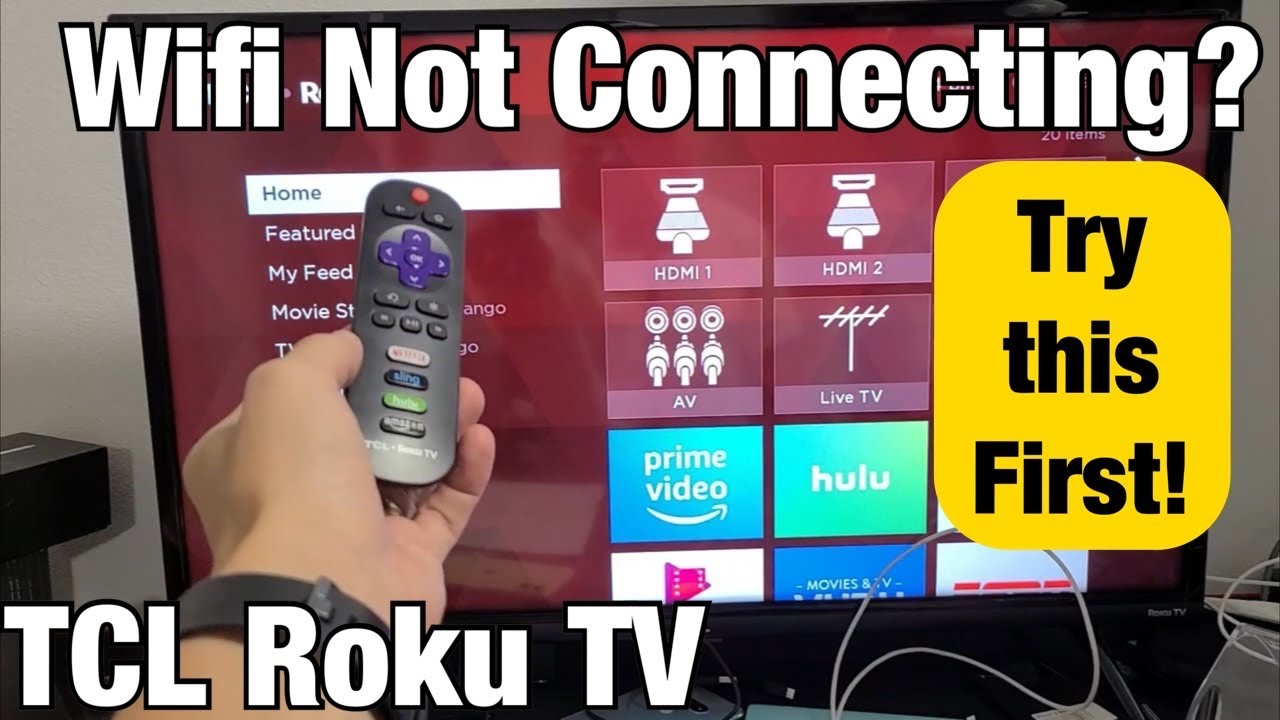
If your TCL Roku TV is not connecting to WiFi, you’re not alone. Many users face this problem, which can be frustrating when you just want to stream your favorite shows or use smart features. The good news is that most WiFi connection issues are fixable without needing a technician. This article walks you through practical troubleshooting steps, explains why these problems happen, and shares tips to keep your TCL Roku TV online. Whether you’re a beginner or have some tech experience, you’ll find actionable advice here.
Why Tcl Roku Tvs Fail To Connect To Wifi
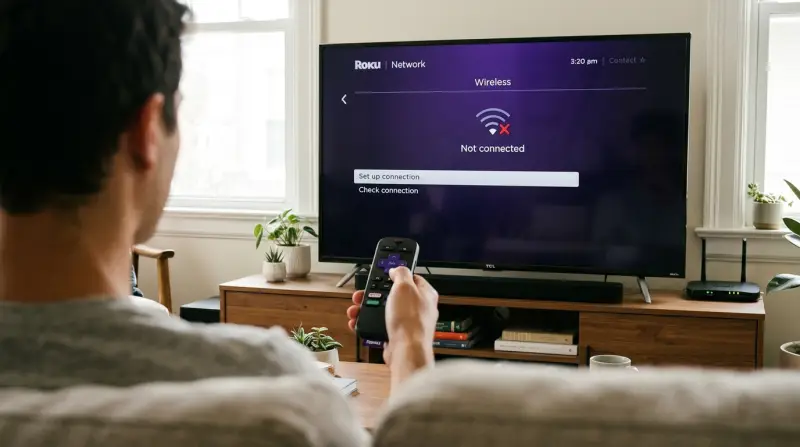
Before fixing the issue, it helps to understand what’s causing it. Most WiFi connection problems with TCL Roku TVs fall into a few main categories:
- Network issues: Problems with your router or internet service provider (ISP)
- TV software glitches: Outdated software or firmware bugs
- Incorrect settings: Wrong network passwords, WiFi band issues, or disabled connections
- Physical barriers: Interference from walls, microwaves, or other electronics
- Hardware faults: Rarely, the TV’s WiFi module may be defective
Knowing the cause helps you choose the right solution.
Quick Checks Before Troubleshooting
Start with these basic checks—they solve the problem for many users:
- Restart your TV: Unplug your TCL Roku TV for 60 seconds, then plug it back in.
- Restart your router: Unplug your WiFi router for 30 seconds, then reconnect.
- Check other devices: See if your phone or laptop connects to the same WiFi. If not, it’s likely a router or ISP issue.
- Move closer to router: If possible, move the TV or router closer to each other to rule out range issues.
- Check for service outages: Visit your ISP’s website or call support to see if there’s an area outage.
If the above don’t work, move on to deeper troubleshooting.

Credit: www.reddit.com
Step-by-step Troubleshooting For Tcl Roku Tv Wifi Issues
1. Verify Network Settings
Go to Settings > Network > Set up connection on your TV. Choose “Wireless” and see if your WiFi network appears.
- If your network isn’t listed, your router may be set to “hidden” or is out of range.
- If you see your network but can’t connect, double-check the password.
Common Mistake: Typing The Wrong Password
Many users accidentally enter the wrong password due to similar-looking characters (like “O” and “0”). If you just changed your WiFi password, make sure the new one is being used.
2. Check Wifi Band And Compatibility
Some TCL Roku TVs only support the 2.4 GHz band, not 5 GHz. If your router is broadcasting only 5 GHz, the TV won’t see it.
How To Check Wifi Bands
- Log in to your router’s settings (usually via a browser at 192.168.1.1 or 192.168.0.1).
- See if both 2.4 GHz and 5 GHz are enabled. If not, enable 2.4 GHz.
Band Comparison
Here’s a quick look at WiFi band differences:
| WiFi Band | Range | Speed | TV Compatibility |
|---|---|---|---|
| 2.4 GHz | Longer (better for walls) | Lower | All TCL Roku TVs |
| 5 GHz | Shorter (blocked by walls easily) | Higher | Some newer models only |
If your TV doesn’t see your WiFi, switching your router to 2. 4 GHz often solves the problem.
3. Update Roku Tv Software
Outdated software can cause network problems.
- Go to Settings > System > System update
- Click “Check Now” and install any updates
If your TV can’t get online at all, you can download the update to a USB stick from the TCL or Roku website and install it manually.
4. Reduce Interference
WiFi signals are weakened by microwaves, cordless phones, thick walls, and other electronics. Try these steps:
- Move your router to a higher, more central location
- Avoid placing the router near microwaves or Bluetooth speakers
- Minimize the number of walls between your TV and router
5. Check Your Router’s Device Limit
Some routers limit the number of devices that can connect. If your home has many smart devices, you might have hit this cap.
- Log in to your router’s settings and look for a device list
- Disconnect unneeded devices, or increase the allowed devices if your router supports it
Here’s how a typical device limit compares:
| Router Type | Typical Device Limit | Upgrade Option |
|---|---|---|
| Basic Home Router | 8-16 devices | No |
| Mid-Range Dual Band | 20-32 devices | Yes |
| Mesh WiFi System | 50+ devices | Yes |
If your router is old or basic, consider upgrading to a mesh system for better coverage.
6. Forget And Reconnect To The Wifi Network
Sometimes, the TV’s saved network settings become corrupted.
- Go to Settings > Network > Set up connection
- Select your WiFi and choose “Forget”
- Restart your TV
- Set up the connection again
7. Reset Network Settings
If the above fails, reset the TV’s network settings:
- Go to Settings > System > Advanced system settings > Network connection reset
- Select “Reset connection”
- After the TV restarts, reconnect to WiFi
This clears all network data and often fixes hidden glitches.
8. Factory Reset As Last Resort
If nothing works, try a factory reset. Warning: This erases all apps and settings.
- Settings > System > Advanced system settings > Factory reset
- Follow the on-screen instructions
You’ll need to set up your Roku TV again from scratch.
9. Check For Hardware Issues
If you’ve tried all steps and still can’t connect, the WiFi hardware inside your TV may be faulty. This is rare, but possible—especially if your TV lost WiFi suddenly after a power surge.
You can check by connecting the TV to the internet with an Ethernet cable (if your model has an Ethernet port or using a USB-to-Ethernet adapter). If the Ethernet works but WiFi doesn’t, your TV’s WiFi module may need repair.
Real-world Example
Maria bought a TCL Roku TV for her bedroom. It worked fine at first, but after a storm, it lost WiFi connection. She restarted her TV and router, but nothing helped. After reading online, she realized her router had switched to 5 GHz only to speed up her laptop internet. Once she enabled 2.4 GHz again, her TV instantly reconnected. This highlights why knowing your TV’s WiFi compatibility is important.
Preventing Future Wifi Problems
A few simple habits can keep your TCL Roku TV connected smoothly:
- Update firmware regularly: Outdated software is a common cause of bugs.
- Reboot your router weekly: This helps clear minor network glitches.
- Use a strong WiFi password: Prevents neighbors or strangers from using up your bandwidth and device slots.
- Place your router centrally: Reduces dead zones in your home.
- Monitor your device list: Remove unknown or unused devices from your network.
When To Call For Help
If none of these solutions work, it’s time to contact TCL Support or your internet provider. They can check for hardware issues or deeper network problems. For warranty TVs, professional repair or replacement may be covered.

Credit: www.techsolutions.support.com
Useful Comparison: Streaming Stability
Here’s how wired and wireless connections compare for streaming reliability:
| Connection Type | Setup Difficulty | Speed | Reliability |
|---|---|---|---|
| WiFi (Wireless) | Easy | Varies | Can drop if signal is weak |
| Ethernet (Wired) | Moderate (needs cable) | Consistent | Very stable |
If you stream in 4K or have a busy home network, using Ethernet is best when possible.
Non-obvious Insights Most Beginners Miss
- WiFi channels matter. If many neighbors use the same channel, interference can slow down or block connections. Most routers auto-select, but you can manually change channels in your router settings for better performance.
- Power-saving settings may disable WiFi. Some TCL Roku TVs have a “Fast TV Start” feature that can affect WiFi. If you notice your TV disconnects overnight, turn off aggressive power-saving features in your TV’s settings.
Credit: www.youtube.com
Frequently Asked Questions
Why Does My Tcl Roku Tv Say “not Connected” Even Though Wifi Works On My Phone?
This usually means your TV is having trouble talking to the router, not the internet itself. Try forgetting and reconnecting to the network, or restarting your router and TV. If your TV is on the edge of the WiFi signal, move it closer to the router.
Can I Use A Mobile Hotspot With My Tcl Roku Tv?
Yes, TCL Roku TVs can connect to mobile hotspots. However, streaming uses a lot of data, so check your mobile plan for limits. Also, hotspots are less stable than home WiFi, so expect occasional buffering.
Will Resetting My Tv Delete My Roku Account Or Subscriptions?
A factory reset erases all settings and downloaded apps, but your Roku account and paid subscriptions are stored online. You’ll just need to sign in again after resetting.
What Should I Do If My Tcl Roku Tv Keeps Disconnecting From Wifi?
Frequent disconnects often mean weak signal, interference, or too many devices on your router. Place your router closer to the TV, reduce interference, or upgrade your router if needed. Also, check for software updates on your TV.
Is There An Official Support Page For Tcl Roku Tv Wifi Issues?
Yes, you can find step-by-step guides and troubleshooting at the Roku Support site. They update solutions for common connection problems.
If your TCL Roku TV is not connecting to WiFi, stay patient and work through these steps. Most issues can be solved without advanced technical knowledge. Taking a systematic approach saves time and frustration, so you can get back to enjoying your favorite content.
1 thought on “Tcl Roku Tv Not Connecting to Wifi: Easy Fixes That Work”