
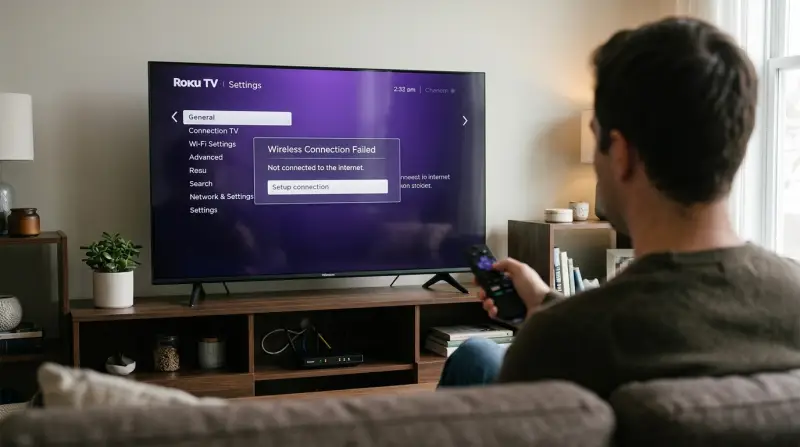
A simple power cycle of your router and television is the most likely way to resolve a Hisense Roku Tv Not Connecting to Wifi. In most cases, a temporary software glitch prevents the network card from handshaking with your local wireless access point. You can confirm if this is the issue by checking if other devices in your home are currently connected to the same network. If they are, your television is likely the only hardware experiencing the connection failure.
Why your Hisense Roku TV Not Connecting to Wifi
| Cause | How common | How to confirm it | Fix it yourself? |
|---|---|---|---|
| Router software glitch | Very common | Check other devices | Yes |
| Incorrect network password | Common | Re-enter security key | Yes |
| Weak signal strength | Common | Check signal bars | Yes |
| Network frequency mismatch | Occasional | View band settings | Yes |
| Firmware update pending | Occasional | Check system status | Yes |
| Internal hardware failure | Rare | Reset fails repeatedly | No |
Most users mistake a hardware failure for a simple glitch. If a factory reset doesn’t restore connectivity after ten minutes, the internal radio chip has likely burned out. Don’t attempt a manual repair; opening the casing voids your warranty and poses a shock risk.
If you struggle with frequent drops, check your frequency band. Older devices often fail to handshake with 5GHz networks. If your device only supports 2.4GHz, force your router to broadcast a dedicated legacy signal.
Finally, ignore the “connected” status if your signal bars show fewer than two lines. A weak signal causes packet loss, which mimics a password error. If you’re more than thirty feet from the router, move closer before troubleshooting your security settings. This simple step saves most users thirty minutes of unnecessary configuration.
Resolving network connectivity glitches
A power cycle clears the temporary memory cache in both your router and your television. This process is necessary because electronic components sometimes hold onto outdated IP addresses or authentication tokens that block new connections. To perform this, unplug your router from the power outlet and wait for 60 seconds before plugging it back in. While the router reboots, unplug your television from the wall outlet. Don’t just turn it off with the remote. After waiting for the full minute, plug the router back in and wait until the indicator lights show a stable connection. Plug your television back in and attempt to reconnect.
If the connection still fails, check the signal strength in the network settings menu. Navigate to Settings, select Network, and choose About. If the signal strength shows as “Poor,” you must move your router closer to the device or use a signal extender. This varies by model — check the label on your router to see if it supports dual-band connections. If you have a 5GHz network and a 2.4GHz network, try connecting to the 2.4GHz band, as it travels through walls better than higher frequencies.
If X is a weak signal, move the router; if Y is a software error, perform the power cycle. This takes about five minutes of your time. You should avoid placing the television inside a metal cabinet, as this acts as a shield against wireless signals.
Authentication and password errors
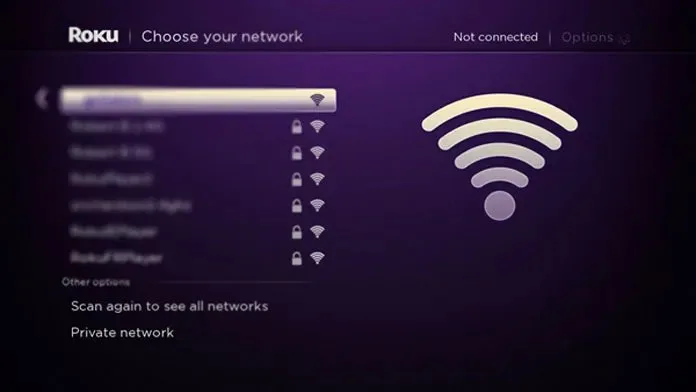
Incorrect credentials are a frequent cause of connection failure. Roku devices are case-sensitive, meaning that a single lowercase letter where an uppercase one belongs will result in a connection error. To verify this, navigate to the Network menu on your television and select “Set up connection.” Choose your wireless network name from the list and carefully re-enter the password using the on-screen keyboard. Use the “Show password” option if it’s available on your specific software version to ensure every character is correct.
If you’re unsure of your password, log into your router’s administration page from a computer or phone to view the current security key. You can find the official manufacturer setup instructions on the Hisense support portal to confirm the exact menu path for your specific model.
A common mistake is assuming the television has saved the password correctly after a router update. If your internet service provider recently swapped your hardware, the television may be trying to use the old security certificate. Selecting “Forget connection” or “Remove network” from the settings menu forces the device to treat the network as new. This step takes about three minutes and requires only your remote control.
If you still can’t connect after re-entering the password, ensure your router isn’t using a MAC address filter that blocks new devices from joining the network. You can tell if this is the issue by checking if other devices, like phones or laptops, connect to the same network without issue. If they do, log into your router’s security tab to see if the TV’s specific MAC address is listed under a “Blocked” or “Deny” list. If you find it there, remove it and restart the television to restore access.
Hardware and system limits
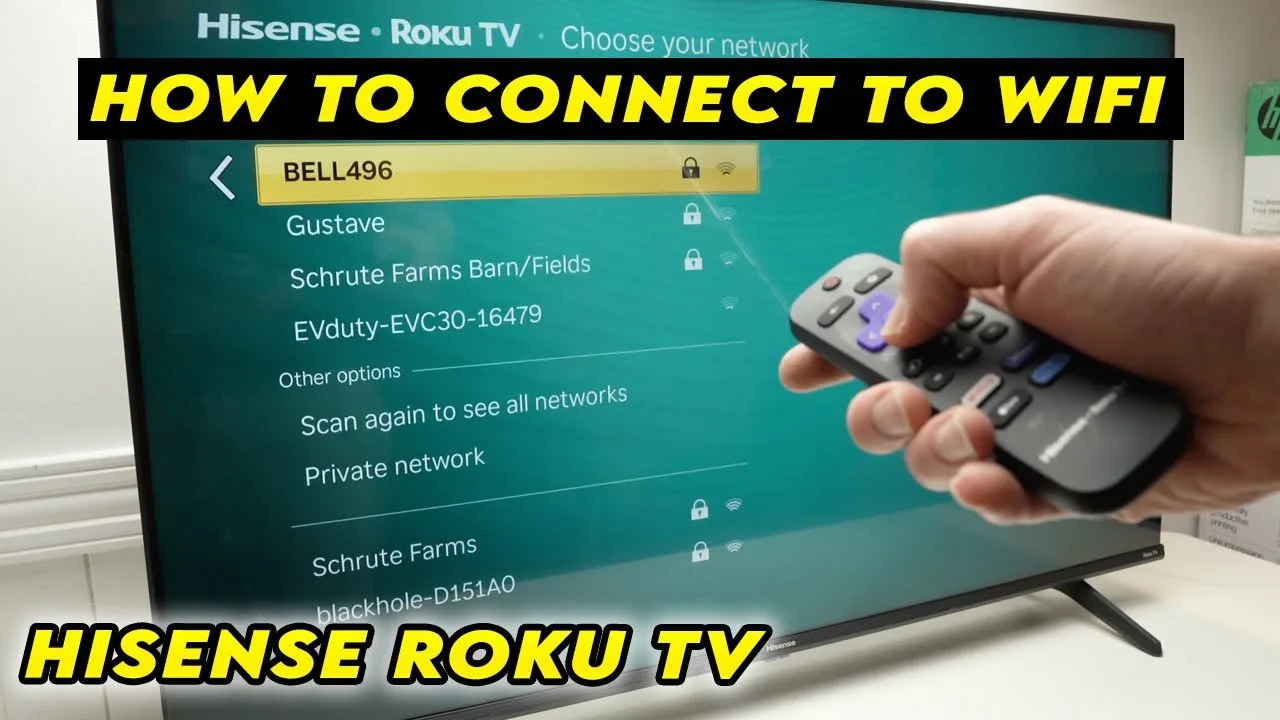
Firmware issues or frequency mismatches often stop a television from seeing a network. Roku televisions sometimes struggle to connect if the router is broadcasting on a channel that the television firmware doesn’t support, such as high-numbered DFS channels. You can resolve this by logging into your router settings and manually setting the wireless channel to a static number like 1, 6, or 11 for the 2.4GHz band.
This isn’t for users who are uncomfortable accessing router administrative settings. If you don’t have the login credentials for your router, contact your internet service provider to request these changes.
Another mistake involves the distance from the router. A wall made of brick or concrete significantly degrades signal quality, often leading to a “Connected but no internet” status. If your television is more than 20 feet away from the router with multiple walls in between, you’ll likely need a wired Ethernet connection or a mesh Wi-Fi system to maintain a stable link. This limit varies by model — check the label on the back of your television to see if it includes an Ethernet port. If you have an Ethernet port, using a wired cable is always more reliable than relying on wireless signals. If you must use wireless, ensure your television is updated to the latest software version by checking the System Update menu under Settings.
The less likely causes
-
MAC address filtering: Your router may be configured to block unknown devices. Check your router’s admin portal for a “Device List” or “Access Control.” If your TV appears as “Blocked” or “Denied,” you must manually add its unique hardware ID to the “Allowed” list.
-
IP address conflicts: The router may have assigned an address already in use by another device. If your TV shows a “Connected to local network but no internet” error, perform a full power cycle. Unplug both the router and the TV for sixty seconds to force a fresh handshake.
-
Date and time mismatch: If the internal clock is off by more than a few minutes, the TV can’t verify SSL security certificates. This prevents connection to streaming servers. If you can’t sync via the network, navigate to the system menu and set the time manually.
-
Internal component failure: If the wireless antenna has physically disconnected, the TV will show zero signal strength even when standing next to the router. Test this by connecting via an Ethernet cable; if the wired connection works but Wi-Fi remains invisible, you require a hardware repair.
What a fix usually involves
Fixing these issues usually requires only your remote control and your router’s power cord. A simple restart is free and takes only three minutes. Unplug the router, wait sixty seconds for the capacitors to discharge, and plug it back in.
If you must change router settings, use a smartphone to log into the administrative panel. Navigate to the 2.4GHz band settings. If your channel is set to “Auto,” force it to channel 1, 6, or 11 to avoid interference from neighboring networks.
If the internal wireless card fails, you face a choice. A professional repair often costs a significant amount, which frequently exceeds the value of an older set. Instead, buy an inexpensive streaming stick. It bypasses the broken internal antenna entirely.
Check your warranty status by entering your serial number on the manufacturer’s portal. If you’re within the 12-month window, the repair is free. If you’re outside it, don’t pay for remote software “repair” services. These are scams. If a factory reset fails to restore connectivity, the fault is physical. No software patch can fix a fried wireless chip, and paying for one only wastes your time.
Frequently asked questions
Can a factory reset fix my wifi?
Yes, a factory reset will clear all network configurations and return the television to its original state. Use this only as a last resort, as it deletes all your installed apps and personal settings. You can find the reset option under Settings, System, and Advanced system settings. Perform this only after trying a power cycle on both your router and your television.
Why does my tv say no internet?
It means the television is talking to the router, but the router isn’t getting a signal from your provider. Check if your phone or laptop can access the internet using the same Wi-Fi network. If they cannot, the issue is with your internet service provider or your modem, not your television. Restart your modem to see if the connection returns.
Is it safe to change router channels?
Yes, changing your router’s wireless channel is a standard procedure that doesn’t harm your hardware. It helps avoid interference from other electronic devices in your home that might be using the same frequency. You can switch between channels 1, 6, and 11 to see which one provides the most stable connection for your specific environment.
How long should I leave it unplugged?
About 60 seconds is the standard time to ensure all electrical charges dissipate from the internal capacitors. This allows the hardware to fully reset its memory, which is necessary for clearing persistent software glitches. Unplugging it for a shorter duration may not be enough to force a complete reboot of the network interface card inside the television.
Does it matter if I use 5GHz or 2.4GHz?
Yes, it matters because 5GHz offers faster speeds but has a much shorter range than 2.4GHz. If your television is in a different room than your router, the 2.4GHz band is usually more reliable. If you’re sitting right next to the router, the 5GHz band may provide a better experience for streaming high-definition content.
What happens if I update the firmware?
Updating the firmware installs the latest software fixes provided by the manufacturer to improve hardware compatibility. It can resolve bugs that prevent the television from recognizing specific types of security encryption on your router. Check the System Update menu under your television settings to see if a newer version is available for your specific model.
Final Thoughts
If these quick fixes don’t get you back online, it’s time to contact your internet service provider or the manufacturer’s support team. They’ll help you dig deeper into your signal settings. Don’t worry, you’ll be streaming your favorite shows again soon once you’ve ruled out any major hardware faults.
Related guides
- Tcl Roku Tv Not Connecting to Wifi: Easy Fixes That Work
- Airpods Not Connecting After Forget This Device: Quick Fixes
- Fire TV Not Connecting to Wifi: Quick Fixes and Solutions