
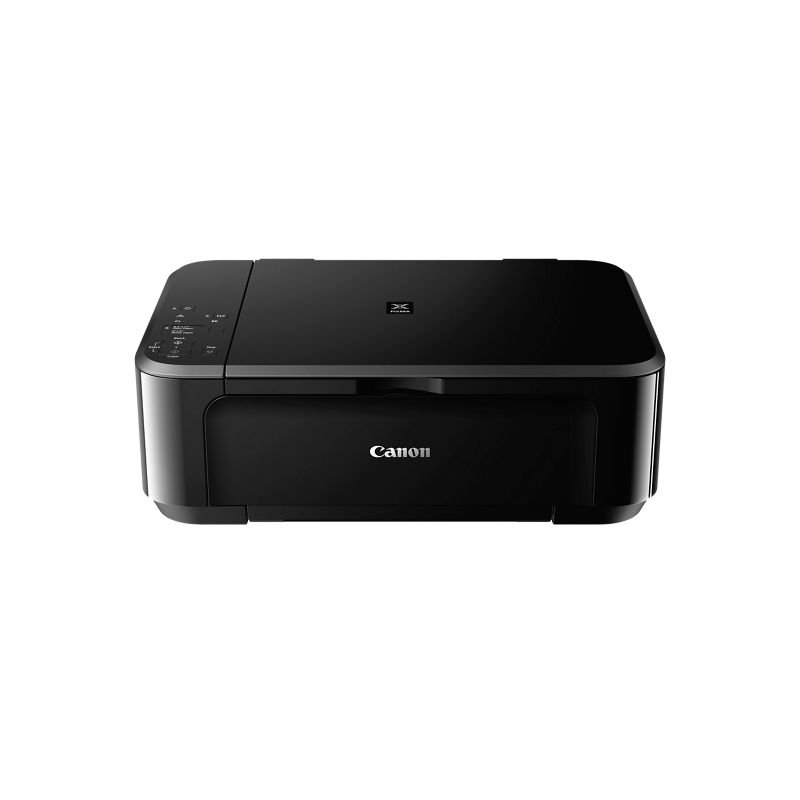
Many people buy the Canon MG3620 because it promises easy wireless printing. But sometimes, the wireless setup just does not work as expected. You might see your printer offline, your computer not finding the printer, or the Wi-Fi button blinking without reason. These problems can be frustrating, especially when you need to print quickly. This guide will help you understand why the Canon MG3620 wireless setup might not work and how to fix it. With easy steps, tables, and important tips, you’ll be able to solve most common issues and print smoothly again.
Why Canon Mg3620 Wireless Setup Fails
Before you try to fix the problem, it helps to know what causes the setup to fail. The most common reasons are:
- Weak Wi-Fi signal between the printer and router.
- Using the wrong Wi-Fi password during setup.
- Printer not in wireless mode.
- Driver issues on your computer.
- Network conflicts (like IP address issues).
- Using an unsupported operating system.
Let’s look deeper into each problem and how to solve it.
Checking The Basics First
Many wireless setup problems can be solved by checking simple things:
- Is the printer turned on? The power lamp should be lit.
- Is Wi-Fi working? Try connecting your phone to the same Wi-Fi network.
- Is your printer close enough to the router? Walls and furniture can block the signal.
If these basics are fine, move on to the next steps.
Wireless Setup Methods For Canon Mg3620
You can set up your printer’s wireless connection in two main ways:
- WPS method (if your router supports it)
- Standard setup using a computer or smartphone app
Wps Connection
The WPS method is simple if your router has a WPS button. Here’s how to do it:
- Press and hold the Wi-Fi button on the printer until the ON lamp flashes.
- Press the WPS button on your router within 2 minutes.
- The printer’s Wi-Fi lamp will flash and then stay solid when connected.
If this does not work, your router may not support WPS, or the timing was off. Try again, making sure both steps are followed quickly.
Standard Wireless Setup
Most users set up the printer using a computer or the Canon PRINT app. For computers:
- Download and install the latest Canon MG3620 driver from the official Canon website.
- Connect your printer to your computer with a USB cable for the first setup.
- Follow the instructions to choose your Wi-Fi network and enter the password.
For smartphones:
- Download the Canon PRINT Inkjet/SELPHY app.
- Make sure your phone is on the same Wi-Fi as the printer.
- Follow the app’s on-screen steps.
Common Problems And Their Solutions
Here are the most frequent obstacles and how to fix them.
Printer Not Found On Network
- Restart your printer and router.
- Check if the printer’s Wi-Fi lamp is solid (not blinking).
- Make sure your computer or phone is on the same Wi-Fi network as the printer.
- Disable any VPN or firewall during setup.
Incorrect Wi-fi Password
- If you enter the wrong Wi-Fi password, the printer cannot connect. Double-check the password.
- Some Wi-Fi passwords are case-sensitive or have special characters.
Printer Offline Or Not Responding
- Open the Devices and Printers section on your computer.
- Right-click your Canon MG3620 and select “See what’s printing.”
- Cancel all print jobs and set the printer as default.
- Make sure the printer is not set to “Use Printer Offline.”
Driver Issues
- Uninstall any old Canon drivers.
- Download the latest driver for your operating system from the official Canon site.
- Some older operating systems may not support the newest drivers.
Router Or Network Problems
- Restart your router.
- Move the printer closer to the router.
- Avoid connecting the printer to guest or 5GHz networks (Canon MG3620 supports 2.4GHz only).
Ip Address Conflicts
- Assign a static IP to your printer from your router’s settings.
- This prevents the printer from changing its address and becoming “lost” on the network.
Firmware Out Of Date
- Check for a firmware update for your printer on the Canon support website.
Firewall/antivirus Blocking
- Temporarily disable firewalls or antivirus programs during installation.
- Re-enable them after the setup is complete.
Comparing Setup Methods
Here’s a quick look at the pros and cons of each wireless setup method:
| Method | Pros | Cons |
|---|---|---|
| WPS Button | Fast, No password needed | Not all routers support WPS, Timing issues |
| Standard Setup (Computer) | Works with all routers, More control | Needs driver download, Slightly longer process |
| Canon PRINT App | Easy from phone, No PC required | App compatibility issues, Needs mobile device |
How To Reset The Canon Mg3620 Network Settings
If nothing works, a full reset can help. This returns the printer’s network settings to default.
- Make sure the printer is ON.
- Hold the Wi-Fi button until the ON lamp flashes.
- Press the Black or Color button twice.
- Press the Wi-Fi button again. The Wi-Fi lamp will blink and reset.
After resetting, try the wireless setup again.
Practical Tips Most People Miss
- The Canon MG3620 does not support 5GHz Wi-Fi. Always connect it to a 2.4GHz network.
- Some routers have “AP Isolation” or “Guest Mode” features that block printers from communicating with computers. Turn these features off if you have trouble.
Example: Troubleshooting A Real Connection Problem
A user tried setting up their Canon MG3620. The printer connected before, but after changing their Wi-Fi router, the printer would not connect. They tried the setup many times without success.
Solution:
- The new router used the same SSID but a different password. The printer still tried to use the old password saved in memory.
- After resetting the network settings (see above), the user was able to connect using the new password.
This example shows how small changes in your network can cause setup issues.

When To Contact Canon Support
If you have tried all these steps, but your printer still won’t connect, it may be time to get help. Canon’s technical support can walk you through advanced settings or help if your printer is defective.
You can find support at the Canon USA Support page.
Quick Comparison Of Wired Vs Wireless Setup
Some users wonder if it’s worth using a wired connection instead. Here’s how the two methods compare:
| Setup Type | Speed | Reliability | Mobility |
|---|---|---|---|
| Wireless | Good | Depends on Wi-Fi | High |
| Wired (USB) | Excellent | Very stable | Low (printer must be next to PC) |
How To Keep Your Mg3620 Wireless Setup Working
Once your printer is connected, keep it working smoothly by:
- Keeping your printer’s firmware and drivers updated.
- Not changing your Wi-Fi network name or password without updating the printer.
- Restarting your printer and router regularly.
- Placing the printer where it gets a strong Wi-Fi signal.
Real-world Data: How Common Are Wireless Setup Issues?
Recent surveys show that about 20–25% of home printer users experience wireless setup problems. The most common issues are wrong passwords, weak signals, and outdated drivers. Most problems are solved after the first hour of troubleshooting.
Security Tip
Make sure your Wi-Fi network is secured with a strong password. An open network can let others connect to your printer without permission.

Frequently Asked Questions
Why Is My Canon Mg3620 Not Showing Up On My Computer?
This often means your printer is not connected to the same Wi-Fi network as your computer, or the driver is missing. Check the Wi-Fi lamp on the printer. If it’s not solid, reconnect the printer to your network.
How Do I Know If My Mg3620 Is Connected To Wi-fi?
The Wi-Fi lamp on your printer should be solid (not blinking). You can also print a network configuration page by holding the Wi-Fi button until the lamp flashes, then pressing the Black button.
Can I Connect The Canon Mg3620 To 5ghz Wi-fi?
No. The MG3620 only supports 2.4GHz networks. If your router has both 2.4GHz and 5GHz, connect your printer to the 2.4GHz option.
Do I Need To Reinstall The Driver If I Change My Router?
If your Wi-Fi network name (SSID) or password changes, you need to reconnect your printer to the new network. The driver does not need reinstalling, but you may need to run the setup again.
Is There A Way To Print Without Wi-fi?
Yes. You can use a USB cable to connect your MG3620 directly to your computer. This is useful if wireless setup problems continue.
Setting up the Canon MG3620 wirelessly can be simple if you know what to check and how to fix problems. Always start with the basics, check your network settings, and follow the steps closely. Most issues have a simple solution, and with a bit of patience, your printer will be up and running. If you get stuck, don’t hesitate to look for help from Canon or trusted online sources like Canon Support. Happy printing!