
A locked thermostat can feel frustrating, especially when you want to adjust the temperature or fix a setting. Many Honeywell thermostats have security features that prevent accidental or unauthorized changes. If you just moved into a new home, lost the unlock code, or your child pressed the wrong buttons, you’re probably wondering how to unlock a Honeywell thermostat.
The good news is that most models can be unlocked with a few simple steps—and you don’t need special tools or professional help for basic unlocking.
This guide will show you exactly how to unlock different Honeywell thermostat models, explain why they lock, and help you avoid common mistakes. Whether your thermostat is programmable, touchscreen, or smart Wi-Fi, you’ll find clear instructions and practical tips. You’ll also learn how to keep your thermostat secure without making daily life difficult.
Understanding the process can give you peace of mind, save time, and help you avoid unnecessary service calls.
Understanding Honeywell Thermostat Locks
Honeywell thermostats often come with lock features to protect settings. These locks help prevent children, guests, or tenants from changing temperature or schedules. Sometimes, the lock is set by the homeowner, landlord, or HVAC technician.
There are three main lock types:
- Full Lock: No one can change settings or temperature.
- Partial Lock: Only basic temperature adjustments are allowed.
- Keypad Lock: A code or sequence is needed to unlock.
The lock style depends on your thermostat model. Older Honeywell models use physical buttons; newer models may use touchscreens or digital codes. Understanding which lock you have is the first step.
Some Honeywell thermostats also offer a “passcode reminder” option. If you use this, the thermostat can show a hint, making it easier to remember your code. Not all models have this feature, so check your settings if you often forget codes.
Why Do Thermostats Get Locked?
Locks help save energy, prevent tampering, and maintain comfort. For example:
- Landlords lock thermostats to keep tenants from running AC or heat too much.
- Parents use locks to stop kids from changing temperature.
- Business owners keep settings stable in offices.
Sometimes, locks are set accidentally. If you press the wrong sequence or forget your code, the thermostat may stay locked.
Another common situation is during parties or gatherings. Guests might adjust the thermostat without realizing it, leading to uncomfortable temperatures or higher energy bills. Locking your thermostat can help maintain the preferred settings in these cases.
Identifying Your Honeywell Thermostat Model
Before you unlock your thermostat, you need to know which model you have. Honeywell makes many types, including programmable, touchscreen, and Wi-Fi smart thermostats. The unlock process depends on your model.
Look for the model number on:
- The front or back of the thermostat
- Inside the battery compartment
- On the installation manual
Common Honeywell thermostat models include:
- T4 Pro
- T6 Pro
- RTH series
- TH8000 series
- VisionPRO 8000
- Lyric series
- Smart Wi-Fi series
If you cannot find the model number, search for Honeywell thermostat images online and compare your device. Knowing the exact model will help you follow the right unlock steps.
Some models also show the model number on the startup screen when you change the batteries or reset the device. This can be helpful if you have already removed the thermostat from the wall and are unsure which type it is.
| Model | Display Type | Unlock Method |
|---|---|---|
| T4 Pro | Digital | Button Sequence |
| T6 Pro | Touchscreen | Code Entry |
| VisionPRO 8000 | Touchscreen | Menu Navigation |
| Lyric | Smart Wi-Fi | App or Touchscreen |
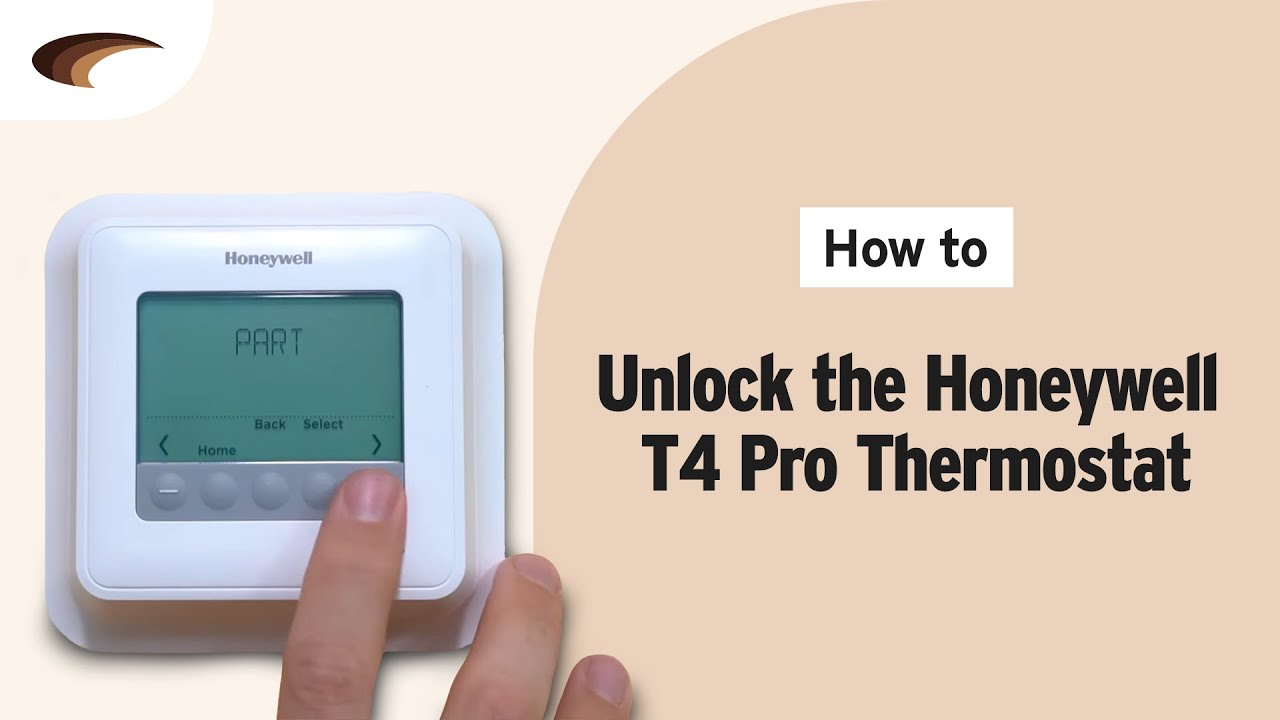
How To Unlock Honeywell Thermostat: Common Models
Unlocking steps vary by model. Let’s go through the most popular Honeywell thermostats and their unlock methods.
Unlocking Honeywell T4 Pro
The T4 Pro is a digital thermostat with simple controls. It often locks to prevent unwanted changes.
Steps to unlock:
- Press the center button (usually labeled “Menu” or “OK”).
- The screen shows “LOCK” or “Locked”. Press the button again.
- Enter the unlock code, usually 1234 or 123. Use the up/down arrows to select numbers.
- Press “OK” to confirm.
If the code does not work, check your manual or try default codes. Sometimes, codes are changed by installers.
Extra detail: If your home was previously owned or rented, the installer or previous occupant might have set a custom code. If you cannot unlock the device using common codes, look for a sticker or card left behind, as some installers write the unlock code there for future reference.
Unlocking Honeywell T6 Pro
The T6 Pro uses a touchscreen and is common in homes and businesses.
Unlock steps:
- Touch the lock icon on the screen.
- Enter the four-digit PIN. The default PIN is often 1234.
- If you forgot the PIN, press “Menu”, then “Security”, and select “Reset PIN” (if available). Otherwise, you may need to reset the device.
You can also unlock from the Honeywell app if your device is connected.
Practical example: If you are in a building with several T6 Pro thermostats, you may notice that each device can have its own unique PIN. Make sure you are using the correct code for the specific thermostat you are trying to unlock.
Unlocking Visionpro 8000
This model is popular for its advanced features.
How to unlock:
- Press “System” or “Menu” on the touchscreen.
- Find “Lock Settings” or “Security”.
- Enter your PIN or the default 1234.
- Press “Done” or “OK”.
If the PIN was changed, you may need to reset the thermostat to factory settings.
Extra detail: The VisionPRO 8000 may also display a small lock symbol in the corner of the screen. If you see this symbol, it means the device is currently locked and requires the PIN for any changes. If you have trouble finding the menu, try pressing and holding the “Menu” button for a few seconds to access advanced settings.
Unlocking Honeywell Lyric And Smart Wi-fi Models
Smart thermostats like Lyric and Wi-Fi series are often locked through the app or the device.
Unlock steps:
- Open the Honeywell Home app.
- Go to “Settings”, then “Device Security”.
- Enter your PIN or password.
- Unlock the device from the app.
On the thermostat:
- Tap the lock icon.
- Enter your PIN using the touchscreen.
If you forget the PIN, use the app to reset or contact Honeywell support.
Helpful example: If your Wi-Fi drops or the app cannot connect, try unlocking directly on the device first. If that fails, restoring your Wi-Fi connection may allow you to use the app’s unlock feature again.
Unlocking Older Honeywell Thermostats
Some older models use physical switches or button sequences.
Unlocking examples:
- Press and hold both the up and down arrows for 5 seconds.
- Slide a switch under the cover to “Unlock” position.
- Enter a code using physical buttons.
Always check the manual for your specific model.
Extra tip: On some very old models, the lock switch might be small and hidden behind a battery or under a removable panel. Gently look for these without forcing any parts, as older plastic can be fragile.
Step-by-step Unlocking For Typical Honeywell Thermostat Models
Let’s break down the unlock process for each model, step by step.
T4 Pro Detailed Steps
- Press “Menu”.
- When “LOCK” appears, press “OK”.
- Use arrow buttons to select numbers for the unlock code.
- Enter default code 1234.
- Press “OK”. The device unlocks.
If you cannot unlock, try:
- Removing the thermostat from the wall for 30 seconds and reinstalling.
- Checking the manual for a different code.
Extra detail: Sometimes, the thermostat will beep or flash to indicate a wrong code. If this happens more than three times, wait a few minutes before trying again to avoid being locked out longer.
T6 Pro Detailed Steps
- Touch the screen to wake it up.
- Tap the lock icon.
- Enter your PIN.
- Tap “OK”.
- If failed, go to menu, tap “Security”, and try to reset the PIN.
Non-obvious tip: If your T6 Pro is connected to Wi-Fi, you can unlock from the app even if the device is locked.
Extra example: If you have multiple users in your household, consider creating a shared document or note with the unlock code (but keep it private for security).
Visionpro 8000 Detailed Steps
- Press “Menu”.
- Scroll to “Security Settings”.
- Enter PIN.
- Press “Done”.
If the code is wrong:
- Reset device to factory settings (this erases all custom settings).
- Contact Honeywell support.
Extra tip: The VisionPRO 8000 also allows you to set up temporary user codes, so if you need to share access with a guest or service technician, you can provide a code that expires after a certain time.
Lyric And Smart Wi-fi Models
- Open app, go to device settings.
- Enter password or PIN.
- Unlock remotely.
Or on device:
- Tap lock, enter PIN.
- Confirm.
If PIN is lost:
- Use app to reset.
- Contact Honeywell.
Extra example: For AirBnB hosts or frequent renters, using app control makes it much easier to manage access for guests without sharing your main code.
Older Models Step-by-step
- Press and hold both arrow buttons.
- Wait 5–10 seconds.
- Device unlocks.
- If not, check inside cover for switches.
Non-obvious insight: Some older Honeywell thermostats use a hidden switch under the cover. If you see a small plastic lever, slide it to “Unlock”.
Extra detail: With some models, you may need to use a pen or small tool to slide the tiny switch if it is in a tight spot. Be gentle to avoid breaking the switch.

Resetting A Honeywell Thermostat When Unlock Codes Are Lost
If you forgot your unlock code or PIN, a factory reset is often the last option. Resetting erases all custom settings, schedules, and codes, but unlocks the device.
How To Reset Common Models
T4 Pro
- Remove thermostat from wall plate.
- Wait 30 seconds.
- Reattach. This sometimes resets basic settings.
T6 Pro
- Press “Menu”.
- Select “Reset”.
- Confirm reset. Device restarts unlocked.
Visionpro 8000
- Press “Menu”, then “Dealer Settings”.
- Select “Restore Defaults”.
- Confirm reset.
Lyric/smart Wi-fi
- Open app, go to settings, select “Remove Device”.
- Re-add device after reset.
After reset, you must set up schedules and Wi-Fi again.
Extra detail: Before you reset, take a photo of your current settings and schedule. This makes it easier to re-enter your preferences after the reset is complete. Also, if you use a smart model, make sure you know your Wi-Fi password and have your app login details ready to speed up the reconnection process.
| Model | Reset Method | Data Lost |
|---|---|---|
| T4 Pro | Wall Plate Removal | Schedules, codes |
| T6 Pro | Menu Reset | PIN, settings |
| VisionPRO 8000 | Dealer Settings | Custom settings |
| Lyric/Smart Wi-Fi | App removal | Wi-Fi, schedules |
Common Mistakes When Unlocking Honeywell Thermostats
Even experienced users make mistakes when unlocking thermostats. Avoid these to save time and frustration.
- Entering the wrong code repeatedly: Many models lock out after too many failed attempts.
- Not identifying the correct model: Each model has different unlock steps.
- Ignoring the manual: Manuals often show default codes and unlock methods.
- Forgetting to reset Wi-Fi after factory reset: Smart models lose Wi-Fi settings after reset.
- Not checking for hidden switches: Older models may have physical switches under the cover.
- Resetting without backup: All custom settings are erased, so write down schedules before resetting.
Non-obvious insight: If you have a Honeywell smart thermostat, you can often unlock or reset it from the app, even if the device itself is locked.
Extra tip: If you live in a multi-unit building, make sure you are unlocking the correct thermostat. Mixing up thermostats can be easy in buildings with multiple zones or similar-looking devices.

Keeping Your Honeywell Thermostat Secure After Unlocking
After unlocking, you may want to set a new code, adjust lock settings, or leave it unlocked. Here’s how to keep your thermostat secure but easy to use.
Setting A New Pin Or Lock Code
- Go to “Security Settings” in the thermostat menu.
- Choose “Change PIN” or “Set Lock Code”.
- Enter a code you can remember (avoid simple codes like 1234).
- Confirm and save.
Extra example: Consider using a code that has meaning for you but is not easily guessed, such as a memorable date or a pattern only you know.
Choosing Between Full And Partial Lock
- Full lock: Good for rental properties or businesses.
- Partial lock: Allows basic temperature changes but keeps settings safe.
- No lock: Best for family homes if you trust everyone.
Non-obvious tip: For families with older children, partial lock can be a good compromise. Kids can adjust the temperature a little, but cannot change schedules or system modes.
Using App-based Security
Smart thermostats let you control security from your phone:
- Change PINs remotely.
- Get alerts if someone tries to unlock.
- Lock or unlock device from anywhere.
Enable app notifications to monitor unlock attempts.
Extra detail: If you travel often, app-based security can also let you check if someone is trying to access your thermostat while you are away, giving you extra peace of mind.
Honeywell Thermostat Lock Features: Comparison
Honeywell offers different lock features across models. Here’s a quick comparison:
| Model | Full Lock | Partial Lock | App Control |
|---|---|---|---|
| T4 Pro | Yes | Yes | No |
| T6 Pro | Yes | Yes | Yes |
| VisionPRO 8000 | Yes | Yes | No |
| Lyric/Smart Wi-Fi | Yes | Yes | Yes |
Extra detail: Only select models allow for app-based control, so if remote locking and unlocking is important for you, check compatibility before purchasing or upgrading your thermostat.
What To Do If Your Thermostat Is Still Locked
If you follow the steps and your thermostat is still locked, try these actions:
- Check the manual: Search for your model online and download the manual.
- Contact Honeywell support: They can help with unlock codes, resets, or advanced troubleshooting.
- Ask your landlord or installer: If you rent, the owner may have set the lock.
- Search online forums: Many users share solutions for model-specific problems.
- Replace the thermostat: If all else fails, you can buy a new thermostat. Make sure to record your codes next time.
Extra tip: When contacting Honeywell support, have your model number, serial number, and proof of ownership ready. This will speed up the process and help the support team provide the right solution faster.
Practical Tips For Honeywell Thermostat Owners
- Write down your PIN or unlock code in a safe place.
- Set a code that is easy for you but hard for others to guess.
- Update your lock settings when tenants change or after renovations.
- For smart models, use app security for extra protection.
- Keep your thermostat firmware updated to avoid bugs.
Non-obvious tip: Many Honeywell models let you set different PINs for different users. This is useful in office buildings or large homes.
Extra example: If you have a cleaning service, pet sitter, or temporary worker, you can set a temporary PIN for them and remove it later, keeping your main code private.
How Honeywell Thermostat Locks Compare To Other Brands
Honeywell is a leader in thermostat security, but other brands offer similar features. For example, Ecobee and Nest also have lock settings, but their unlock steps can be more complex.
Honeywell focuses on:
- Simple PIN codes
- Physical button sequences
- App-based controls (for smart models)
Other brands may use:
- Email-based unlocks
- Multi-device syncing
- More complex menu systems
If you switch brands, always learn the new unlock method.
Extra detail: Some brands require you to connect to customer support for unlock codes, making Honeywell’s approach more user-friendly for most situations.
Data And Statistics: Locked Thermostats In Homes
According to the US Department of Energy, programmable thermostats can cut energy bills by up to 10% if used properly. Locking the thermostat helps keep these savings by preventing accidental changes.
- About 30% of US homes use programmable thermostats.
- Honeywell is one of the top brands, with millions sold each year.
- Locked thermostats are common in rental homes and offices.
Most homeowners unlock their thermostats at least once a year, usually after forgetting a code or changing tenants.
Extra insight: In multi-family buildings, locked thermostats can reduce disputes over temperature and help maintain fair energy costs across units.
Why A Locked Thermostat Matters
A locked thermostat helps save energy, keeps comfort consistent, and protects your settings. But locking can cause problems if you forget the code or need to adjust temperature quickly.
Unlocking is simple for most Honeywell models if you know the steps. Keeping your codes safe and updating lock settings regularly helps avoid future trouble.
If you have frequent visitors or changing occupants, review your lock settings every few months. This ensures only trusted people can access your thermostat and helps you keep control of your home’s comfort.
Frequently Asked Questions
How Do I Unlock My Honeywell Thermostat Without The Code?
If you forgot your code, try a factory reset. This erases all settings, but unlocks the device. For smart models, use the Honeywell app to reset. Always check your manual for model-specific steps.
What Is The Default Pin For Honeywell Thermostats?
The default PIN is usually 1234 or 123. Some models use 0000. If these don’t work, check your manual or ask the installer.
Can I Unlock A Honeywell Thermostat From My Phone?
Yes, if you have a smart Honeywell thermostat like the Lyric or Wi-Fi series. Use the Honeywell Home app to unlock, reset, or change security settings.
What Happens If I Reset My Honeywell Thermostat?
A reset erases all custom settings, schedules, Wi-Fi info, and codes. You must set up your thermostat again after reset. Write down your preferred settings before resetting.
Where Can I Find Help If My Honeywell Thermostat Stays Locked?
You can contact Honeywell’s official support, check the manual, or visit online forums. For trusted information, visit Honeywell Home for guides and troubleshooting.
Unlocking your Honeywell thermostat is usually quick and simple if you follow the correct steps for your model. Whether you use a PIN, button sequence, or app, keep your codes safe and update lock settings when needed. With these tips, you can enjoy comfortable temperatures and save energy without stress.