
When the Instant Omni Pro Touch Screen Not Working occurs, the most reliable fix is to perform a hard reset by unplugging the unit from the power outlet for at least ten minutes. This allows the internal capacitors to discharge fully, which often clears temporary software glitches that cause the display to freeze or stop responding to touch inputs. If the screen remains unresponsive after you plug it back in, the issue is likely a hardware failure that requires professional support from the manufacturer.
Causes of touch screen failure
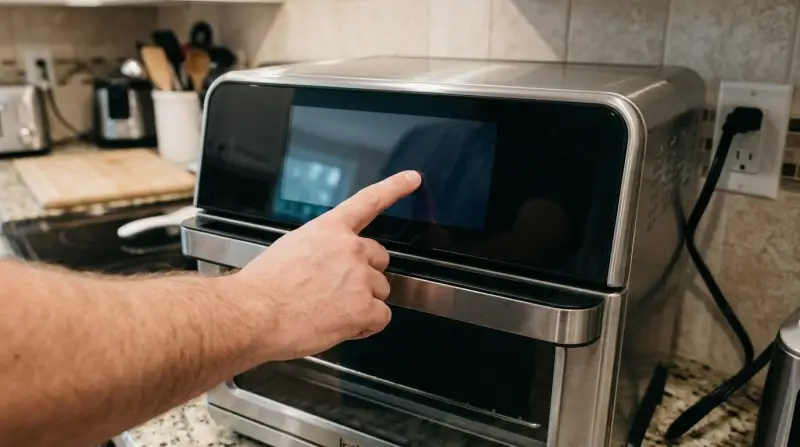
The primary reason for a frozen or unresponsive display is a software freeze, where the internal processor stops executing commands. This often occurs due to a power surge or a momentary drop in voltage, which interrupts the communication between the control board and the touch panel. These units rely on sensitive microcontrollers that can become stuck in a loop if the power supply is unstable.
Another common cause is the buildup of residue or moisture on the screen surface. Because the display uses capacitive touch technology, even a thin layer of grease, oil, or steam can interfere with how it detects your finger. If the screen registers a “ghost” touch or no touch at all, it’s usually because the sensor is being overwhelmed by debris.
Finally, internal component wear can cause the screen to stop working. The ribbon cable that connects the display to the main circuit board can loosen or corrode over time, especially in a kitchen environment with high heat and humidity. If the ribbon cable loses its connection, the screen will remain blank or unresponsive even if the rest of the unit has power.
Perform a hard power cycle
This fix is for users who see a screen that’s lit but doesn’t react to any button presses or menu selections. Start by unplugging the power cord directly from the wall outlet. Don’t simply turn the unit off using its own controls, as the internal memory might still hold a charge. Leave the unit disconnected for at least ten minutes.
While the unit is unplugged, inspect the power cord and the outlet for signs of damage or melting. If the cord feels excessively hot or shows exposed wires, don’t plug it back in; contact a certified electrician or the manufacturer immediately. After the wait, plug the cord firmly back into a dedicated wall outlet. Avoid using power strips or extension cords, as these can cause voltage drops that prevent the touch screen from initializing correctly.
If the unit displays a welcome logo or a light sequence, the reset was successful. If the screen remains blank, check if the unit makes a beep sound when you plug it in. A beep confirms the power supply is functional, meaning the issue is specific to the display panel itself. If you don’t hear a beep and the screen stays dark, it’s time to stop troubleshooting and contact the manufacturer’s customer service team for a potential repair or replacement.
Clean the interface surface
If the screen responds intermittently or only in certain areas, the problem is likely surface contamination. This fix is for those who notice visible smudges, water spots, or food splatter on the glass. Use a dry, soft microfiber cloth to wipe the entire screen surface. If the grime is stubborn, lightly dampen the cloth with a very small amount of water or a mild, non-abrasive glass cleaner.
Never spray any liquid directly onto the unit. Spraying the cloth first prevents moisture from seeping into the gaps around the screen, which can cause short circuits. Wipe the screen gently in a circular motion, ensuring you cover the corners where debris often collects. Once the surface is clean, dry it immediately with a fresh, dry microfiber cloth.
Most users make the mistake of using paper towels or abrasive rags. These materials contain wood fibers that leave microscopic scratches on the screen coating, which eventually trap more oils and dust. If you see deep, permanent streaks after cleaning, you have already damaged the oleophobic layer. Use only lint-free microfiber to avoid this permanent degradation.
If the screen starts working after cleaning, the sensors were likely being blocked by non-conductive material. If the screen still fails to respond after a thorough cleaning, the issue is internal. This fix isn’t for users who see a completely black screen or error codes; it’s only for those experiencing touch-sensitivity issues. If the unit continues to fail, don’t attempt to open the casing to clean the internal sensors, as this will void your warranty and poses a risk of electric shock.
Check the environment and connections

This fix is for cases where the screen fails to work after the unit has been moved or stored in a high-humidity area. The Instant Omni Pro is sensitive to its environment. If you have recently moved the unit, ensure it’s on a flat, stable surface and that there’s at least five inches of space around all vents. Heat trapped near the control panel can cause the internal display electronics to overheat and shut down as a safety measure.
If you suspect heat is the culprit, let the unit sit idle for at least one hour in a cool, dry room. Don’t place the unit near the stove or other appliances that produce heat. If the screen starts working after the unit cools down, you must change its location to prevent future failures.
If the unit remains unresponsive regardless of temperature, the failure is likely permanent. At this stage, trying to repair the display yourself isn’t recommended. Opening the unit exposes you to high-voltage components that remain dangerous even when the unit is unplugged. If the device is out of warranty, contact a professional appliance repair technician who specializes in small kitchen electronics. They will have the tools to safely test the display connection and determine if a control board replacement is worth the cost compared to buying a new unit.
What not to do
Don’t use sharp objects like a knife or screwdriver to “pry” the screen. Even a slight slip will shatter the glass or gouge the bezel, causing permanent cosmetic and structural damage.
Avoid aerosol cleaners or harsh chemicals like bleach or ammonia. These liquids seep into the perimeter gaps, stripping the anti-glare coating and shorting the touch sensors. If you see a smudge, use only a dry microfiber cloth.
Never hit, tap, or shake the unit to “knock” the screen back into place. This brute force often breaks internal solder joints. If the screen is loose, the issue is likely a failed adhesive strip rather than a mechanical misalignment.
Don’t attempt to disassemble the outer housing to reach the internal wiring. This is a high-risk task that leads to electric shock or permanent device failure. If you hear rattling inside, stop immediately. The cost of a professional repair is significantly lower than replacing a motherboard fried by a botched DIY attempt.
How to stop it happening again
Consistent maintenance and proper power management will keep the touch interface functioning for the life of the product.
| If you’re doing this | Do this instead | Why |
|---|---|---|
| Using an extension cord | Plug directly into the wall | Prevents voltage drops and surges |
| Cleaning with paper towels | Use a microfiber cloth | Prevents scratching the glass surface |
| Keeping it near the stove | Move to a neutral area | Avoids heat damage to electronics |
Most users ignore the “ghost touch” phenomenon until the screen becomes unresponsive. This often stems from a buildup of static electricity or microscopic debris trapped along the bezel. If you notice erratic cursor movement, wipe the perimeter with a dry, lint-free swab immediately.
If the issue persists, check your outlet’s grounding. A flickering display in a grounded outlet suggests an internal hardware fault that requires professional repair. Never attempt to pry the glass casing open yourself, as this voids the warranty and risks damaging the delicate ribbon cables beneath the display.
Frequently asked questions
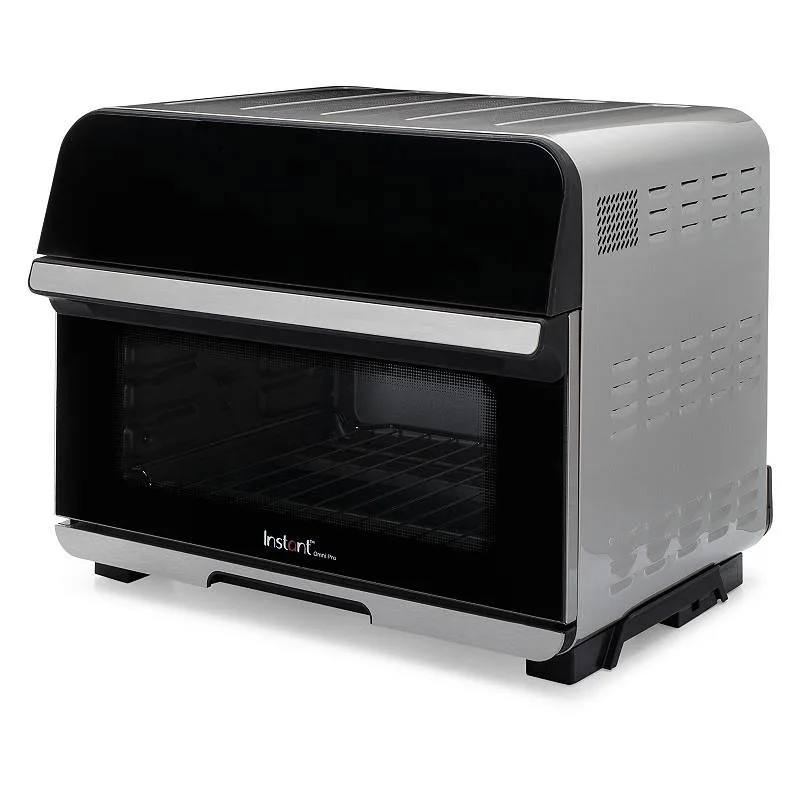
Can I fix a black screen myself?
No, you can’t fix a completely black screen yourself. A black screen usually indicates a failed backlight or a disconnected internal ribbon cable. Opening the unit to investigate will void your manufacturer warranty.
Why is my touch screen flickering?
Flickering is often a sign of an unstable power supply or a failing internal power board. Test your wall outlet with another appliance to ensure it provides steady electricity. Stop using the unit if the flickering persists to avoid fire hazards.
How long should I wait after a power reset?
Wait a few minutes before plugging the unit back in to ensure the system has fully powered down. If you plug it in too quickly, the software may not clear the error state.
Is it safe to use if the screen is unresponsive?
No, it isn’t safe to use the unit if the touch screen is unresponsive. You lose the ability to control temperature or stop the cooking process safely. Operating an appliance you can’t control poses a significant risk of fire or injury.
What happens if I use a power strip?
Using a power strip often causes touch screen failure because these units require high current to operate. Standard power strips can’t handle the oven’s power draw, leading to a voltage drop that freezes electronics. Always plug your oven directly into a dedicated wall outlet.
Final Thoughts
If your display still doesn’t light up, it’s time to reach out to the Instant Brands support team. They’ll help you determine if your unit is covered under warranty for a replacement. Don’t hesitate to contact them soon, as they’re usually happy to guide you through any remaining options you’ve got.
Related guides