
If your Samsung TV is not recognizing HDMI, it can be frustrating. You want to watch your favorite show, use your gaming console, or connect your laptop, but the screen stays blank or shows an error. This problem is surprisingly common, even with newer TVs. Understanding why your TV isn’t recognizing HDMI—and how to fix it—can save you time and stress. In this guide, you’ll learn practical solutions, common mistakes, and helpful tips to get your HDMI devices working again.
Why Samsung Tvs Fail To Recognize Hdmi
Modern TVs, including Samsung models, rely on HDMI ports for connecting devices like streaming sticks, Blu-ray players, and soundbars. When the TV fails to detect HDMI, several causes may be responsible:
- Loose or damaged cable: The most frequent issue is a cable that isn’t plugged in tightly or has internal damage.
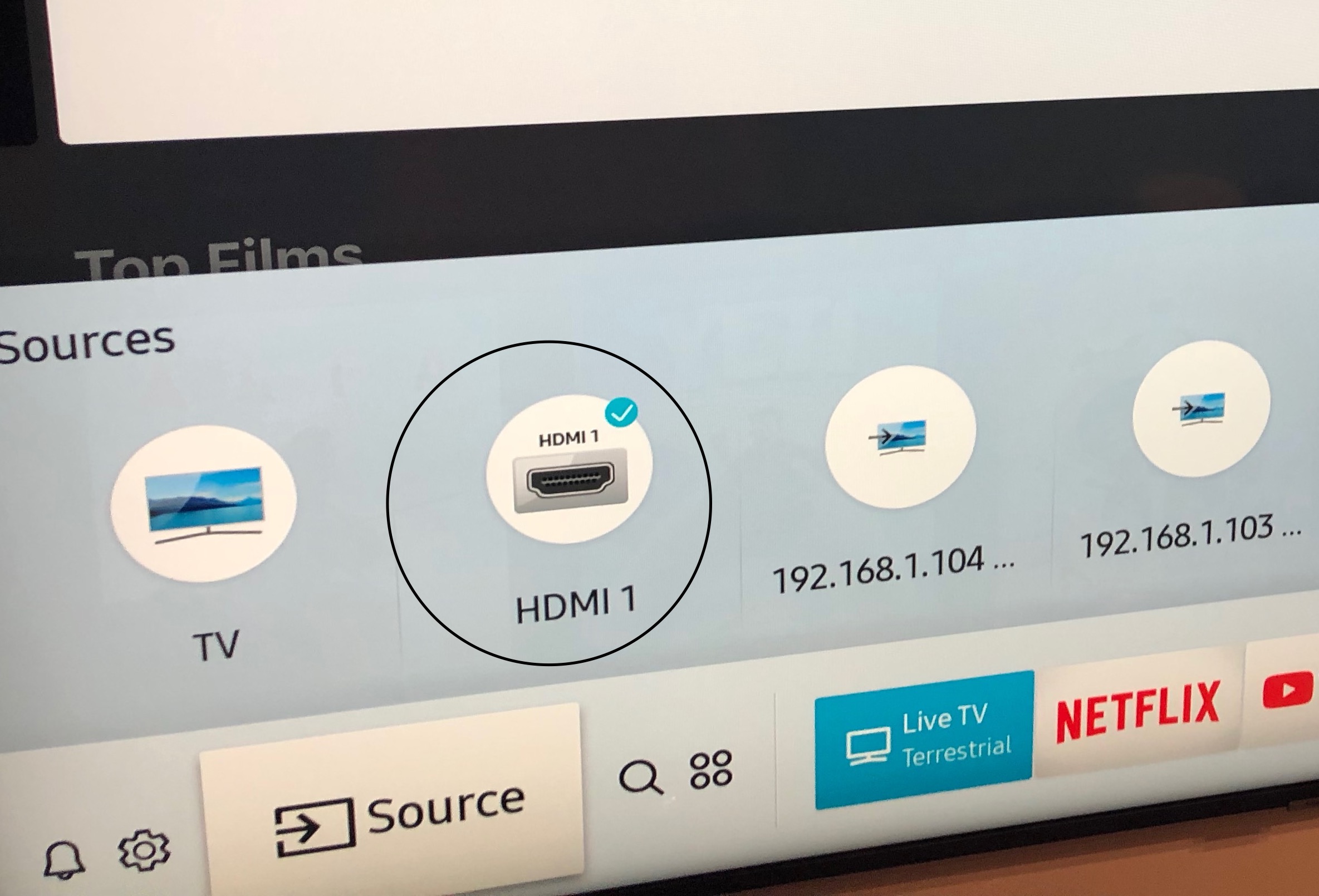
- Incorrect input selection: Many TVs have multiple HDMI ports. If you select the wrong input, your TV shows nothing.
- Device compatibility: Some older devices don’t work well with newer TVs due to differences in HDMI versions.
- TV software glitches: Firmware bugs can make the TV ignore connected devices.
- Port malfunction: Physical damage or internal port failure can cause recognition problems.
Samsung TVs, especially smart models, have complex software and multiple HDMI ports. This increases the chances of confusion, but also gives you more troubleshooting options.
Quick Checks Before Advanced Troubleshooting
Before diving into complex solutions, start with these simple steps:
- Check cable connections. Make sure the HDMI cable is firmly plugged into both the TV and the device.
- Try a different HDMI port. Move the cable to another port on the TV.
- Use a different HDMI cable. Faulty cables are a common culprit.
- Restart both devices. Turn off the TV and HDMI device, wait 30 seconds, then turn them on again.
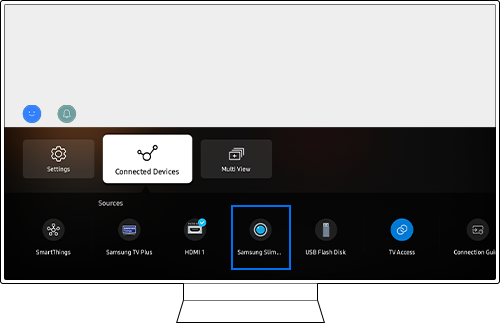
- Select the correct HDMI input. Use the TV remote to choose the right HDMI source.
These steps solve most basic recognition issues. If your TV still doesn’t detect HDMI, continue with deeper troubleshooting.
Advanced Troubleshooting Steps
Samsung TVs include features and settings that can impact HDMI functionality. Let’s break down more advanced fixes:
Update Your Tv’s Firmware
Outdated software can cause HDMI ports to malfunction. Keeping your TV updated is essential.
- Go to Settings > Support > Software Update.
- Choose Update Now.
- Allow the update to complete, then restart your TV.
Enable Hdmi-cec
Samsung calls HDMI-CEC “Anynet+. ” This feature allows devices to communicate with the TV.
- Navigate to Settings > General > External Device Manager.
- Turn on Anynet+ (HDMI-CEC).
Sometimes, enabling HDMI-CEC solves recognition issues, especially with soundbars and Blu-ray players.
Change Hdmi Signal Format
Newer Samsung TVs have options to adjust HDMI signal format. If your device uses an older HDMI version, the signal may be incompatible.
- Go to Settings > General > External Device Manager > HDMI Input Signal Plus.
- Toggle this setting for the port you’re using.
Turning on “HDMI Input Signal Plus” is necessary for UHD or HDR devices.
Factory Reset Your Tv
If all else fails, a factory reset can clear software bugs.
- Go to Settings > Support > Self Diagnosis > Reset.
- Enter your PIN (default is 0000).
- Confirm the reset.
This erases all settings, so use it as a last resort.
Comparing Hdmi Ports And Devices
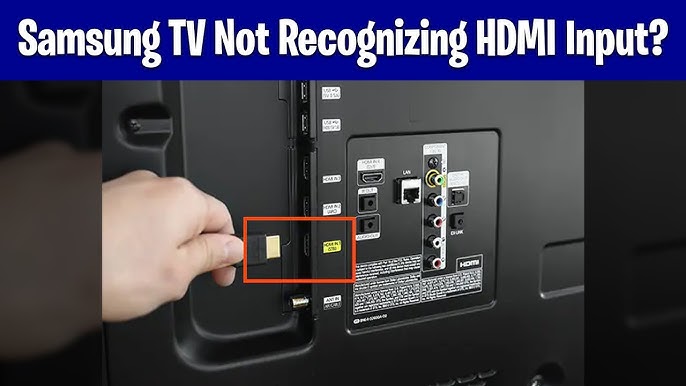
Not all HDMI ports are the same. Samsung TVs often label ports for specific functions, like ARC or UHD. Here’s a quick comparison:
| Port Label | Main Use | Supports Audio Return Channel (ARC) | Best for |
|---|---|---|---|
| HDMI 1 (ARC) | Soundbars, Receivers | Yes | Audio equipment |
| HDMI 2, 3 | General devices | No | Gaming consoles, Streaming sticks |
| HDMI UHD | 4K/HDR devices | No | 4K Blu-ray, UHD players |
Using the correct port is crucial. For example, if you connect a soundbar to a non-ARC port, audio may not work.
Common Hdmi Problems And Solutions
Let’s look at typical problems and how to fix them:
No Signal Or Blank Screen
- Check input selection
- Test with another device
- Replace cable
- Restart TV
Flickering Or Distorted Picture
- Try a certified HDMI cable
- Update device firmware
- Use HDMI UHD port for 4K devices
Audio Not Working
- Enable Anynet+ (HDMI-CEC)
- Use ARC port for soundbars
- Check TV audio settings
Device Not Detected
- Change HDMI cable and port
- Restart both devices
- Update TV firmware
These solutions cover most user problems. If issues persist, you may need technical support.
Hdmi Cable Types And Compatibility
Not all HDMI cables are equal. There are several types:
| Cable Type | Max Resolution | Best Use | Common Mistake |
|---|---|---|---|
| Standard HDMI | 1080p | Older devices | Using for 4K device |
| High-Speed HDMI | 4K | Modern TVs | None |
| Premium High-Speed HDMI | 4K HDR | UHD/HDR content | Using generic cable for HDR |
| Ultra High-Speed HDMI | 8K | Latest devices | Ignoring cable certification |
A common mistake is using a low-quality cable for high-resolution devices. If you have a 4K TV, invest in a Premium High-Speed HDMI cable.
Hidden Settings And Insights Most Beginners Miss
- HDMI-CEC can disable ports. If a connected device misbehaves, it can confuse the TV’s software. Disabling HDMI-CEC temporarily can restore normal operation.
- Samsung’s Auto Detect feature sometimes fails. If the TV doesn’t auto-switch inputs, manually select the HDMI port using the remote.
- Device power cycles matter. Turn off your TV and device, unplug for 60 seconds, then reconnect. This resets the HDMI handshake.
- Firmware mismatches. If your TV and device have old firmware, they may not recognize each other. Always update both.
These hidden solutions often fix stubborn HDMI issues that basic troubleshooting misses.
Practical Tips For Reliable Hdmi Use
- Buy certified cables. Cheap cables can cause signal loss and random disconnects.
- Label your devices. Samsung TVs let you name HDMI ports for quick selection.
- Avoid port overuse. Don’t plug and unplug cables constantly, as this wears out ports.
- Clean ports gently. Dust inside HDMI ports can cause poor connection. Use compressed air or a soft brush.
- Check device settings. Some devices have output settings (like 1080p vs 4K). Match these to your TV’s capabilities.
When To Seek Professional Help
If you’ve tried all steps and your Samsung TV still doesn’t recognize HDMI, it may be time for expert support. Signs you need help:
- Physical damage to HDMI ports (bent pins, cracks)
- Multiple ports failing at once
- Software update errors that won’t resolve
Contact Samsung support or a qualified technician. Sometimes, a mainboard replacement is needed, especially for older TVs.
Real-world Example
Maria bought a new Samsung QLED TV. Her PlayStation worked fine, but her laptop wasn’t detected. She tried switching ports and cables—no success. After updating her TV’s firmware and enabling HDMI Input Signal Plus, her laptop displayed perfectly. The key was matching the laptop’s output settings with her TV’s HDMI port capabilities.
Data On Hdmi Issues
According to a 2022 electronics survey, HDMI recognition problems are among the top three complaints for smart TV owners. Nearly 18% of Samsung TV users report at least one HDMI issue in the first year of use. Most problems are fixed with cable replacement or firmware updates.
External Reference
For more details on HDMI technology and troubleshooting, visit HDMI.org.
Frequently Asked Questions
Why Does My Samsung Tv Say “no Signal” When I Connect Hdmi?
This usually means the TV isn’t detecting any input from the device. Check that the cable is plugged in firmly, select the correct HDMI input, and restart both devices. If the problem continues, try another cable or port.
Can A Faulty Hdmi Cable Cause Recognition Issues?
Yes. Damaged or low-quality cables can block the signal. If your TV doesn’t recognize HDMI, swap the cable for a certified high-speed type. Avoid using very old or generic cables.
Do I Need To Update My Tv Software For Hdmi To Work?
Sometimes. Outdated firmware can create HDMI problems. Go to Settings and update your Samsung TV’s software. This often resolves port detection issues.
What Is Hdmi-cec, And Should I Enable It?
HDMI-CEC (called Anynet+ on Samsung TVs) lets devices control each other, like turning on the TV when you start a Blu-ray player. Enabling it can improve device recognition, but sometimes disabling it fixes certain bugs.
What Should I Do If None Of The Hdmi Ports Work?
If all ports fail, try a factory reset and update the firmware. If that doesn’t help, the TV may have a hardware issue. Contact Samsung support or a technician for repair.
Getting your Samsung TV to recognize HDMI can be simple or complex, depending on the cause. Start with basic checks, then move to advanced settings and updates. Understanding port labels, cable types, and hidden settings will help you avoid common mistakes. With the right steps, you’ll enjoy a clear, reliable HDMI connection—whether you’re gaming, streaming, or watching movies.